Top banner

New

Get All Key Features for Just $6.99

Growth

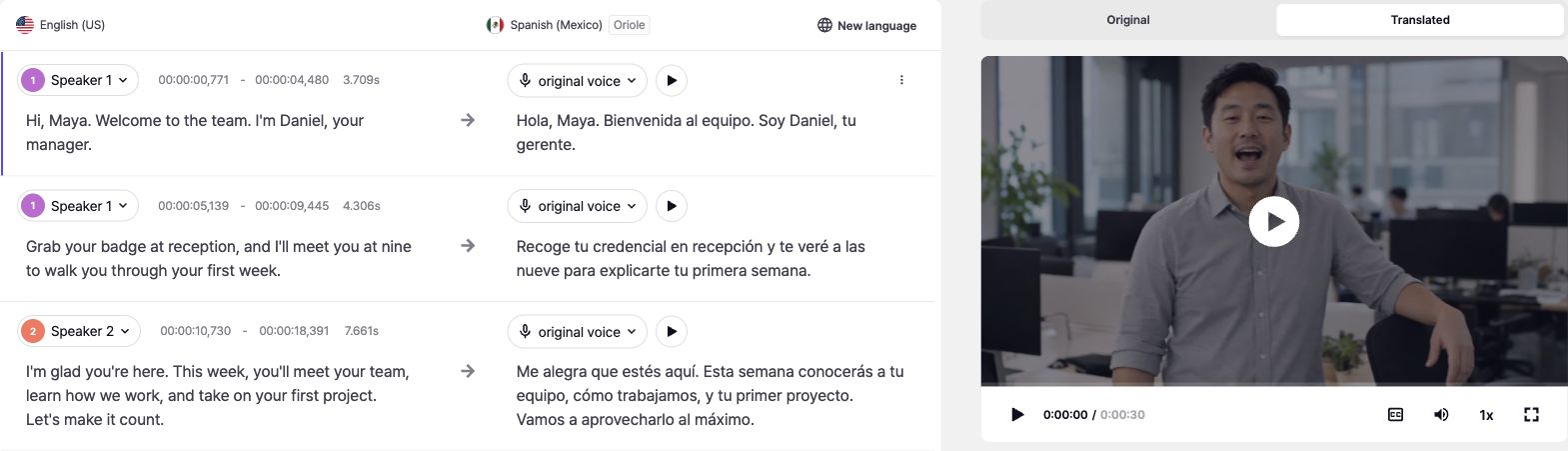
Subtitle & Script Editor for Fixing Dub Lines Fast

Fix Dub Lines in Minutes

AI Video Translator, Localization, and Dubbing Tool

Try it out for Free

Jump to section

Jump to section

Jump to section

Jump to section

Share

Share

Share
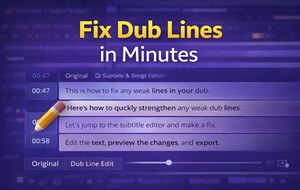
Your team just finished translating a product demo. The voice sounds clear. The timing mostly works. But when you press play, some lines feel unnatural. A sentence runs too long. A phrase sounds too literal. One segment does not match the speaker’s tone.

You do not want to regenerate the entire video. You just need to fix a few awkward dub lines quickly.

This is where a Subtitle & Script Editor becomes essential. It lets you refine the transcript, adjust timing, and polish phrasing before your final export. In this guide, we will explain how it improves AI Dubbing quality, when to use it instead of reprocessing, and how it fits into a modern Video Translator workflow.

This guide is for marketing teams, creators, and training departments producing multilingual content at scale.

Why Awkward Dub Lines Happen in AI Dubbing Workflows?

Even strong AI Dubbing systems can produce lines that feel slightly off. The issue is rarely the technology itself. It is usually one of these:

  • Literal translations that ignore tone

  • Sentences that exceed the natural speaking rhythm

  • Subtitle segmentation that breaks mid-thought

  • Timing windows that are too tight

If your Video to Text Script is not optimized before voice generation, awkward phrasing becomes harder to correct later.

That’s why many teams add a lightweight editing step using a script editor to refine phrasing and timing before export.

How A Subtitle & Script Editor Improves Dubbing Quality?

A Subtitle & Script Editor is not just for fixing typos. It directly affects how natural your final Dubbing sounds.

Clean Segmentation for Smoother Automatic Dubbing

When lines are broken at logical pauses, voice delivery sounds natural. Poor segmentation forces rushed or clipped audio.

By editing line breaks before export, you reduce friction during Automatic Dubbing and improve pacing stability.

Tone Adjustments for Better Voice Translator Results

Some translations are accurate but emotionally flat. An editor allows you to:

  • Shorten phrases

  • Replace stiff wording

  • Clarify meaning without changing intent

This step strengthens your Voice Translator output because the model reads cleaner language.

Timing Alignment Without Reprocessing

Instead of regenerating the entire project, you can:

  • Shift timestamps slightly

  • Extend subtitle duration

  • Trim overly long segments

This saves time and keeps your AI Dubbing workflow efficient.

Where The Video to Text Script Fits in The Editing Process

Your Video to Text Script is the foundation of all multilingual output. If the script is messy, everything downstream becomes harder.

A strong process looks like this:

  1. Generate transcript

  2. Review and clean script

  3. Adjust segmentation and timing

  4. Export for Dubbing

If your team supports multiple markets, a consistent end-to-end workflow matters. Using a video translation platform helps keep terminology, tone, and timing consistent from transcript to final delivery

Subtitle & Script Editor Vs Automated Dialogue Replacement

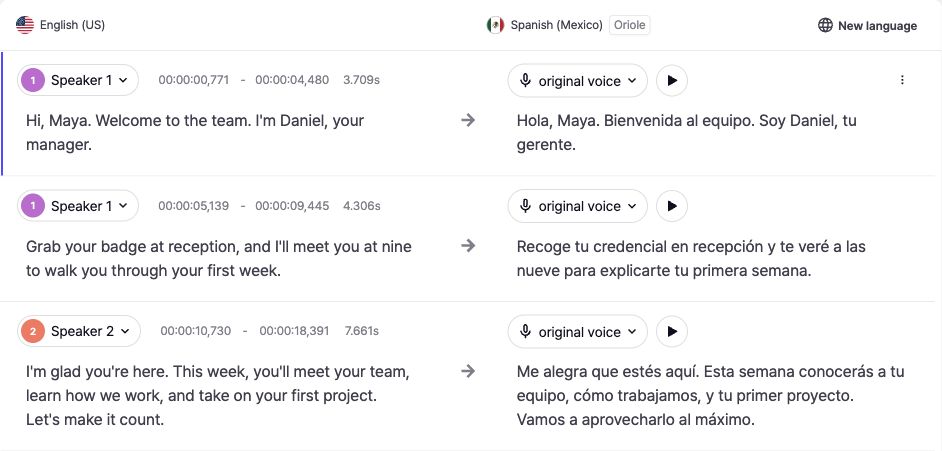
Before vs After subtitle comparison showing awkward line vs refined line

Some teams compare a Subtitle & Script Editor to automated dialogue replacement in post-production. While automated dialogue replacement focuses on re-recording audio, a Subtitle & Script Editor focuses on refining text and timing before voice output.

The key difference:

  • Automated dialogue replacement fixes audio issues

  • Subtitle & Script Editor fixes language and timing logic

When your goal is smoother Dubbing rather than re-recording actors, script editing is often the faster path.

How Video Translator Workflows Depend on Script Editing?

A Video Translator workflow typically follows this sequence:

  • Transcribe

  • Translate

  • Generate voice

  • Sync

  • Refine

Without script refinement, translated lines may not align naturally with speech patterns. Editing first reduces the need for repeated Automatic Dubbing cycles.

If you publish externally, brand tone becomes non-negotiable. Here’s a practical guide on consistent brand voice so your translations don’t drift across markets.

Signs You Should Use a Subtitle & Script Editor Immediately

A script editor becomes critical when your output volume or complexity rises—like when you’re shipping weekly releases, localizing into 3+ languages, supporting multiple speakers, or running paid ads. At that point, even small timing or tone issues repeat across versions, and quick text-level fixes save hours of reprocessing. You should open the editor when:

  • A line sounds correct but unnatural

  • The dub feels rushed in one section

  • A product name is misrepresented

  • Timing shifts cause a minor lip sync mismatch

For marketing campaigns, small phrasing issues can hurt performance. Teams often refine scripts before publishing, especially when doing video ads dubbing across multiple regions.

A Quick Workflow to Fix Awkward Dub Lines in Minutes

Workflow graphic showing Video to Text Script

Here is a practical approach used by many content teams:

Step 1: Review The Translated Script Before Listening

Scan for overly long sentences or unnatural phrasing.

Step 2: Fix Segmentation First

Break lines where a speaker would naturally pause.

Step 3: Adjust Terminology Consistently

Keep product names, acronyms, and key phrases stable across the script.

Step 4: Preview The Dubbing Output

Play only the edited section instead of reprocessing the full project.

This loop helps reduce unnecessary regeneration and improves overall timing quality.

Quick Table of Common Dub Line Problems and Fixes

Problem You Notice

What It Usually Means

Fix inside a Subtitle & Script Editor

Line feels too long for the scene

Translation expanded and timing window is tight

Shorten phrasing, split the sentence, remove filler words

Voice finishes after the mouth stops moving

Audio timing drift

Trim the line, adjust timing, rewrite for tighter pacing

Line sounds correct but unnatural

Written style translation

Rewrite in spoken language and simplify structure

Terms change across scenes

No consistent script control

Standardize terms and update repeated lines

Tone feels too formal or too casual

Style mismatch

Rephrase to match the original intent and audience

How Editing Improves Automatic Dubbing Stability?

When scripts are clean and consistent:

  • Voice delivery becomes smoother

  • Lip synchronization becomes easier

  • Revisions decrease

  • Multilingual consistency improves

A Subtitle & Script Editor reduces friction inside your AI Dubbing pipeline by handling language issues before they become audio problems.

Frequently Asked Questions

Is a Subtitle & Script Editor necessary for every dubbing project?

Not always. For short internal updates, it may not be critical. For public marketing, training, or YouTube content, script refinement significantly improves perceived quality.

Does editing affect Voice Cloning performance?

Yes. Cleaner phrasing improves how Voice Cloning models interpret tone and rhythm.

Can I rely only on automated dialogue replacement?

Automated dialogue replacement addresses recording issues. It does not solve translation phrasing or segmentation problems inside a Video Translator workflow.

Does script editing slow down production?

In most structured workflows, editing saves time by reducing repeated Automatic Dubbing cycles.

Conclusion

A Subtitle & Script Editor is not an optional add-on. It is the control layer that prevents awkward dub lines from reaching your final audience. By refining your Video to Text Script before voice generation, you create smoother Dubbing, stronger Voice Translator output, and more reliable Automatic Dubbing workflows across markets.

Your team just finished translating a product demo. The voice sounds clear. The timing mostly works. But when you press play, some lines feel unnatural. A sentence runs too long. A phrase sounds too literal. One segment does not match the speaker’s tone.

You do not want to regenerate the entire video. You just need to fix a few awkward dub lines quickly.

This is where a Subtitle & Script Editor becomes essential. It lets you refine the transcript, adjust timing, and polish phrasing before your final export. In this guide, we will explain how it improves AI Dubbing quality, when to use it instead of reprocessing, and how it fits into a modern Video Translator workflow.

This guide is for marketing teams, creators, and training departments producing multilingual content at scale.

Why Awkward Dub Lines Happen in AI Dubbing Workflows?

Even strong AI Dubbing systems can produce lines that feel slightly off. The issue is rarely the technology itself. It is usually one of these:

  • Literal translations that ignore tone

  • Sentences that exceed the natural speaking rhythm

  • Subtitle segmentation that breaks mid-thought

  • Timing windows that are too tight

If your Video to Text Script is not optimized before voice generation, awkward phrasing becomes harder to correct later.

That’s why many teams add a lightweight editing step using a script editor to refine phrasing and timing before export.

How A Subtitle & Script Editor Improves Dubbing Quality?

A Subtitle & Script Editor is not just for fixing typos. It directly affects how natural your final Dubbing sounds.

Clean Segmentation for Smoother Automatic Dubbing

When lines are broken at logical pauses, voice delivery sounds natural. Poor segmentation forces rushed or clipped audio.

By editing line breaks before export, you reduce friction during Automatic Dubbing and improve pacing stability.

Tone Adjustments for Better Voice Translator Results

Some translations are accurate but emotionally flat. An editor allows you to:

  • Shorten phrases

  • Replace stiff wording

  • Clarify meaning without changing intent

This step strengthens your Voice Translator output because the model reads cleaner language.

Timing Alignment Without Reprocessing

Instead of regenerating the entire project, you can:

  • Shift timestamps slightly

  • Extend subtitle duration

  • Trim overly long segments

This saves time and keeps your AI Dubbing workflow efficient.

Where The Video to Text Script Fits in The Editing Process

Your Video to Text Script is the foundation of all multilingual output. If the script is messy, everything downstream becomes harder.

A strong process looks like this:

  1. Generate transcript

  2. Review and clean script

  3. Adjust segmentation and timing

  4. Export for Dubbing

If your team supports multiple markets, a consistent end-to-end workflow matters. Using a video translation platform helps keep terminology, tone, and timing consistent from transcript to final delivery

Subtitle & Script Editor Vs Automated Dialogue Replacement

Before vs After subtitle comparison showing awkward line vs refined line

Some teams compare a Subtitle & Script Editor to automated dialogue replacement in post-production. While automated dialogue replacement focuses on re-recording audio, a Subtitle & Script Editor focuses on refining text and timing before voice output.

The key difference:

  • Automated dialogue replacement fixes audio issues

  • Subtitle & Script Editor fixes language and timing logic

When your goal is smoother Dubbing rather than re-recording actors, script editing is often the faster path.

How Video Translator Workflows Depend on Script Editing?

A Video Translator workflow typically follows this sequence:

  • Transcribe

  • Translate

  • Generate voice

  • Sync

  • Refine

Without script refinement, translated lines may not align naturally with speech patterns. Editing first reduces the need for repeated Automatic Dubbing cycles.

If you publish externally, brand tone becomes non-negotiable. Here’s a practical guide on consistent brand voice so your translations don’t drift across markets.

Signs You Should Use a Subtitle & Script Editor Immediately

A script editor becomes critical when your output volume or complexity rises—like when you’re shipping weekly releases, localizing into 3+ languages, supporting multiple speakers, or running paid ads. At that point, even small timing or tone issues repeat across versions, and quick text-level fixes save hours of reprocessing. You should open the editor when:

  • A line sounds correct but unnatural

  • The dub feels rushed in one section

  • A product name is misrepresented

  • Timing shifts cause a minor lip sync mismatch

For marketing campaigns, small phrasing issues can hurt performance. Teams often refine scripts before publishing, especially when doing video ads dubbing across multiple regions.

A Quick Workflow to Fix Awkward Dub Lines in Minutes

Workflow graphic showing Video to Text Script

Here is a practical approach used by many content teams:

Step 1: Review The Translated Script Before Listening

Scan for overly long sentences or unnatural phrasing.

Step 2: Fix Segmentation First

Break lines where a speaker would naturally pause.

Step 3: Adjust Terminology Consistently

Keep product names, acronyms, and key phrases stable across the script.

Step 4: Preview The Dubbing Output

Play only the edited section instead of reprocessing the full project.

This loop helps reduce unnecessary regeneration and improves overall timing quality.

Quick Table of Common Dub Line Problems and Fixes

Problem You Notice

What It Usually Means

Fix inside a Subtitle & Script Editor

Line feels too long for the scene

Translation expanded and timing window is tight

Shorten phrasing, split the sentence, remove filler words

Voice finishes after the mouth stops moving

Audio timing drift

Trim the line, adjust timing, rewrite for tighter pacing

Line sounds correct but unnatural

Written style translation

Rewrite in spoken language and simplify structure

Terms change across scenes

No consistent script control

Standardize terms and update repeated lines

Tone feels too formal or too casual

Style mismatch

Rephrase to match the original intent and audience

How Editing Improves Automatic Dubbing Stability?

When scripts are clean and consistent:

  • Voice delivery becomes smoother

  • Lip synchronization becomes easier

  • Revisions decrease

  • Multilingual consistency improves

A Subtitle & Script Editor reduces friction inside your AI Dubbing pipeline by handling language issues before they become audio problems.

Frequently Asked Questions

Is a Subtitle & Script Editor necessary for every dubbing project?

Not always. For short internal updates, it may not be critical. For public marketing, training, or YouTube content, script refinement significantly improves perceived quality.

Does editing affect Voice Cloning performance?

Yes. Cleaner phrasing improves how Voice Cloning models interpret tone and rhythm.

Can I rely only on automated dialogue replacement?

Automated dialogue replacement addresses recording issues. It does not solve translation phrasing or segmentation problems inside a Video Translator workflow.

Does script editing slow down production?

In most structured workflows, editing saves time by reducing repeated Automatic Dubbing cycles.

Conclusion

A Subtitle & Script Editor is not an optional add-on. It is the control layer that prevents awkward dub lines from reaching your final audience. By refining your Video to Text Script before voice generation, you create smoother Dubbing, stronger Voice Translator output, and more reliable Automatic Dubbing workflows across markets.

Your team just finished translating a product demo. The voice sounds clear. The timing mostly works. But when you press play, some lines feel unnatural. A sentence runs too long. A phrase sounds too literal. One segment does not match the speaker’s tone.

You do not want to regenerate the entire video. You just need to fix a few awkward dub lines quickly.

This is where a Subtitle & Script Editor becomes essential. It lets you refine the transcript, adjust timing, and polish phrasing before your final export. In this guide, we will explain how it improves AI Dubbing quality, when to use it instead of reprocessing, and how it fits into a modern Video Translator workflow.

This guide is for marketing teams, creators, and training departments producing multilingual content at scale.

Why Awkward Dub Lines Happen in AI Dubbing Workflows?

Even strong AI Dubbing systems can produce lines that feel slightly off. The issue is rarely the technology itself. It is usually one of these:

  • Literal translations that ignore tone

  • Sentences that exceed the natural speaking rhythm

  • Subtitle segmentation that breaks mid-thought

  • Timing windows that are too tight

If your Video to Text Script is not optimized before voice generation, awkward phrasing becomes harder to correct later.

That’s why many teams add a lightweight editing step using a script editor to refine phrasing and timing before export.

How A Subtitle & Script Editor Improves Dubbing Quality?

A Subtitle & Script Editor is not just for fixing typos. It directly affects how natural your final Dubbing sounds.

Clean Segmentation for Smoother Automatic Dubbing

When lines are broken at logical pauses, voice delivery sounds natural. Poor segmentation forces rushed or clipped audio.

By editing line breaks before export, you reduce friction during Automatic Dubbing and improve pacing stability.

Tone Adjustments for Better Voice Translator Results

Some translations are accurate but emotionally flat. An editor allows you to:

  • Shorten phrases

  • Replace stiff wording

  • Clarify meaning without changing intent

This step strengthens your Voice Translator output because the model reads cleaner language.

Timing Alignment Without Reprocessing

Instead of regenerating the entire project, you can:

  • Shift timestamps slightly

  • Extend subtitle duration

  • Trim overly long segments

This saves time and keeps your AI Dubbing workflow efficient.

Where The Video to Text Script Fits in The Editing Process

Your Video to Text Script is the foundation of all multilingual output. If the script is messy, everything downstream becomes harder.

A strong process looks like this:

  1. Generate transcript

  2. Review and clean script

  3. Adjust segmentation and timing

  4. Export for Dubbing

If your team supports multiple markets, a consistent end-to-end workflow matters. Using a video translation platform helps keep terminology, tone, and timing consistent from transcript to final delivery

Subtitle & Script Editor Vs Automated Dialogue Replacement

Before vs After subtitle comparison showing awkward line vs refined line

Some teams compare a Subtitle & Script Editor to automated dialogue replacement in post-production. While automated dialogue replacement focuses on re-recording audio, a Subtitle & Script Editor focuses on refining text and timing before voice output.

The key difference:

  • Automated dialogue replacement fixes audio issues

  • Subtitle & Script Editor fixes language and timing logic

When your goal is smoother Dubbing rather than re-recording actors, script editing is often the faster path.

How Video Translator Workflows Depend on Script Editing?

A Video Translator workflow typically follows this sequence:

  • Transcribe

  • Translate

  • Generate voice

  • Sync

  • Refine

Without script refinement, translated lines may not align naturally with speech patterns. Editing first reduces the need for repeated Automatic Dubbing cycles.

If you publish externally, brand tone becomes non-negotiable. Here’s a practical guide on consistent brand voice so your translations don’t drift across markets.

Signs You Should Use a Subtitle & Script Editor Immediately

A script editor becomes critical when your output volume or complexity rises—like when you’re shipping weekly releases, localizing into 3+ languages, supporting multiple speakers, or running paid ads. At that point, even small timing or tone issues repeat across versions, and quick text-level fixes save hours of reprocessing. You should open the editor when:

  • A line sounds correct but unnatural

  • The dub feels rushed in one section

  • A product name is misrepresented

  • Timing shifts cause a minor lip sync mismatch

For marketing campaigns, small phrasing issues can hurt performance. Teams often refine scripts before publishing, especially when doing video ads dubbing across multiple regions.

A Quick Workflow to Fix Awkward Dub Lines in Minutes

Workflow graphic showing Video to Text Script

Here is a practical approach used by many content teams:

Step 1: Review The Translated Script Before Listening

Scan for overly long sentences or unnatural phrasing.

Step 2: Fix Segmentation First

Break lines where a speaker would naturally pause.

Step 3: Adjust Terminology Consistently

Keep product names, acronyms, and key phrases stable across the script.

Step 4: Preview The Dubbing Output

Play only the edited section instead of reprocessing the full project.

This loop helps reduce unnecessary regeneration and improves overall timing quality.

Quick Table of Common Dub Line Problems and Fixes

Problem You Notice

What It Usually Means

Fix inside a Subtitle & Script Editor

Line feels too long for the scene

Translation expanded and timing window is tight

Shorten phrasing, split the sentence, remove filler words

Voice finishes after the mouth stops moving

Audio timing drift

Trim the line, adjust timing, rewrite for tighter pacing

Line sounds correct but unnatural

Written style translation

Rewrite in spoken language and simplify structure

Terms change across scenes

No consistent script control

Standardize terms and update repeated lines

Tone feels too formal or too casual

Style mismatch

Rephrase to match the original intent and audience

How Editing Improves Automatic Dubbing Stability?

When scripts are clean and consistent:

  • Voice delivery becomes smoother

  • Lip synchronization becomes easier

  • Revisions decrease

  • Multilingual consistency improves

A Subtitle & Script Editor reduces friction inside your AI Dubbing pipeline by handling language issues before they become audio problems.

Frequently Asked Questions

Is a Subtitle & Script Editor necessary for every dubbing project?

Not always. For short internal updates, it may not be critical. For public marketing, training, or YouTube content, script refinement significantly improves perceived quality.

Does editing affect Voice Cloning performance?

Yes. Cleaner phrasing improves how Voice Cloning models interpret tone and rhythm.

Can I rely only on automated dialogue replacement?

Automated dialogue replacement addresses recording issues. It does not solve translation phrasing or segmentation problems inside a Video Translator workflow.

Does script editing slow down production?

In most structured workflows, editing saves time by reducing repeated Automatic Dubbing cycles.

Conclusion

A Subtitle & Script Editor is not an optional add-on. It is the control layer that prevents awkward dub lines from reaching your final audience. By refining your Video to Text Script before voice generation, you create smoother Dubbing, stronger Voice Translator output, and more reliable Automatic Dubbing workflows across markets.

Your team just finished translating a product demo. The voice sounds clear. The timing mostly works. But when you press play, some lines feel unnatural. A sentence runs too long. A phrase sounds too literal. One segment does not match the speaker’s tone.

You do not want to regenerate the entire video. You just need to fix a few awkward dub lines quickly.

This is where a Subtitle & Script Editor becomes essential. It lets you refine the transcript, adjust timing, and polish phrasing before your final export. In this guide, we will explain how it improves AI Dubbing quality, when to use it instead of reprocessing, and how it fits into a modern Video Translator workflow.

This guide is for marketing teams, creators, and training departments producing multilingual content at scale.

Why Awkward Dub Lines Happen in AI Dubbing Workflows?

Even strong AI Dubbing systems can produce lines that feel slightly off. The issue is rarely the technology itself. It is usually one of these:

  • Literal translations that ignore tone

  • Sentences that exceed the natural speaking rhythm

  • Subtitle segmentation that breaks mid-thought

  • Timing windows that are too tight

If your Video to Text Script is not optimized before voice generation, awkward phrasing becomes harder to correct later.

That’s why many teams add a lightweight editing step using a script editor to refine phrasing and timing before export.

How A Subtitle & Script Editor Improves Dubbing Quality?

A Subtitle & Script Editor is not just for fixing typos. It directly affects how natural your final Dubbing sounds.

Clean Segmentation for Smoother Automatic Dubbing

When lines are broken at logical pauses, voice delivery sounds natural. Poor segmentation forces rushed or clipped audio.

By editing line breaks before export, you reduce friction during Automatic Dubbing and improve pacing stability.

Tone Adjustments for Better Voice Translator Results

Some translations are accurate but emotionally flat. An editor allows you to:

  • Shorten phrases

  • Replace stiff wording

  • Clarify meaning without changing intent

This step strengthens your Voice Translator output because the model reads cleaner language.

Timing Alignment Without Reprocessing

Instead of regenerating the entire project, you can:

  • Shift timestamps slightly

  • Extend subtitle duration

  • Trim overly long segments

This saves time and keeps your AI Dubbing workflow efficient.

Where The Video to Text Script Fits in The Editing Process

Your Video to Text Script is the foundation of all multilingual output. If the script is messy, everything downstream becomes harder.

A strong process looks like this:

  1. Generate transcript

  2. Review and clean script

  3. Adjust segmentation and timing

  4. Export for Dubbing

If your team supports multiple markets, a consistent end-to-end workflow matters. Using a video translation platform helps keep terminology, tone, and timing consistent from transcript to final delivery

Subtitle & Script Editor Vs Automated Dialogue Replacement

Before vs After subtitle comparison showing awkward line vs refined line

Some teams compare a Subtitle & Script Editor to automated dialogue replacement in post-production. While automated dialogue replacement focuses on re-recording audio, a Subtitle & Script Editor focuses on refining text and timing before voice output.

The key difference:

  • Automated dialogue replacement fixes audio issues

  • Subtitle & Script Editor fixes language and timing logic

When your goal is smoother Dubbing rather than re-recording actors, script editing is often the faster path.

How Video Translator Workflows Depend on Script Editing?

A Video Translator workflow typically follows this sequence:

  • Transcribe

  • Translate

  • Generate voice

  • Sync

  • Refine

Without script refinement, translated lines may not align naturally with speech patterns. Editing first reduces the need for repeated Automatic Dubbing cycles.

If you publish externally, brand tone becomes non-negotiable. Here’s a practical guide on consistent brand voice so your translations don’t drift across markets.

Signs You Should Use a Subtitle & Script Editor Immediately

A script editor becomes critical when your output volume or complexity rises—like when you’re shipping weekly releases, localizing into 3+ languages, supporting multiple speakers, or running paid ads. At that point, even small timing or tone issues repeat across versions, and quick text-level fixes save hours of reprocessing. You should open the editor when:

  • A line sounds correct but unnatural

  • The dub feels rushed in one section

  • A product name is misrepresented

  • Timing shifts cause a minor lip sync mismatch

For marketing campaigns, small phrasing issues can hurt performance. Teams often refine scripts before publishing, especially when doing video ads dubbing across multiple regions.

A Quick Workflow to Fix Awkward Dub Lines in Minutes

Workflow graphic showing Video to Text Script

Here is a practical approach used by many content teams:

Step 1: Review The Translated Script Before Listening

Scan for overly long sentences or unnatural phrasing.

Step 2: Fix Segmentation First

Break lines where a speaker would naturally pause.

Step 3: Adjust Terminology Consistently

Keep product names, acronyms, and key phrases stable across the script.

Step 4: Preview The Dubbing Output

Play only the edited section instead of reprocessing the full project.

This loop helps reduce unnecessary regeneration and improves overall timing quality.

Quick Table of Common Dub Line Problems and Fixes

Problem You Notice

What It Usually Means

Fix inside a Subtitle & Script Editor

Line feels too long for the scene

Translation expanded and timing window is tight

Shorten phrasing, split the sentence, remove filler words

Voice finishes after the mouth stops moving

Audio timing drift

Trim the line, adjust timing, rewrite for tighter pacing

Line sounds correct but unnatural

Written style translation

Rewrite in spoken language and simplify structure

Terms change across scenes

No consistent script control

Standardize terms and update repeated lines

Tone feels too formal or too casual

Style mismatch

Rephrase to match the original intent and audience

How Editing Improves Automatic Dubbing Stability?

When scripts are clean and consistent:

  • Voice delivery becomes smoother

  • Lip synchronization becomes easier

  • Revisions decrease

  • Multilingual consistency improves

A Subtitle & Script Editor reduces friction inside your AI Dubbing pipeline by handling language issues before they become audio problems.

Frequently Asked Questions

Is a Subtitle & Script Editor necessary for every dubbing project?

Not always. For short internal updates, it may not be critical. For public marketing, training, or YouTube content, script refinement significantly improves perceived quality.

Does editing affect Voice Cloning performance?

Yes. Cleaner phrasing improves how Voice Cloning models interpret tone and rhythm.

Can I rely only on automated dialogue replacement?

Automated dialogue replacement addresses recording issues. It does not solve translation phrasing or segmentation problems inside a Video Translator workflow.

Does script editing slow down production?

In most structured workflows, editing saves time by reducing repeated Automatic Dubbing cycles.

Conclusion

A Subtitle & Script Editor is not an optional add-on. It is the control layer that prevents awkward dub lines from reaching your final audience. By refining your Video to Text Script before voice generation, you create smoother Dubbing, stronger Voice Translator output, and more reliable Automatic Dubbing workflows across markets.