




Product Guide
How to Remove Background Music From a Video Without Losing the Dialogue
Jump to section
Jump to section
Share
Share
Share

AI Video Translator, Localization, and Dubbing Tool
Try it out for Free
To remove background music from a video and keep the speech, you need to separate the audio by sound type rather than by time. Muting a section removes the voice along with the music. AI audio separation splits the file into a music track and a speech track, so you can export only the speech and drop the music.
That is the short answer. Which method you should actually use depends on one thing: whether you still have the original audio as separate tracks. Most people do not, which is why this is harder than it looks.
Why muting does not work
The instinct is to find the part with music and mute it. This fails for a specific reason.
Audio in a finished video is a single mixed layer. The music, your voice, the room, and every other sound are summed into one waveform. There is no music channel sitting underneath waiting to be switched off. Mute a range and everything in that range disappears, including the words you needed.
This is why the problem is hard when the music plays underneath continuous speech, which is exactly the case in a café shoot, a store walkthrough, a gym clip, or a conference recording. There is no silent gap to cut.
The four methods, and when each one works
Method | Works when | Cost |
|---|---|---|
Mute the music track in your editor | You still have the original project with separate tracks | Free, but rarely available |
YouTube Studio song tools | The music triggered a copyright claim on an upload | Free |
Audacity center-channel trick | The file is true stereo and the music sits wide | Free, fails on phone footage |
AI audio separation | Any mixed file, including mono phone video | Free to test |
Method 1: Mute the music track in your editor
If you added the music yourself in Premiere, Final Cut, DaVinci Resolve, or CapCut, and you still have the project file, stop reading. Open the project, find the music track, delete it, and export.
This is the only method with zero quality loss, because you are not removing anything from a mix. You are removing a layer before the mix happens.
It only works if the music was added in post and the project still exists. If the music was in the room while you filmed, or you only have the exported MP4, skip to Method 4.
Method 2: YouTube Studio, if the music caused a claim
If the reason you want the music gone is a Content ID claim, YouTube Studio has built-in song tools in the editor. Try them first, since they are free and nothing else is involved.
The limitation creators report is the same one described above. Muting a claimed segment takes the voice with it, and automated song removal does not reliably leave usable audio when the music runs under dense speech. YouTube's tooling changes, so check the current guidance in YouTube Help before relying on it.
If the result is unusable, the file-level approach in Method 4 gives you the dialogue back and you can re-upload with licensed music. We cover the claim process in detail in our guide to fixinyoutube-copyright-claim-background-musicg a YouTube copyright claim on background music.
Method 3: The Audacity center-channel trick, and why it usually fails
This is the advice you will find in most older tutorials, and it is worth understanding why it disappoints.
Audacity's vocal reduction works on stereo geometry, not on sound recognition. In a studio music mix, lead vocals are usually panned dead center while instruments are spread left and right. Invert one channel against the other and the center content cancels out.
Three problems when the source is a video:
It targets the wrong thing. The trick cancels whatever is centered. In a video, that is your voice, not the music. It gives you the opposite of what you asked for.
Phone video is effectively mono. Both channels carry nearly identical audio, so there is no stereo difference to exploit. The technique has nothing to work with and produces silence or nothing at all.
Real rooms are not studio mixes. Music bleeding from a café speaker is not neatly panned. It is everywhere, including the center.
The search data reflects this. Interest in Audacity-based vocal removal is down sharply year over year while AI-based tools climb. The method still has a place for true stereo music files. For video footage, it is the wrong tool.
Method 4: AI audio separation
This is the general answer, and the only one that works on a mono MP4 with music under speech.
Instead of using stereo geometry, the AI is trained to recognize what different sound types look like and pulls them apart into independent tracks. Speech becomes one track. Background music and ambience become another. You then export only what you want.
With Perso Dubbing:
Upload the video file. No need to extract the audio first. MP4, MOV, and WebM are handled directly, alongside MP3, WAV, and M4A, up to 200MB.
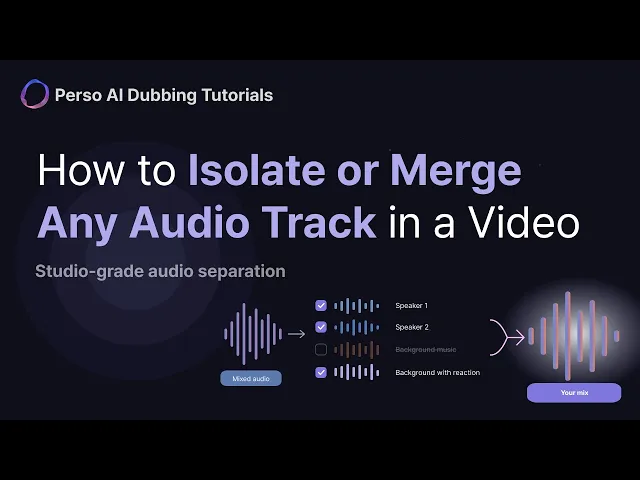
Let it separate. The file splits into speech, per-speaker voices, background music, and ambient sound.
Preview the speech track. Play it and listen specifically for music bleeding through underneath. This is the step that decides whether the result is usable.
Export the speech-only mix, then bring it back into your editor and add licensed music if you want it.
Separation quality is what separates a usable result from a muddy one. On MUSDB18, the standard public benchmark for this task, Perso Dubbing scored 10.67 dB median SI-SDR against Meta's HTDemucs at 8.36 dB, winning on 44 of 50 tracks. Per-sample results are published so the numbers can be re-run independently. Verified May 2026.
You can check the result on your own file before paying. The first 60 seconds separate free with no signup, and trial uploads are deleted when the session ends.
Test it on your own video. Start free →
What you gain and what you lose
Being straight about the tradeoff, because most tutorials skip it.
When you export a speech-only track, you remove the music. You also remove the room. Audience laughter, applause, street noise, and ambience all live in the background layer alongside the music, so they leave with it.
For a talking-head clip where a café was playing music, this is exactly what you want. The result is clean and the music is gone.
For an event recap, a live talk, or a comedy set, a speech-only export can sound flat and disconnected from the picture. Two ways to handle it:
Add ambience back in your editor. A light room tone or crowd bed under the dialogue restores the feel.
Keep the background instead of the speech. Perso Dubbing produces two separate background tracks from one upload.
Background Musicgives pure music and ambience with every human sound stripped out.Background with Reactionkeeps laughter and applause alongside the music. Both are useful when you want the atmosphere, not the words, though note that both include the music, so neither is the track to use when the music itself is the problem.
If you only want to lower the music, not remove it
Sometimes the music is fine. It is just too loud under the dialogue.
If you have the project file, this is a volume automation job. Duck the music track a few dB whenever someone speaks. Every editor has this.
If you only have the finished file, you cannot lower a layer that does not exist as a layer. The route is the same: separate the tracks, then remix them at the balance you want. Perso Dubbing lets you combine selected tracks into a single export, so you can pair the speech track with a quieter background instead of dropping it entirely.
How to remove background music from a video on iPhone
There is no built-in iOS feature that separates music from speech in a finished video. Photos and iMovie can mute audio, which brings back the same all-or-nothing problem.
The practical route on a phone is a browser-based separator. Upload the video from the phone, let the separation run, and download the speech track. Nothing to install.
While you are here: cleaning up the audio
Removing music is often half the job. If the recording also has hiss, hum, or room echo, that is a different process called noise reduction, and it runs on the speech track after separation, not before. Interest in cleaning up video audio has climbed sharply in recent months, likely for the same reason separation has: the tools finally work on real footage rather than only on studio files.
Order matters. Separate first, then denoise the isolated speech. Denoising a mixed file tends to smear the music into the voice and makes separation worse afterward.
Frequently asked questions
How do I remove background music from a video but keep the voice?
Separate the audio by sound type, then export only the speech track. Muting removes everything in a time range including the voice, because a finished video has one mixed audio layer rather than separate music and speech channels. AI separation splits that mix into independent tracks so the speech can be kept on its own.
Can I remove background music from a video for free?
Yes, up to a point. If you have the original project file, deleting the music track in your editor is free and lossless. If you only have the exported file, Perso Dubbing separates the first 60 seconds free with no signup, which is enough to judge whether the speech survives cleanly before you commit.
Why does removing background music also remove the crowd noise?
Because laughter, applause, and ambience are part of the background layer, not the speech layer. A speech-only export drops all of it. If you need the atmosphere, add room tone back in your editor, or export a background track separately and remix at a lower level.
Does the Audacity method work on video?
Usually not. It cancels whatever is centered in a stereo field, which in a video is the voice rather than the music, and phone footage is close to mono so there is no stereo difference to work with. It suits true stereo music files, not footage.
How do I remove BGM from a video without re-recording?
Upload the video to an AI separator, export the speech-only track, and drop that back into your edit. Nothing is re-recorded. Quality depends on how cleanly the separation is done, so preview the speech track and listen for music bleeding underneath before exporting.
Can I extract the background music instead of removing it?
Yes. Perso Dubbing produces a pure background track with every human sound removed, plus a second version that keeps laughter and applause alongside the music. Both are common inputs for re-dubbing over a clean bed.
To remove background music from a video and keep the speech, you need to separate the audio by sound type rather than by time. Muting a section removes the voice along with the music. AI audio separation splits the file into a music track and a speech track, so you can export only the speech and drop the music.
That is the short answer. Which method you should actually use depends on one thing: whether you still have the original audio as separate tracks. Most people do not, which is why this is harder than it looks.
Why muting does not work
The instinct is to find the part with music and mute it. This fails for a specific reason.
Audio in a finished video is a single mixed layer. The music, your voice, the room, and every other sound are summed into one waveform. There is no music channel sitting underneath waiting to be switched off. Mute a range and everything in that range disappears, including the words you needed.
This is why the problem is hard when the music plays underneath continuous speech, which is exactly the case in a café shoot, a store walkthrough, a gym clip, or a conference recording. There is no silent gap to cut.
The four methods, and when each one works
Method | Works when | Cost |
|---|---|---|
Mute the music track in your editor | You still have the original project with separate tracks | Free, but rarely available |
YouTube Studio song tools | The music triggered a copyright claim on an upload | Free |
Audacity center-channel trick | The file is true stereo and the music sits wide | Free, fails on phone footage |
AI audio separation | Any mixed file, including mono phone video | Free to test |
Method 1: Mute the music track in your editor
If you added the music yourself in Premiere, Final Cut, DaVinci Resolve, or CapCut, and you still have the project file, stop reading. Open the project, find the music track, delete it, and export.
This is the only method with zero quality loss, because you are not removing anything from a mix. You are removing a layer before the mix happens.
It only works if the music was added in post and the project still exists. If the music was in the room while you filmed, or you only have the exported MP4, skip to Method 4.
Method 2: YouTube Studio, if the music caused a claim
If the reason you want the music gone is a Content ID claim, YouTube Studio has built-in song tools in the editor. Try them first, since they are free and nothing else is involved.
The limitation creators report is the same one described above. Muting a claimed segment takes the voice with it, and automated song removal does not reliably leave usable audio when the music runs under dense speech. YouTube's tooling changes, so check the current guidance in YouTube Help before relying on it.
If the result is unusable, the file-level approach in Method 4 gives you the dialogue back and you can re-upload with licensed music. We cover the claim process in detail in our guide to fixinyoutube-copyright-claim-background-musicg a YouTube copyright claim on background music.
Method 3: The Audacity center-channel trick, and why it usually fails
This is the advice you will find in most older tutorials, and it is worth understanding why it disappoints.
Audacity's vocal reduction works on stereo geometry, not on sound recognition. In a studio music mix, lead vocals are usually panned dead center while instruments are spread left and right. Invert one channel against the other and the center content cancels out.
Three problems when the source is a video:
It targets the wrong thing. The trick cancels whatever is centered. In a video, that is your voice, not the music. It gives you the opposite of what you asked for.
Phone video is effectively mono. Both channels carry nearly identical audio, so there is no stereo difference to exploit. The technique has nothing to work with and produces silence or nothing at all.
Real rooms are not studio mixes. Music bleeding from a café speaker is not neatly panned. It is everywhere, including the center.
The search data reflects this. Interest in Audacity-based vocal removal is down sharply year over year while AI-based tools climb. The method still has a place for true stereo music files. For video footage, it is the wrong tool.
Method 4: AI audio separation
This is the general answer, and the only one that works on a mono MP4 with music under speech.
Instead of using stereo geometry, the AI is trained to recognize what different sound types look like and pulls them apart into independent tracks. Speech becomes one track. Background music and ambience become another. You then export only what you want.
With Perso Dubbing:
Upload the video file. No need to extract the audio first. MP4, MOV, and WebM are handled directly, alongside MP3, WAV, and M4A, up to 200MB.
Let it separate. The file splits into speech, per-speaker voices, background music, and ambient sound.
Preview the speech track. Play it and listen specifically for music bleeding through underneath. This is the step that decides whether the result is usable.
Export the speech-only mix, then bring it back into your editor and add licensed music if you want it.
Separation quality is what separates a usable result from a muddy one. On MUSDB18, the standard public benchmark for this task, Perso Dubbing scored 10.67 dB median SI-SDR against Meta's HTDemucs at 8.36 dB, winning on 44 of 50 tracks. Per-sample results are published so the numbers can be re-run independently. Verified May 2026.
You can check the result on your own file before paying. The first 60 seconds separate free with no signup, and trial uploads are deleted when the session ends.
Test it on your own video. Start free →
What you gain and what you lose
Being straight about the tradeoff, because most tutorials skip it.
When you export a speech-only track, you remove the music. You also remove the room. Audience laughter, applause, street noise, and ambience all live in the background layer alongside the music, so they leave with it.
For a talking-head clip where a café was playing music, this is exactly what you want. The result is clean and the music is gone.
For an event recap, a live talk, or a comedy set, a speech-only export can sound flat and disconnected from the picture. Two ways to handle it:
Add ambience back in your editor. A light room tone or crowd bed under the dialogue restores the feel.
Keep the background instead of the speech. Perso Dubbing produces two separate background tracks from one upload.
Background Musicgives pure music and ambience with every human sound stripped out.Background with Reactionkeeps laughter and applause alongside the music. Both are useful when you want the atmosphere, not the words, though note that both include the music, so neither is the track to use when the music itself is the problem.
If you only want to lower the music, not remove it
Sometimes the music is fine. It is just too loud under the dialogue.
If you have the project file, this is a volume automation job. Duck the music track a few dB whenever someone speaks. Every editor has this.
If you only have the finished file, you cannot lower a layer that does not exist as a layer. The route is the same: separate the tracks, then remix them at the balance you want. Perso Dubbing lets you combine selected tracks into a single export, so you can pair the speech track with a quieter background instead of dropping it entirely.
How to remove background music from a video on iPhone
There is no built-in iOS feature that separates music from speech in a finished video. Photos and iMovie can mute audio, which brings back the same all-or-nothing problem.
The practical route on a phone is a browser-based separator. Upload the video from the phone, let the separation run, and download the speech track. Nothing to install.
While you are here: cleaning up the audio
Removing music is often half the job. If the recording also has hiss, hum, or room echo, that is a different process called noise reduction, and it runs on the speech track after separation, not before. Interest in cleaning up video audio has climbed sharply in recent months, likely for the same reason separation has: the tools finally work on real footage rather than only on studio files.
Order matters. Separate first, then denoise the isolated speech. Denoising a mixed file tends to smear the music into the voice and makes separation worse afterward.
Frequently asked questions
How do I remove background music from a video but keep the voice?
Separate the audio by sound type, then export only the speech track. Muting removes everything in a time range including the voice, because a finished video has one mixed audio layer rather than separate music and speech channels. AI separation splits that mix into independent tracks so the speech can be kept on its own.
Can I remove background music from a video for free?
Yes, up to a point. If you have the original project file, deleting the music track in your editor is free and lossless. If you only have the exported file, Perso Dubbing separates the first 60 seconds free with no signup, which is enough to judge whether the speech survives cleanly before you commit.
Why does removing background music also remove the crowd noise?
Because laughter, applause, and ambience are part of the background layer, not the speech layer. A speech-only export drops all of it. If you need the atmosphere, add room tone back in your editor, or export a background track separately and remix at a lower level.
Does the Audacity method work on video?
Usually not. It cancels whatever is centered in a stereo field, which in a video is the voice rather than the music, and phone footage is close to mono so there is no stereo difference to work with. It suits true stereo music files, not footage.
How do I remove BGM from a video without re-recording?
Upload the video to an AI separator, export the speech-only track, and drop that back into your edit. Nothing is re-recorded. Quality depends on how cleanly the separation is done, so preview the speech track and listen for music bleeding underneath before exporting.
Can I extract the background music instead of removing it?
Yes. Perso Dubbing produces a pure background track with every human sound removed, plus a second version that keeps laughter and applause alongside the music. Both are common inputs for re-dubbing over a clean bed.
To remove background music from a video and keep the speech, you need to separate the audio by sound type rather than by time. Muting a section removes the voice along with the music. AI audio separation splits the file into a music track and a speech track, so you can export only the speech and drop the music.
That is the short answer. Which method you should actually use depends on one thing: whether you still have the original audio as separate tracks. Most people do not, which is why this is harder than it looks.
Why muting does not work
The instinct is to find the part with music and mute it. This fails for a specific reason.
Audio in a finished video is a single mixed layer. The music, your voice, the room, and every other sound are summed into one waveform. There is no music channel sitting underneath waiting to be switched off. Mute a range and everything in that range disappears, including the words you needed.
This is why the problem is hard when the music plays underneath continuous speech, which is exactly the case in a café shoot, a store walkthrough, a gym clip, or a conference recording. There is no silent gap to cut.
The four methods, and when each one works
Method | Works when | Cost |
|---|---|---|
Mute the music track in your editor | You still have the original project with separate tracks | Free, but rarely available |
YouTube Studio song tools | The music triggered a copyright claim on an upload | Free |
Audacity center-channel trick | The file is true stereo and the music sits wide | Free, fails on phone footage |
AI audio separation | Any mixed file, including mono phone video | Free to test |
Method 1: Mute the music track in your editor
If you added the music yourself in Premiere, Final Cut, DaVinci Resolve, or CapCut, and you still have the project file, stop reading. Open the project, find the music track, delete it, and export.
This is the only method with zero quality loss, because you are not removing anything from a mix. You are removing a layer before the mix happens.
It only works if the music was added in post and the project still exists. If the music was in the room while you filmed, or you only have the exported MP4, skip to Method 4.
Method 2: YouTube Studio, if the music caused a claim
If the reason you want the music gone is a Content ID claim, YouTube Studio has built-in song tools in the editor. Try them first, since they are free and nothing else is involved.
The limitation creators report is the same one described above. Muting a claimed segment takes the voice with it, and automated song removal does not reliably leave usable audio when the music runs under dense speech. YouTube's tooling changes, so check the current guidance in YouTube Help before relying on it.
If the result is unusable, the file-level approach in Method 4 gives you the dialogue back and you can re-upload with licensed music. We cover the claim process in detail in our guide to fixinyoutube-copyright-claim-background-musicg a YouTube copyright claim on background music.
Method 3: The Audacity center-channel trick, and why it usually fails
This is the advice you will find in most older tutorials, and it is worth understanding why it disappoints.
Audacity's vocal reduction works on stereo geometry, not on sound recognition. In a studio music mix, lead vocals are usually panned dead center while instruments are spread left and right. Invert one channel against the other and the center content cancels out.
Three problems when the source is a video:
It targets the wrong thing. The trick cancels whatever is centered. In a video, that is your voice, not the music. It gives you the opposite of what you asked for.
Phone video is effectively mono. Both channels carry nearly identical audio, so there is no stereo difference to exploit. The technique has nothing to work with and produces silence or nothing at all.
Real rooms are not studio mixes. Music bleeding from a café speaker is not neatly panned. It is everywhere, including the center.
The search data reflects this. Interest in Audacity-based vocal removal is down sharply year over year while AI-based tools climb. The method still has a place for true stereo music files. For video footage, it is the wrong tool.
Method 4: AI audio separation
This is the general answer, and the only one that works on a mono MP4 with music under speech.
Instead of using stereo geometry, the AI is trained to recognize what different sound types look like and pulls them apart into independent tracks. Speech becomes one track. Background music and ambience become another. You then export only what you want.
With Perso Dubbing:
Upload the video file. No need to extract the audio first. MP4, MOV, and WebM are handled directly, alongside MP3, WAV, and M4A, up to 200MB.
Let it separate. The file splits into speech, per-speaker voices, background music, and ambient sound.
Preview the speech track. Play it and listen specifically for music bleeding through underneath. This is the step that decides whether the result is usable.
Export the speech-only mix, then bring it back into your editor and add licensed music if you want it.
Separation quality is what separates a usable result from a muddy one. On MUSDB18, the standard public benchmark for this task, Perso Dubbing scored 10.67 dB median SI-SDR against Meta's HTDemucs at 8.36 dB, winning on 44 of 50 tracks. Per-sample results are published so the numbers can be re-run independently. Verified May 2026.
You can check the result on your own file before paying. The first 60 seconds separate free with no signup, and trial uploads are deleted when the session ends.
Test it on your own video. Start free →
What you gain and what you lose
Being straight about the tradeoff, because most tutorials skip it.
When you export a speech-only track, you remove the music. You also remove the room. Audience laughter, applause, street noise, and ambience all live in the background layer alongside the music, so they leave with it.
For a talking-head clip where a café was playing music, this is exactly what you want. The result is clean and the music is gone.
For an event recap, a live talk, or a comedy set, a speech-only export can sound flat and disconnected from the picture. Two ways to handle it:
Add ambience back in your editor. A light room tone or crowd bed under the dialogue restores the feel.
Keep the background instead of the speech. Perso Dubbing produces two separate background tracks from one upload.
Background Musicgives pure music and ambience with every human sound stripped out.Background with Reactionkeeps laughter and applause alongside the music. Both are useful when you want the atmosphere, not the words, though note that both include the music, so neither is the track to use when the music itself is the problem.
If you only want to lower the music, not remove it
Sometimes the music is fine. It is just too loud under the dialogue.
If you have the project file, this is a volume automation job. Duck the music track a few dB whenever someone speaks. Every editor has this.
If you only have the finished file, you cannot lower a layer that does not exist as a layer. The route is the same: separate the tracks, then remix them at the balance you want. Perso Dubbing lets you combine selected tracks into a single export, so you can pair the speech track with a quieter background instead of dropping it entirely.
How to remove background music from a video on iPhone
There is no built-in iOS feature that separates music from speech in a finished video. Photos and iMovie can mute audio, which brings back the same all-or-nothing problem.
The practical route on a phone is a browser-based separator. Upload the video from the phone, let the separation run, and download the speech track. Nothing to install.
While you are here: cleaning up the audio
Removing music is often half the job. If the recording also has hiss, hum, or room echo, that is a different process called noise reduction, and it runs on the speech track after separation, not before. Interest in cleaning up video audio has climbed sharply in recent months, likely for the same reason separation has: the tools finally work on real footage rather than only on studio files.
Order matters. Separate first, then denoise the isolated speech. Denoising a mixed file tends to smear the music into the voice and makes separation worse afterward.
Frequently asked questions
How do I remove background music from a video but keep the voice?
Separate the audio by sound type, then export only the speech track. Muting removes everything in a time range including the voice, because a finished video has one mixed audio layer rather than separate music and speech channels. AI separation splits that mix into independent tracks so the speech can be kept on its own.
Can I remove background music from a video for free?
Yes, up to a point. If you have the original project file, deleting the music track in your editor is free and lossless. If you only have the exported file, Perso Dubbing separates the first 60 seconds free with no signup, which is enough to judge whether the speech survives cleanly before you commit.
Why does removing background music also remove the crowd noise?
Because laughter, applause, and ambience are part of the background layer, not the speech layer. A speech-only export drops all of it. If you need the atmosphere, add room tone back in your editor, or export a background track separately and remix at a lower level.
Does the Audacity method work on video?
Usually not. It cancels whatever is centered in a stereo field, which in a video is the voice rather than the music, and phone footage is close to mono so there is no stereo difference to work with. It suits true stereo music files, not footage.
How do I remove BGM from a video without re-recording?
Upload the video to an AI separator, export the speech-only track, and drop that back into your edit. Nothing is re-recorded. Quality depends on how cleanly the separation is done, so preview the speech track and listen for music bleeding underneath before exporting.
Can I extract the background music instead of removing it?
Yes. Perso Dubbing produces a pure background track with every human sound removed, plus a second version that keeps laughter and applause alongside the music. Both are common inputs for re-dubbing over a clean bed.
Continue Reading
Browse All