How to Add SRT Subtitles to MP4: Burn-In or Selectable?
Last Updated




Jump to section
Jump to section

Share
Share
Share

AI Video Translator, Localization, and Dubbing Tool
Try it out for Free
Add SRT subtitles to an MP4 as a selectable subtitle track, or burn the text into the video so it stays visible.
The right choice depends on where the video will play. A selectable track lets a compatible player turn captions off. Burned-in captions remain in the picture. If a publishing platform accepts a separate subtitle file, you may be able to keep the MP4 and SRT separate instead.
This guide starts with an existing video and subtitle file. It covers packaging those files for delivery, rather than generating a transcript.
Choose how your subtitles should travel
Method | What you deliver | Can viewers turn captions off? | Re-encode the picture? |
|---|---|---|---|
Separate SRT | MP4 plus SRT | If the platform or player supports captions | No, for the original file |
Embedded subtitle track | One MP4 with a text track | In a compatible player | Not with the stream-copy method below |
Burned-in captions | One MP4 with text in the picture | No | Yes, with the method below |
For a review copy, selectable captions can help viewers inspect the picture without text. For a video that must always display specific wording, burn-in gives you that fixed presentation. Keep the clean original and SRT, because future text corrections require another export of the burned-in version.
An embedded track still depends on the playback environment. Sending one MP4 does not guarantee that every website or app will display its text track. Test the actual destination before delivering it.
Prepare the MP4 and UTF-8 SRT
Put original.mp4 and captions.srt in the same working folder. Use copies of your originals. The commands below create new output files; choose unused output names.
An SRT cue contains a number, a start and end time, and the subtitle text. Separate cues with a blank line:
Save the file as UTF-8 text with the .srt extension. Check that the captions describe the same edit of the video. A subtitle file from an earlier cut may have correct words but incorrect timing.
The following methods use FFmpeg from its official download sources. The burn-in method needs a build with the subtitles filter and libass support. Installing FFmpeg alone does not guarantee that this optional filter is included.
Add a selectable subtitle track without re-encoding the video
Open a terminal in the folder containing your files and run. These examples use macOS/Linux shell syntax; Windows shell quoting and line continuation differ:
ffmpeg -i original.mp4 -i captions.srt \
  -map 0:v:0 -map '0:a?' -map 1:0 \
  -c:v copy -c:a copy -c:s mov_text \
  -metadata:s:s:0 language
This command selects the first video stream, any audio streams from the original, and the SRT input. It copies the video and audio, while encoding the subtitles as an MP4 text track. Change the language metadata when your captions are in another language. That label does not translate the text.
The example assumes the original streams are suitable for MP4. If FFmpeg reports an incompatible audio codec, choose an appropriate audio conversion instead of removing the error message and retrying unchanged. Keep the original file available while you make that decision.
Open selectable.mp4 in your intended player and look for its subtitle or language menu. Enable the English track, then disable it. If there is no subtitle option, test a player that supports the embedded format, or use a delivery method supported by your destination.
Do not use the presence of a subtitle stream as your only playback test. A valid file can still meet a player that does not expose its captions.
Burn the SRT into the MP4 picture
Run this command from the same working folder:
ffmpeg -i original.mp4 -vf "subtitles=captions.srt" \
  -map 0:v:0 -map '0:a?' \
  -c:v libx264 -crf 18 -pix_fmt yuv420p \
  -c
The subtitle filter draws the text into the frames. The video is encoded again with H.264. The CRF setting here is a reproducible example, not a universal quality recommendation. Inspect your own output for text legibility, picture quality, and file size.
Use the simple filename shown while testing. File paths containing spaces or special characters can require additional quoting inside FFmpeg filters. Keeping both inputs in one folder removes that variable from the first test.
If the command reports No such filter: subtitles, check the installed build. You need a version compiled with the required subtitle-rendering dependencies. The FFmpeg subtitle-filter documentation describes those requirements. Changing the SRT filename will not add a missing filter.
For a graphical workflow, HandBrake documents SRT import and subtitle burn-in. The worked files in this guide were produced with FFmpeg; they are not a HandBrake UI walkthrough.
What our reproducible test showed
We created a 12-second, 1280 × 720 synthetic test video with no audio and a four-cue English SRT. Using FFmpeg 9.0.1, we produced an embedded-track MP4 and a burned-in MP4.
The embedded version contained H.264 video and a mov_text subtitle stream. Extracting that stream back to SRT preserved the cue text and timestamps, with only a trailing blank-line difference. Decoded video hashes matched the original, confirming that this test preserved the picture.
The burned-in output contained a video stream with visible caption text in its decoded frames. It needed no separate subtitle stream to show those words.
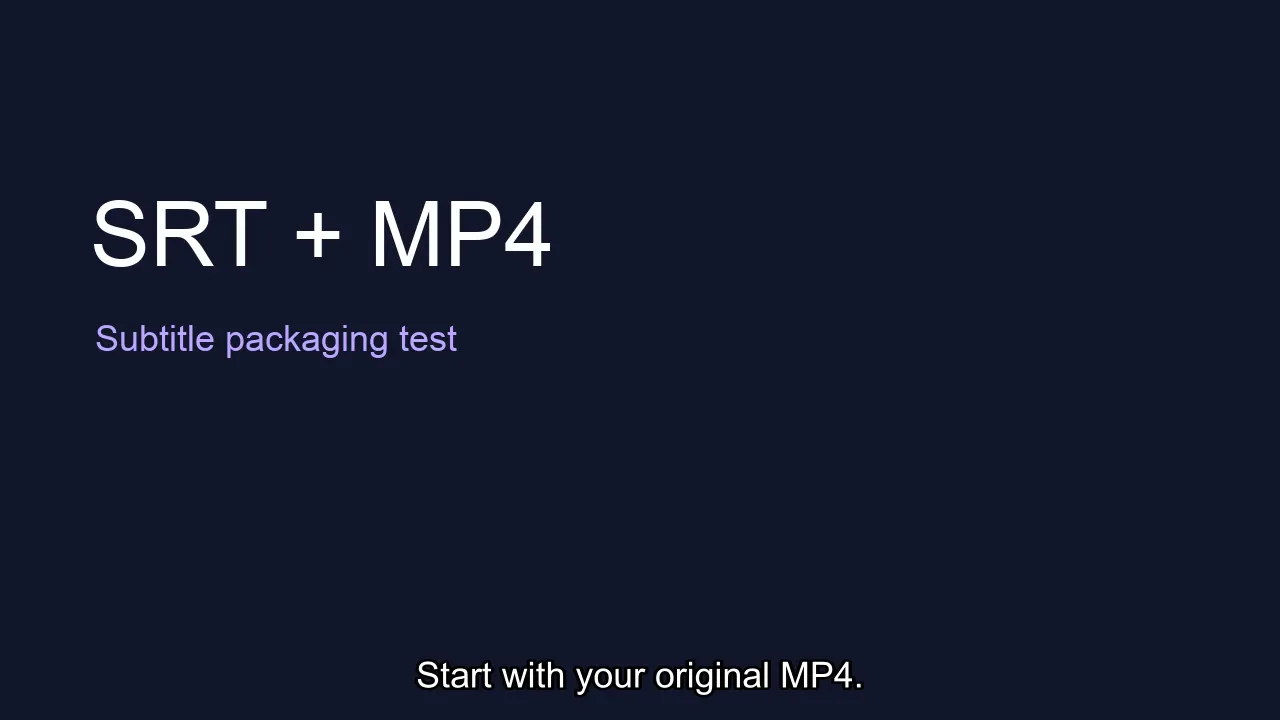
Synthetic sample at one second. Caption text is part of the decoded video frame. This is a local FFmpeg example, not Perso-generated footage.
Try the same inputs: original test MP4 and four-cue SRT. Compare the embedded-track result with the burned-in result.
These checks establish how the sample files were constructed. They do not establish compatibility with every phone, social platform, or learning management system. Our silent sample also does not validate preservation of a particular audio codec.
Fix captions that appear late, disappear, or show broken characters
Captions appear at the wrong time
Check the first cue against a clear event in the video. In our timing example, changing the first cue from 00:00:00,500 to 00:00:02,500 delays it by two seconds. Restoring the original timestamp fixes that deliberate offset.
If every cue is late by the same amount, adjust the whole track by that offset in a subtitle editor. If the mismatch grows as the video progresses, investigate different edits or timing conversions before applying one fixed shift. Check the beginning, middle, and end after any adjustment.
Captions disappear after an upload
First identify which delivery method you used. An embedded text track may not be exposed by the receiving platform. A separate SRT requires the platform's subtitle-upload workflow. A burned-in caption is already in the picture, so inspect the exported file itself if text is missing there.
Avoid adding a second platform caption track over an already burned-in version unless you have checked the viewing result. Two visible layers can overlap.
Characters display incorrectly
Check the saved text encoding and whether the rendering font contains the required characters. Encoding problems and missing font glyphs need different fixes. Export a short caption containing the affected characters, then inspect it before processing the full video.
Need to create subtitles before combining the files?
If you already have an accurate SRT, use it directly. If you still need to produce or translate captions, start with the Perso subtitle workflow or the multilingual subtitle guide.
For translated speech as well as captions, review Perso Dubbing. Keep the subtitle text aligned with the final audio and edit before assembling the delivery file.
Frequently asked questions
Can I convert an SRT to MP4 without a video?
An SRT supplies caption text and timing. You still need picture content to create a useful video. Renaming an .srt file to .mp4 does not create video frames. This guide combines an existing MP4 with its matching subtitle file.
Can viewers remove subtitles from the finished MP4?
A supported player can disable an embedded subtitle track. Burned-in words are part of the picture and cannot be switched off through a subtitle menu. Keep a clean original so you can export a version without those words or with revised captions.
Does adding an SRT reduce video quality?
The embedded-track command copies the video stream without re-encoding it. The burn-in command re-encodes the video to include the text. Inspect the resulting picture and captions at the size your audience will actually watch.
Add SRT subtitles to an MP4 as a selectable subtitle track, or burn the text into the video so it stays visible.
The right choice depends on where the video will play. A selectable track lets a compatible player turn captions off. Burned-in captions remain in the picture. If a publishing platform accepts a separate subtitle file, you may be able to keep the MP4 and SRT separate instead.
This guide starts with an existing video and subtitle file. It covers packaging those files for delivery, rather than generating a transcript.
Choose how your subtitles should travel
Method | What you deliver | Can viewers turn captions off? | Re-encode the picture? |
|---|---|---|---|
Separate SRT | MP4 plus SRT | If the platform or player supports captions | No, for the original file |
Embedded subtitle track | One MP4 with a text track | In a compatible player | Not with the stream-copy method below |
Burned-in captions | One MP4 with text in the picture | No | Yes, with the method below |
For a review copy, selectable captions can help viewers inspect the picture without text. For a video that must always display specific wording, burn-in gives you that fixed presentation. Keep the clean original and SRT, because future text corrections require another export of the burned-in version.
An embedded track still depends on the playback environment. Sending one MP4 does not guarantee that every website or app will display its text track. Test the actual destination before delivering it.
Prepare the MP4 and UTF-8 SRT
Put original.mp4 and captions.srt in the same working folder. Use copies of your originals. The commands below create new output files; choose unused output names.
An SRT cue contains a number, a start and end time, and the subtitle text. Separate cues with a blank line:
Save the file as UTF-8 text with the .srt extension. Check that the captions describe the same edit of the video. A subtitle file from an earlier cut may have correct words but incorrect timing.
The following methods use FFmpeg from its official download sources. The burn-in method needs a build with the subtitles filter and libass support. Installing FFmpeg alone does not guarantee that this optional filter is included.
Add a selectable subtitle track without re-encoding the video
Open a terminal in the folder containing your files and run. These examples use macOS/Linux shell syntax; Windows shell quoting and line continuation differ:
ffmpeg -i original.mp4 -i captions.srt \
  -map 0:v:0 -map '0:a?' -map 1:0 \
  -c:v copy -c:a copy -c:s mov_text \
  -metadata:s:s:0 language
This command selects the first video stream, any audio streams from the original, and the SRT input. It copies the video and audio, while encoding the subtitles as an MP4 text track. Change the language metadata when your captions are in another language. That label does not translate the text.
The example assumes the original streams are suitable for MP4. If FFmpeg reports an incompatible audio codec, choose an appropriate audio conversion instead of removing the error message and retrying unchanged. Keep the original file available while you make that decision.
Open selectable.mp4 in your intended player and look for its subtitle or language menu. Enable the English track, then disable it. If there is no subtitle option, test a player that supports the embedded format, or use a delivery method supported by your destination.
Do not use the presence of a subtitle stream as your only playback test. A valid file can still meet a player that does not expose its captions.
Burn the SRT into the MP4 picture
Run this command from the same working folder:
ffmpeg -i original.mp4 -vf "subtitles=captions.srt" \
  -map 0:v:0 -map '0:a?' \
  -c:v libx264 -crf 18 -pix_fmt yuv420p \
  -c
The subtitle filter draws the text into the frames. The video is encoded again with H.264. The CRF setting here is a reproducible example, not a universal quality recommendation. Inspect your own output for text legibility, picture quality, and file size.
Use the simple filename shown while testing. File paths containing spaces or special characters can require additional quoting inside FFmpeg filters. Keeping both inputs in one folder removes that variable from the first test.
If the command reports No such filter: subtitles, check the installed build. You need a version compiled with the required subtitle-rendering dependencies. The FFmpeg subtitle-filter documentation describes those requirements. Changing the SRT filename will not add a missing filter.
For a graphical workflow, HandBrake documents SRT import and subtitle burn-in. The worked files in this guide were produced with FFmpeg; they are not a HandBrake UI walkthrough.
What our reproducible test showed
We created a 12-second, 1280 × 720 synthetic test video with no audio and a four-cue English SRT. Using FFmpeg 9.0.1, we produced an embedded-track MP4 and a burned-in MP4.
The embedded version contained H.264 video and a mov_text subtitle stream. Extracting that stream back to SRT preserved the cue text and timestamps, with only a trailing blank-line difference. Decoded video hashes matched the original, confirming that this test preserved the picture.
The burned-in output contained a video stream with visible caption text in its decoded frames. It needed no separate subtitle stream to show those words.
Synthetic sample at one second. Caption text is part of the decoded video frame. This is a local FFmpeg example, not Perso-generated footage.
Try the same inputs: original test MP4 and four-cue SRT. Compare the embedded-track result with the burned-in result.
These checks establish how the sample files were constructed. They do not establish compatibility with every phone, social platform, or learning management system. Our silent sample also does not validate preservation of a particular audio codec.
Fix captions that appear late, disappear, or show broken characters
Captions appear at the wrong time
Check the first cue against a clear event in the video. In our timing example, changing the first cue from 00:00:00,500 to 00:00:02,500 delays it by two seconds. Restoring the original timestamp fixes that deliberate offset.
If every cue is late by the same amount, adjust the whole track by that offset in a subtitle editor. If the mismatch grows as the video progresses, investigate different edits or timing conversions before applying one fixed shift. Check the beginning, middle, and end after any adjustment.
Captions disappear after an upload
First identify which delivery method you used. An embedded text track may not be exposed by the receiving platform. A separate SRT requires the platform's subtitle-upload workflow. A burned-in caption is already in the picture, so inspect the exported file itself if text is missing there.
Avoid adding a second platform caption track over an already burned-in version unless you have checked the viewing result. Two visible layers can overlap.
Characters display incorrectly
Check the saved text encoding and whether the rendering font contains the required characters. Encoding problems and missing font glyphs need different fixes. Export a short caption containing the affected characters, then inspect it before processing the full video.
Need to create subtitles before combining the files?
If you already have an accurate SRT, use it directly. If you still need to produce or translate captions, start with the Perso subtitle workflow or the multilingual subtitle guide.
For translated speech as well as captions, review Perso Dubbing. Keep the subtitle text aligned with the final audio and edit before assembling the delivery file.
Frequently asked questions
Can I convert an SRT to MP4 without a video?
An SRT supplies caption text and timing. You still need picture content to create a useful video. Renaming an .srt file to .mp4 does not create video frames. This guide combines an existing MP4 with its matching subtitle file.
Can viewers remove subtitles from the finished MP4?
A supported player can disable an embedded subtitle track. Burned-in words are part of the picture and cannot be switched off through a subtitle menu. Keep a clean original so you can export a version without those words or with revised captions.
Does adding an SRT reduce video quality?
The embedded-track command copies the video stream without re-encoding it. The burn-in command re-encodes the video to include the text. Inspect the resulting picture and captions at the size your audience will actually watch.
Add SRT subtitles to an MP4 as a selectable subtitle track, or burn the text into the video so it stays visible.
The right choice depends on where the video will play. A selectable track lets a compatible player turn captions off. Burned-in captions remain in the picture. If a publishing platform accepts a separate subtitle file, you may be able to keep the MP4 and SRT separate instead.
This guide starts with an existing video and subtitle file. It covers packaging those files for delivery, rather than generating a transcript.
Choose how your subtitles should travel
Method | What you deliver | Can viewers turn captions off? | Re-encode the picture? |
|---|---|---|---|
Separate SRT | MP4 plus SRT | If the platform or player supports captions | No, for the original file |
Embedded subtitle track | One MP4 with a text track | In a compatible player | Not with the stream-copy method below |
Burned-in captions | One MP4 with text in the picture | No | Yes, with the method below |
For a review copy, selectable captions can help viewers inspect the picture without text. For a video that must always display specific wording, burn-in gives you that fixed presentation. Keep the clean original and SRT, because future text corrections require another export of the burned-in version.
An embedded track still depends on the playback environment. Sending one MP4 does not guarantee that every website or app will display its text track. Test the actual destination before delivering it.
Prepare the MP4 and UTF-8 SRT
Put original.mp4 and captions.srt in the same working folder. Use copies of your originals. The commands below create new output files; choose unused output names.
An SRT cue contains a number, a start and end time, and the subtitle text. Separate cues with a blank line:
Save the file as UTF-8 text with the .srt extension. Check that the captions describe the same edit of the video. A subtitle file from an earlier cut may have correct words but incorrect timing.
The following methods use FFmpeg from its official download sources. The burn-in method needs a build with the subtitles filter and libass support. Installing FFmpeg alone does not guarantee that this optional filter is included.
Add a selectable subtitle track without re-encoding the video
Open a terminal in the folder containing your files and run. These examples use macOS/Linux shell syntax; Windows shell quoting and line continuation differ:
ffmpeg -i original.mp4 -i captions.srt \
  -map 0:v:0 -map '0:a?' -map 1:0 \
  -c:v copy -c:a copy -c:s mov_text \
  -metadata:s:s:0 language
This command selects the first video stream, any audio streams from the original, and the SRT input. It copies the video and audio, while encoding the subtitles as an MP4 text track. Change the language metadata when your captions are in another language. That label does not translate the text.
The example assumes the original streams are suitable for MP4. If FFmpeg reports an incompatible audio codec, choose an appropriate audio conversion instead of removing the error message and retrying unchanged. Keep the original file available while you make that decision.
Open selectable.mp4 in your intended player and look for its subtitle or language menu. Enable the English track, then disable it. If there is no subtitle option, test a player that supports the embedded format, or use a delivery method supported by your destination.
Do not use the presence of a subtitle stream as your only playback test. A valid file can still meet a player that does not expose its captions.
Burn the SRT into the MP4 picture
Run this command from the same working folder:
ffmpeg -i original.mp4 -vf "subtitles=captions.srt" \
  -map 0:v:0 -map '0:a?' \
  -c:v libx264 -crf 18 -pix_fmt yuv420p \
  -c
The subtitle filter draws the text into the frames. The video is encoded again with H.264. The CRF setting here is a reproducible example, not a universal quality recommendation. Inspect your own output for text legibility, picture quality, and file size.
Use the simple filename shown while testing. File paths containing spaces or special characters can require additional quoting inside FFmpeg filters. Keeping both inputs in one folder removes that variable from the first test.
If the command reports No such filter: subtitles, check the installed build. You need a version compiled with the required subtitle-rendering dependencies. The FFmpeg subtitle-filter documentation describes those requirements. Changing the SRT filename will not add a missing filter.
For a graphical workflow, HandBrake documents SRT import and subtitle burn-in. The worked files in this guide were produced with FFmpeg; they are not a HandBrake UI walkthrough.
What our reproducible test showed
We created a 12-second, 1280 × 720 synthetic test video with no audio and a four-cue English SRT. Using FFmpeg 9.0.1, we produced an embedded-track MP4 and a burned-in MP4.
The embedded version contained H.264 video and a mov_text subtitle stream. Extracting that stream back to SRT preserved the cue text and timestamps, with only a trailing blank-line difference. Decoded video hashes matched the original, confirming that this test preserved the picture.
The burned-in output contained a video stream with visible caption text in its decoded frames. It needed no separate subtitle stream to show those words.
Synthetic sample at one second. Caption text is part of the decoded video frame. This is a local FFmpeg example, not Perso-generated footage.
Try the same inputs: original test MP4 and four-cue SRT. Compare the embedded-track result with the burned-in result.
These checks establish how the sample files were constructed. They do not establish compatibility with every phone, social platform, or learning management system. Our silent sample also does not validate preservation of a particular audio codec.
Fix captions that appear late, disappear, or show broken characters
Captions appear at the wrong time
Check the first cue against a clear event in the video. In our timing example, changing the first cue from 00:00:00,500 to 00:00:02,500 delays it by two seconds. Restoring the original timestamp fixes that deliberate offset.
If every cue is late by the same amount, adjust the whole track by that offset in a subtitle editor. If the mismatch grows as the video progresses, investigate different edits or timing conversions before applying one fixed shift. Check the beginning, middle, and end after any adjustment.
Captions disappear after an upload
First identify which delivery method you used. An embedded text track may not be exposed by the receiving platform. A separate SRT requires the platform's subtitle-upload workflow. A burned-in caption is already in the picture, so inspect the exported file itself if text is missing there.
Avoid adding a second platform caption track over an already burned-in version unless you have checked the viewing result. Two visible layers can overlap.
Characters display incorrectly
Check the saved text encoding and whether the rendering font contains the required characters. Encoding problems and missing font glyphs need different fixes. Export a short caption containing the affected characters, then inspect it before processing the full video.
Need to create subtitles before combining the files?
If you already have an accurate SRT, use it directly. If you still need to produce or translate captions, start with the Perso subtitle workflow or the multilingual subtitle guide.
For translated speech as well as captions, review Perso Dubbing. Keep the subtitle text aligned with the final audio and edit before assembling the delivery file.
Frequently asked questions
Can I convert an SRT to MP4 without a video?
An SRT supplies caption text and timing. You still need picture content to create a useful video. Renaming an .srt file to .mp4 does not create video frames. This guide combines an existing MP4 with its matching subtitle file.
Can viewers remove subtitles from the finished MP4?
A supported player can disable an embedded subtitle track. Burned-in words are part of the picture and cannot be switched off through a subtitle menu. Keep a clean original so you can export a version without those words or with revised captions.
Does adding an SRT reduce video quality?
The embedded-track command copies the video stream without re-encoding it. The burn-in command re-encodes the video to include the text. Inspect the resulting picture and captions at the size your audience will actually watch.
Add SRT subtitles to an MP4 as a selectable subtitle track, or burn the text into the video so it stays visible.
The right choice depends on where the video will play. A selectable track lets a compatible player turn captions off. Burned-in captions remain in the picture. If a publishing platform accepts a separate subtitle file, you may be able to keep the MP4 and SRT separate instead.
This guide starts with an existing video and subtitle file. It covers packaging those files for delivery, rather than generating a transcript.
Choose how your subtitles should travel
Method | What you deliver | Can viewers turn captions off? | Re-encode the picture? |
|---|---|---|---|
Separate SRT | MP4 plus SRT | If the platform or player supports captions | No, for the original file |
Embedded subtitle track | One MP4 with a text track | In a compatible player | Not with the stream-copy method below |
Burned-in captions | One MP4 with text in the picture | No | Yes, with the method below |
For a review copy, selectable captions can help viewers inspect the picture without text. For a video that must always display specific wording, burn-in gives you that fixed presentation. Keep the clean original and SRT, because future text corrections require another export of the burned-in version.
An embedded track still depends on the playback environment. Sending one MP4 does not guarantee that every website or app will display its text track. Test the actual destination before delivering it.
Prepare the MP4 and UTF-8 SRT
Put original.mp4 and captions.srt in the same working folder. Use copies of your originals. The commands below create new output files; choose unused output names.
An SRT cue contains a number, a start and end time, and the subtitle text. Separate cues with a blank line:
Save the file as UTF-8 text with the .srt extension. Check that the captions describe the same edit of the video. A subtitle file from an earlier cut may have correct words but incorrect timing.
The following methods use FFmpeg from its official download sources. The burn-in method needs a build with the subtitles filter and libass support. Installing FFmpeg alone does not guarantee that this optional filter is included.
Add a selectable subtitle track without re-encoding the video
Open a terminal in the folder containing your files and run. These examples use macOS/Linux shell syntax; Windows shell quoting and line continuation differ:
ffmpeg -i original.mp4 -i captions.srt \
  -map 0:v:0 -map '0:a?' -map 1:0 \
  -c:v copy -c:a copy -c:s mov_text \
  -metadata:s:s:0 language
This command selects the first video stream, any audio streams from the original, and the SRT input. It copies the video and audio, while encoding the subtitles as an MP4 text track. Change the language metadata when your captions are in another language. That label does not translate the text.
The example assumes the original streams are suitable for MP4. If FFmpeg reports an incompatible audio codec, choose an appropriate audio conversion instead of removing the error message and retrying unchanged. Keep the original file available while you make that decision.
Open selectable.mp4 in your intended player and look for its subtitle or language menu. Enable the English track, then disable it. If there is no subtitle option, test a player that supports the embedded format, or use a delivery method supported by your destination.
Do not use the presence of a subtitle stream as your only playback test. A valid file can still meet a player that does not expose its captions.
Burn the SRT into the MP4 picture
Run this command from the same working folder:
ffmpeg -i original.mp4 -vf "subtitles=captions.srt" \
  -map 0:v:0 -map '0:a?' \
  -c:v libx264 -crf 18 -pix_fmt yuv420p \
  -c
The subtitle filter draws the text into the frames. The video is encoded again with H.264. The CRF setting here is a reproducible example, not a universal quality recommendation. Inspect your own output for text legibility, picture quality, and file size.
Use the simple filename shown while testing. File paths containing spaces or special characters can require additional quoting inside FFmpeg filters. Keeping both inputs in one folder removes that variable from the first test.
If the command reports No such filter: subtitles, check the installed build. You need a version compiled with the required subtitle-rendering dependencies. The FFmpeg subtitle-filter documentation describes those requirements. Changing the SRT filename will not add a missing filter.
For a graphical workflow, HandBrake documents SRT import and subtitle burn-in. The worked files in this guide were produced with FFmpeg; they are not a HandBrake UI walkthrough.
What our reproducible test showed
We created a 12-second, 1280 × 720 synthetic test video with no audio and a four-cue English SRT. Using FFmpeg 9.0.1, we produced an embedded-track MP4 and a burned-in MP4.
The embedded version contained H.264 video and a mov_text subtitle stream. Extracting that stream back to SRT preserved the cue text and timestamps, with only a trailing blank-line difference. Decoded video hashes matched the original, confirming that this test preserved the picture.
The burned-in output contained a video stream with visible caption text in its decoded frames. It needed no separate subtitle stream to show those words.
Synthetic sample at one second. Caption text is part of the decoded video frame. This is a local FFmpeg example, not Perso-generated footage.
Try the same inputs: original test MP4 and four-cue SRT. Compare the embedded-track result with the burned-in result.
These checks establish how the sample files were constructed. They do not establish compatibility with every phone, social platform, or learning management system. Our silent sample also does not validate preservation of a particular audio codec.
Fix captions that appear late, disappear, or show broken characters
Captions appear at the wrong time
Check the first cue against a clear event in the video. In our timing example, changing the first cue from 00:00:00,500 to 00:00:02,500 delays it by two seconds. Restoring the original timestamp fixes that deliberate offset.
If every cue is late by the same amount, adjust the whole track by that offset in a subtitle editor. If the mismatch grows as the video progresses, investigate different edits or timing conversions before applying one fixed shift. Check the beginning, middle, and end after any adjustment.
Captions disappear after an upload
First identify which delivery method you used. An embedded text track may not be exposed by the receiving platform. A separate SRT requires the platform's subtitle-upload workflow. A burned-in caption is already in the picture, so inspect the exported file itself if text is missing there.
Avoid adding a second platform caption track over an already burned-in version unless you have checked the viewing result. Two visible layers can overlap.
Characters display incorrectly
Check the saved text encoding and whether the rendering font contains the required characters. Encoding problems and missing font glyphs need different fixes. Export a short caption containing the affected characters, then inspect it before processing the full video.
Need to create subtitles before combining the files?
If you already have an accurate SRT, use it directly. If you still need to produce or translate captions, start with the Perso subtitle workflow or the multilingual subtitle guide.
For translated speech as well as captions, review Perso Dubbing. Keep the subtitle text aligned with the final audio and edit before assembling the delivery file.
Frequently asked questions
Can I convert an SRT to MP4 without a video?
An SRT supplies caption text and timing. You still need picture content to create a useful video. Renaming an .srt file to .mp4 does not create video frames. This guide combines an existing MP4 with its matching subtitle file.
Can viewers remove subtitles from the finished MP4?
A supported player can disable an embedded subtitle track. Burned-in words are part of the picture and cannot be switched off through a subtitle menu. Keep a clean original so you can export a version without those words or with revised captions.
Does adding an SRT reduce video quality?
The embedded-track command copies the video stream without re-encoding it. The burn-in command re-encodes the video to include the text. Inspect the resulting picture and captions at the size your audience will actually watch.
Continue Reading
Browse All