AI Dubbing Glossary: Keep Brand and Technical Terms Consistent
Last Updated



Jump to section
Jump to section

Share
Share
Share

AI Video Translator, Localization, and Dubbing Tool
Try it out for Free
An AI dubbing glossary sets preferred translations for recurring terms. Prepare it before dubbing, then check the script and audio.
A product demo can use the right words individually and still confuse a viewer. The presenter says one feature name, the subtitle uses another, and the button on screen shows a third. Give reviewers an agreed vocabulary before they begin.
Perso Dubbing has a documented example in technical education. The Big Data Innovation Convergence University project, led by Seoul National University, used its glossary for English and Chinese lecture localization. The published customer story describes terminology management for subjects including machine learning, Hadoop, and TensorFlow. That use case gives course teams a practical starting point: identify subject vocabulary before translating a series.
1. Choose the terms that need an agreed translation
Start with one finished video and its script. Mark product names, feature labels, abbreviations, and technical expressions whose wording matters to the lesson or demonstration.
For each term, ask what the viewer must recognize. A product name may stay unchanged. A descriptive phrase may need a local equivalent. A button label should remain recognizable when the narrator tells the viewer where to click.
Keep a working review sheet with the source term, context, proposed translation, and reviewer decision. Ask someone fluent in the target language and familiar with the subject to approve ambiguous entries. For a technical course, that may require both a language reviewer and an instructor.
Use the following fictional English-to-Spanish example to discuss decisions with your reviewer. These are editorial examples, not tested dubbing outputs.
Source term | Proposed target term | Decision to review |
|---|---|---|
Acme Cloud | Acme Cloud | Preserve the fictional product name |
dashboard | panel de control | Confirm this matches the localized interface |
workspace | espacio de trabajo | Confirm the term fits this product's meaning |
API | API | Keep the spelling; review spoken delivery separately |
Avoid filling the glossary with ordinary sentences. Give the reviewer enough context to choose between meanings. For example, "workspace" might refer to a software area or a physical room; a word pair alone cannot explain that distinction.
2. Prepare the Perso Dubbing upload file
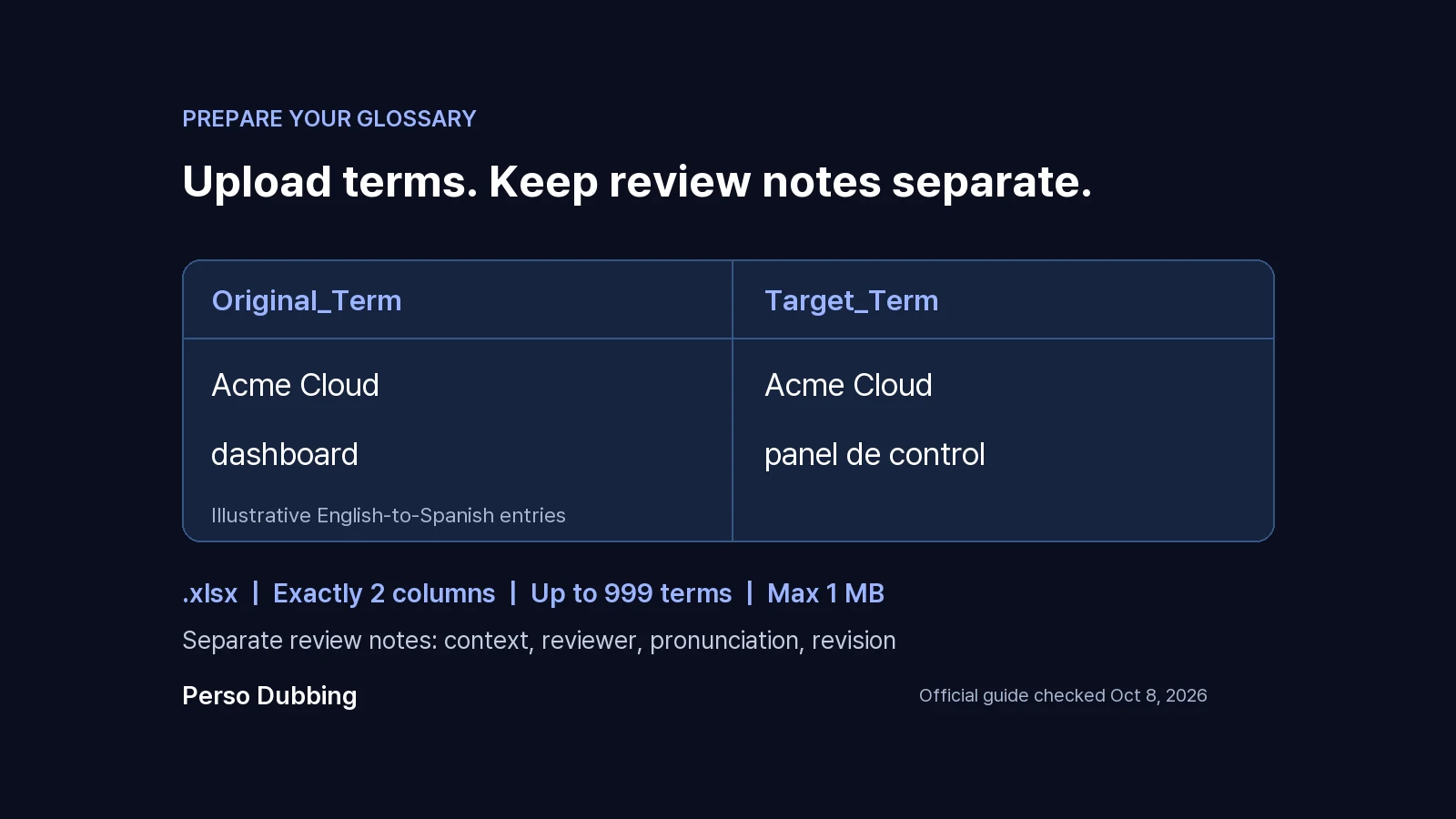
The official glossary guide specifies an .xlsx file with exactly two columns: Original_Term and Target_Term. It documents a 1 MB limit and up to 999 terms. Use its template and keep review notes in a separate file.
The guide describes one source language and one target language per glossary application, with exact source-term matching. Upload the corresponding file in translation settings. Reuse it by uploading it to subsequent projects. Custom Glossary is listed under Starter and inherited by higher tiers on the Perso Dubbing pricing page.
Name your working files so a teammate can identify the language pair and revision without opening them. For example, acme-en-es-approved-v1.xlsx is easier to distinguish from a Japanese version than glossary-final.xlsx.
Prepare your terminology list, then use Perso Dubbing for a short pilot from the video you plan to localize.
3. Review terminology and pronunciation separately
Read the translated script while watching the relevant scene. Check whether the chosen term still makes sense in the sentence and whether the viewer can connect it to the label or object on screen.
Then listen without reading. A familiar acronym on the page can be difficult to recognize when spoken. Write down whether the issue concerns the selected word, the way it sounds, or the speed of the surrounding sentence. Each needs a different correction.
A translation glossary establishes preferred wording. Pronunciation requires an audio review. Keep approved display spelling in subtitles and on-screen labels; use separate reviewer notes for how a name should sound. If a voice workflow supports pronunciation controls, test those controls with the actual voice and language before relying on them.
For corrections to individual lines, see the subtitle script editor guide. After a change, review the complete sentence again for meaning and timing.
4. Approve a pilot before processing a series
Choose a pilot containing the terms that are hardest to interpret. Include a repeated feature name, an abbreviation, and a sentence tied to something visible on screen when those appear in your material.
Give reviewers a small decision table:
Review item | Evidence to record |
|---|---|
Meaning | The term fits the explanation in this scene |
Consistency | Repeated references use the approved wording |
Spoken delivery | The intended name or abbreviation is recognizable |
Visual match | The viewer can identify the referenced label or object |
Timing | The complete instruction fits the scene naturally |
Record the timecode of any correction. Keep the approved glossary revision with the pilot so the next reviewer knows which decisions were used. When a product label changes, identify the affected videos and review those references before reusing the file.
This review table is a suggested editorial workflow. It makes approval decisions explicit; it is not a measured claim about error rates or time savings.
Frequently asked questions
Q. Can one Perso Dubbing glossary apply to several target languages at once?
A. The official guide documents one source-target pair per application. Prepare a separate approved file for each pair. Keep language and revision labels clear so reviewers can tell which file belongs to each project. Recheck the linked guide when setting up a new workflow.
Q. Does a translation glossary guarantee correct pronunciation?
A. Review the generated audio even when the written term is correct. A glossary decision answers which wording to use. Listening answers whether the viewer will recognize it. Keep subtitle spelling readable, and record pronunciation feedback separately so a correction does not introduce a new display-text error.
Q. Which terms should a course team review first?
A. Start with terms that affect understanding: product names, specialist vocabulary, abbreviations, and labels referenced on screen. Use sentences from the actual lesson to resolve ambiguity. Have a subject expert review technical meaning and a fluent target-language reviewer check that the wording works naturally in context.
Start with a video containing your recurring terms. Create a pilot with the AI video translator, review the disputed wording and spoken delivery, and save the approved revision for the next video.
An AI dubbing glossary sets preferred translations for recurring terms. Prepare it before dubbing, then check the script and audio.
A product demo can use the right words individually and still confuse a viewer. The presenter says one feature name, the subtitle uses another, and the button on screen shows a third. Give reviewers an agreed vocabulary before they begin.
Perso Dubbing has a documented example in technical education. The Big Data Innovation Convergence University project, led by Seoul National University, used its glossary for English and Chinese lecture localization. The published customer story describes terminology management for subjects including machine learning, Hadoop, and TensorFlow. That use case gives course teams a practical starting point: identify subject vocabulary before translating a series.
1. Choose the terms that need an agreed translation
Start with one finished video and its script. Mark product names, feature labels, abbreviations, and technical expressions whose wording matters to the lesson or demonstration.
For each term, ask what the viewer must recognize. A product name may stay unchanged. A descriptive phrase may need a local equivalent. A button label should remain recognizable when the narrator tells the viewer where to click.
Keep a working review sheet with the source term, context, proposed translation, and reviewer decision. Ask someone fluent in the target language and familiar with the subject to approve ambiguous entries. For a technical course, that may require both a language reviewer and an instructor.
Use the following fictional English-to-Spanish example to discuss decisions with your reviewer. These are editorial examples, not tested dubbing outputs.
Source term | Proposed target term | Decision to review |
|---|---|---|
Acme Cloud | Acme Cloud | Preserve the fictional product name |
dashboard | panel de control | Confirm this matches the localized interface |
workspace | espacio de trabajo | Confirm the term fits this product's meaning |
API | API | Keep the spelling; review spoken delivery separately |
Avoid filling the glossary with ordinary sentences. Give the reviewer enough context to choose between meanings. For example, "workspace" might refer to a software area or a physical room; a word pair alone cannot explain that distinction.
2. Prepare the Perso Dubbing upload file
The official glossary guide specifies an .xlsx file with exactly two columns: Original_Term and Target_Term. It documents a 1 MB limit and up to 999 terms. Use its template and keep review notes in a separate file.
The guide describes one source language and one target language per glossary application, with exact source-term matching. Upload the corresponding file in translation settings. Reuse it by uploading it to subsequent projects. Custom Glossary is listed under Starter and inherited by higher tiers on the Perso Dubbing pricing page.
Name your working files so a teammate can identify the language pair and revision without opening them. For example, acme-en-es-approved-v1.xlsx is easier to distinguish from a Japanese version than glossary-final.xlsx.
Prepare your terminology list, then use Perso Dubbing for a short pilot from the video you plan to localize.
3. Review terminology and pronunciation separately
Read the translated script while watching the relevant scene. Check whether the chosen term still makes sense in the sentence and whether the viewer can connect it to the label or object on screen.
Then listen without reading. A familiar acronym on the page can be difficult to recognize when spoken. Write down whether the issue concerns the selected word, the way it sounds, or the speed of the surrounding sentence. Each needs a different correction.
A translation glossary establishes preferred wording. Pronunciation requires an audio review. Keep approved display spelling in subtitles and on-screen labels; use separate reviewer notes for how a name should sound. If a voice workflow supports pronunciation controls, test those controls with the actual voice and language before relying on them.
For corrections to individual lines, see the subtitle script editor guide. After a change, review the complete sentence again for meaning and timing.
4. Approve a pilot before processing a series
Choose a pilot containing the terms that are hardest to interpret. Include a repeated feature name, an abbreviation, and a sentence tied to something visible on screen when those appear in your material.
Give reviewers a small decision table:
Review item | Evidence to record |
|---|---|
Meaning | The term fits the explanation in this scene |
Consistency | Repeated references use the approved wording |
Spoken delivery | The intended name or abbreviation is recognizable |
Visual match | The viewer can identify the referenced label or object |
Timing | The complete instruction fits the scene naturally |
Record the timecode of any correction. Keep the approved glossary revision with the pilot so the next reviewer knows which decisions were used. When a product label changes, identify the affected videos and review those references before reusing the file.
This review table is a suggested editorial workflow. It makes approval decisions explicit; it is not a measured claim about error rates or time savings.
Frequently asked questions
Q. Can one Perso Dubbing glossary apply to several target languages at once?
A. The official guide documents one source-target pair per application. Prepare a separate approved file for each pair. Keep language and revision labels clear so reviewers can tell which file belongs to each project. Recheck the linked guide when setting up a new workflow.
Q. Does a translation glossary guarantee correct pronunciation?
A. Review the generated audio even when the written term is correct. A glossary decision answers which wording to use. Listening answers whether the viewer will recognize it. Keep subtitle spelling readable, and record pronunciation feedback separately so a correction does not introduce a new display-text error.
Q. Which terms should a course team review first?
A. Start with terms that affect understanding: product names, specialist vocabulary, abbreviations, and labels referenced on screen. Use sentences from the actual lesson to resolve ambiguity. Have a subject expert review technical meaning and a fluent target-language reviewer check that the wording works naturally in context.
Start with a video containing your recurring terms. Create a pilot with the AI video translator, review the disputed wording and spoken delivery, and save the approved revision for the next video.
An AI dubbing glossary sets preferred translations for recurring terms. Prepare it before dubbing, then check the script and audio.
A product demo can use the right words individually and still confuse a viewer. The presenter says one feature name, the subtitle uses another, and the button on screen shows a third. Give reviewers an agreed vocabulary before they begin.
Perso Dubbing has a documented example in technical education. The Big Data Innovation Convergence University project, led by Seoul National University, used its glossary for English and Chinese lecture localization. The published customer story describes terminology management for subjects including machine learning, Hadoop, and TensorFlow. That use case gives course teams a practical starting point: identify subject vocabulary before translating a series.
1. Choose the terms that need an agreed translation
Start with one finished video and its script. Mark product names, feature labels, abbreviations, and technical expressions whose wording matters to the lesson or demonstration.
For each term, ask what the viewer must recognize. A product name may stay unchanged. A descriptive phrase may need a local equivalent. A button label should remain recognizable when the narrator tells the viewer where to click.
Keep a working review sheet with the source term, context, proposed translation, and reviewer decision. Ask someone fluent in the target language and familiar with the subject to approve ambiguous entries. For a technical course, that may require both a language reviewer and an instructor.
Use the following fictional English-to-Spanish example to discuss decisions with your reviewer. These are editorial examples, not tested dubbing outputs.
Source term | Proposed target term | Decision to review |
|---|---|---|
Acme Cloud | Acme Cloud | Preserve the fictional product name |
dashboard | panel de control | Confirm this matches the localized interface |
workspace | espacio de trabajo | Confirm the term fits this product's meaning |
API | API | Keep the spelling; review spoken delivery separately |
Avoid filling the glossary with ordinary sentences. Give the reviewer enough context to choose between meanings. For example, "workspace" might refer to a software area or a physical room; a word pair alone cannot explain that distinction.
2. Prepare the Perso Dubbing upload file
The official glossary guide specifies an .xlsx file with exactly two columns: Original_Term and Target_Term. It documents a 1 MB limit and up to 999 terms. Use its template and keep review notes in a separate file.
The guide describes one source language and one target language per glossary application, with exact source-term matching. Upload the corresponding file in translation settings. Reuse it by uploading it to subsequent projects. Custom Glossary is listed under Starter and inherited by higher tiers on the Perso Dubbing pricing page.
Name your working files so a teammate can identify the language pair and revision without opening them. For example, acme-en-es-approved-v1.xlsx is easier to distinguish from a Japanese version than glossary-final.xlsx.
Prepare your terminology list, then use Perso Dubbing for a short pilot from the video you plan to localize.
3. Review terminology and pronunciation separately
Read the translated script while watching the relevant scene. Check whether the chosen term still makes sense in the sentence and whether the viewer can connect it to the label or object on screen.
Then listen without reading. A familiar acronym on the page can be difficult to recognize when spoken. Write down whether the issue concerns the selected word, the way it sounds, or the speed of the surrounding sentence. Each needs a different correction.
A translation glossary establishes preferred wording. Pronunciation requires an audio review. Keep approved display spelling in subtitles and on-screen labels; use separate reviewer notes for how a name should sound. If a voice workflow supports pronunciation controls, test those controls with the actual voice and language before relying on them.
For corrections to individual lines, see the subtitle script editor guide. After a change, review the complete sentence again for meaning and timing.
4. Approve a pilot before processing a series
Choose a pilot containing the terms that are hardest to interpret. Include a repeated feature name, an abbreviation, and a sentence tied to something visible on screen when those appear in your material.
Give reviewers a small decision table:
Review item | Evidence to record |
|---|---|
Meaning | The term fits the explanation in this scene |
Consistency | Repeated references use the approved wording |
Spoken delivery | The intended name or abbreviation is recognizable |
Visual match | The viewer can identify the referenced label or object |
Timing | The complete instruction fits the scene naturally |
Record the timecode of any correction. Keep the approved glossary revision with the pilot so the next reviewer knows which decisions were used. When a product label changes, identify the affected videos and review those references before reusing the file.
This review table is a suggested editorial workflow. It makes approval decisions explicit; it is not a measured claim about error rates or time savings.
Frequently asked questions
Q. Can one Perso Dubbing glossary apply to several target languages at once?
A. The official guide documents one source-target pair per application. Prepare a separate approved file for each pair. Keep language and revision labels clear so reviewers can tell which file belongs to each project. Recheck the linked guide when setting up a new workflow.
Q. Does a translation glossary guarantee correct pronunciation?
A. Review the generated audio even when the written term is correct. A glossary decision answers which wording to use. Listening answers whether the viewer will recognize it. Keep subtitle spelling readable, and record pronunciation feedback separately so a correction does not introduce a new display-text error.
Q. Which terms should a course team review first?
A. Start with terms that affect understanding: product names, specialist vocabulary, abbreviations, and labels referenced on screen. Use sentences from the actual lesson to resolve ambiguity. Have a subject expert review technical meaning and a fluent target-language reviewer check that the wording works naturally in context.
Start with a video containing your recurring terms. Create a pilot with the AI video translator, review the disputed wording and spoken delivery, and save the approved revision for the next video.
Continue Reading
Browse All