How to Fix Subtitles Out of Sync: Offset, Drift and Cuts
Last Updated



Jump to section
Jump to section

Share
Share
Share

AI Video Translator, Localization, and Dubbing Tool
Try it out for Free
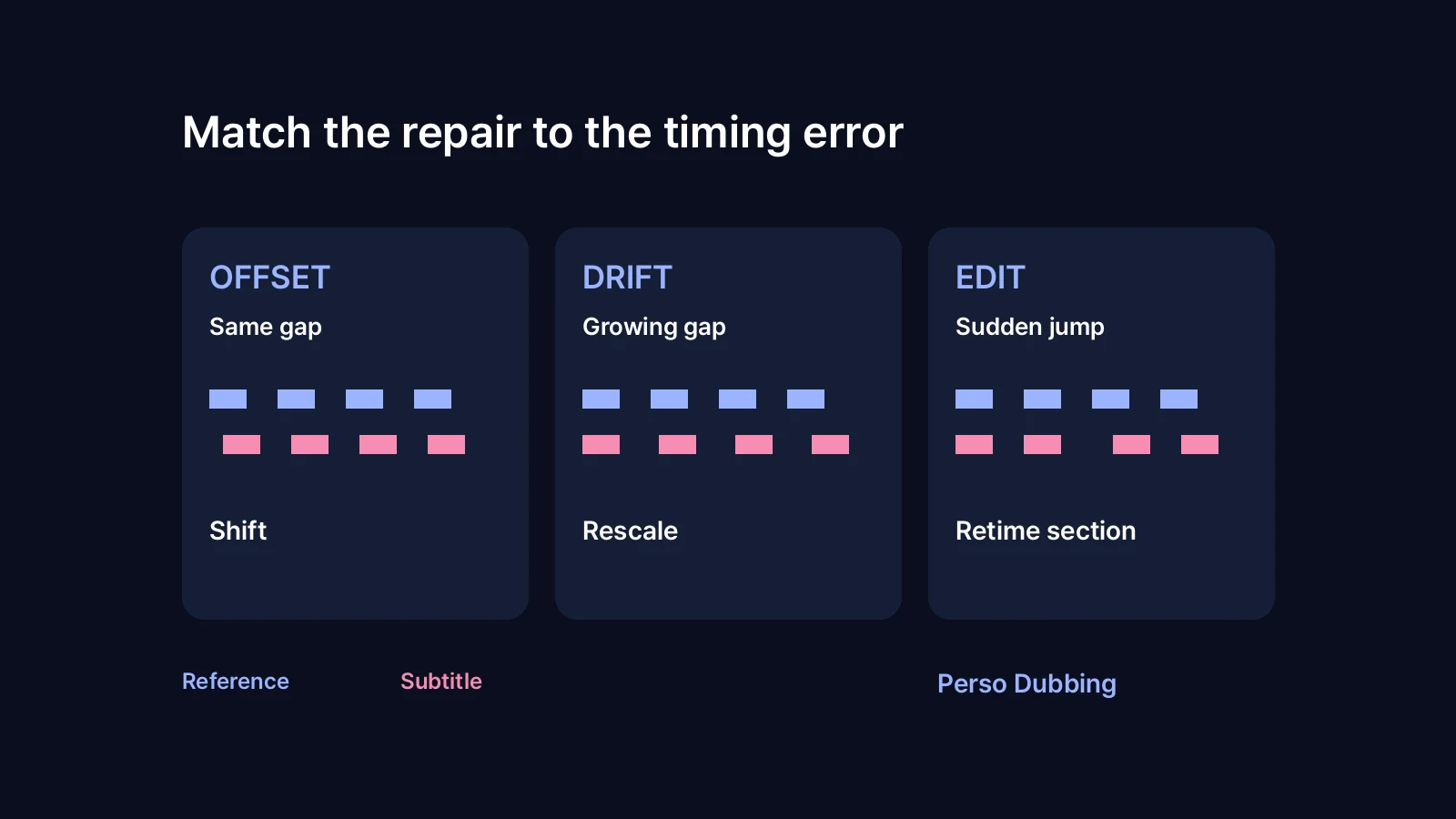
Fix subtitles out of sync by matching the repair to the error: shift a constant delay, rescale steady drift, or retime around edits.
Start with the exact video and audio track you will publish. A subtitle file that matches the original narration may need new timing for a dubbed track, even when both videos have the same duration.
Perso Dubbing's State of AI Dubbing 2026, September update found that 31.9% of its 2,902 paying creators used two or more target languages from December 1, 2025 to August 31, 2026. The cohort excludes internal and demo workspaces, multi-account abusers and cancelled projects. This is platform usage data, not a measurement of subtitle accuracy. It makes a practical review question worth asking: which audio version does each subtitle file belong to?
Diagnose subtitle delay before changing every timestamp
Check a clear spoken line near the beginning, middle and end. Write down when the line starts in the audio and when its subtitle appears. A positive difference means the subtitle is late.
What you observe | First repair to try |
|---|---|
Every checked line is late by roughly the same amount | Shift all affected cues earlier |
The gap grows steadily through the video | Align two distant points, then check the middle |
Timing changes suddenly after a removed or added scene | Retime the affected section against the final cut |
Only a few lines are wrong | Edit those cues individually |
We calculated a worked timestamp example for this guide using three synthetic subtitle cues. Their correct start times were 10, 60 and 120 seconds. We then introduced a constant delay, a timing stretch and a cut-related jump. This tests timestamp arithmetic, not speech recognition or Perso Dubbing performance.
Test case | Incorrect start times, seconds | Repair | Recovered start times, seconds |
|---|---|---|---|
Constant delay | 12, 62, 122 | Subtract 2 seconds | 10, 60, 120 |
Steady drift | 11, 66, 132 | Divide by 1.1 | 10, 60, 120 |
Jump after an edit | 10, 63, 123 | Subtract 3 seconds from affected cues | 10, 60, 120 |
All nine corrected start times matched the example's reference values to the nearest millisecond. Real captions still need listening and reading checks: correct arithmetic cannot determine whether a translation fits the spoken sentence.
Fix a constant subtitle offset
When the whole subtitle file is two seconds late, move its timestamps two seconds earlier. Apply the same offset to cue starts and ends so each cue keeps its duration. If subtitles appear too early, move them later.
In Subtitle Edit, open the SRT file and use Synchronization > Adjust all times. The project's official FAQ documents this command for constant offsets. Check the direction with one known line, save a new copy, and reopen it with your video.
For example, a cue that should run from 00:00:10,000 to 00:00:12,000 might appear at 00:00:12,000 to 00:00:14,000. Moving both boundaries earlier by two seconds restores its position and duration.
Check the first cue before applying a negative offset. If the result would start before zero, inspect that cue manually. Silently clamping its start to zero can shorten it or conceal a mismatch between versions.
Fix subtitles that drift progressively
A fixed offset cannot correct a gap that keeps growing. Choose a clear line near each end of the video and align both. Then inspect intermediate lines to see whether a single timing scale explains the error.
Subtitle Edit provides Visual sync and Point sync under Synchronization. Its point-sync documentation describes setting subtitle cues against their correct video positions.
In our synthetic drift case, the incorrect times were 11, 66 and 132 seconds. Dividing by 1.1 recovered the reference times. Moving everything one second earlier would only fix the first cue; the last would still be 11 seconds late.
If the video was converted between frame rates, verify the source and final rates before using a frame-rate conversion. An SRT file stores timestamps. Its filename alone does not tell you which timing scale to apply. Different edits or changed audio can also cause mismatches.
Repair subtitles after a cut or a new dub
A scene removed from the middle can shift later captions while leaving earlier captions correct. In that case, adjust the affected range and check cues that cross the edit. If dialogue was removed, delete or rewrite its subtitles instead of moving that text onto unrelated speech.
For dubbed videos, decide what the captions should follow. Captions transcribing the new voice should match that voice's wording and timing. Translated subtitles accompanying the original audio should follow the original dialogue. Switching between those purposes is a common reason an otherwise valid SRT feels wrong.
Keep a separate reviewed subtitle file for each audio version. Label files with the language and edit version, then preview each pair together. If individual dub lines need rewriting, our guide to editing dubbing scripts covers that separate task.
Perso Dubbing connects video translation with subtitle and script review. Use the subtitle and script editor for the controls available in your project. The bulk offset and point-sync commands described above belong to Subtitle Edit; this guide does not claim those same commands exist in Perso Dubbing.
Check the saved file and the publishing destination
Saving the SRT is only one checkpoint. Test the saved file with the intended video, then review the uploaded or rendered version.
Reset any temporary subtitle delay in the player before testing the corrected file.
Listen near the beginning, middle and end, and on both sides of every edited section.
Check cue ends as well as starts. Keep enough time to read each line without covering unrelated dialogue.
Inspect empty cues, unexpected overlaps and timestamps beyond the video duration.
Confirm that the destination is using the corrected language file and intended audio track.
For captions already burned into the picture, editing an external SRT cannot move the visible text. Return to the editable video project or a clean video export and render the corrected captions again.
Our transcription timing guide explains how segmentation affects the next stage of production. When you are ready to create another language version, start with Perso Dubbing and review its final audio and subtitles together.
Frequently asked questions
Q. How do I fix subtitles that are always two seconds late?
A. Move the affected subtitle cues two seconds earlier, adjusting both start and end timestamps. Save a new SRT and test it with any player delay reset. Check the first cue for negative timestamps and inspect several later lines to confirm the delay really was constant.
Q. Why are my subtitles correct at the start but wrong at the end?
A. The timing may be drifting rather than offset by a fixed amount. Align two distant dialogue cues, then check the middle. If the mismatch begins abruptly after an edit, correct that section separately. Confirm you have the subtitle file for the exact video and audio version.
Q. Can I reuse the original subtitle timing for a dubbed video?
A. Use it as a starting point only after checking the dubbed audio. Translated speech may start or end at different moments, and captions should match the track viewers hear. Review each language version and keep its approved SRT with the corresponding final video.
Fix subtitles out of sync by matching the repair to the error: shift a constant delay, rescale steady drift, or retime around edits.
Start with the exact video and audio track you will publish. A subtitle file that matches the original narration may need new timing for a dubbed track, even when both videos have the same duration.
Perso Dubbing's State of AI Dubbing 2026, September update found that 31.9% of its 2,902 paying creators used two or more target languages from December 1, 2025 to August 31, 2026. The cohort excludes internal and demo workspaces, multi-account abusers and cancelled projects. This is platform usage data, not a measurement of subtitle accuracy. It makes a practical review question worth asking: which audio version does each subtitle file belong to?
Diagnose subtitle delay before changing every timestamp
Check a clear spoken line near the beginning, middle and end. Write down when the line starts in the audio and when its subtitle appears. A positive difference means the subtitle is late.
What you observe | First repair to try |
|---|---|
Every checked line is late by roughly the same amount | Shift all affected cues earlier |
The gap grows steadily through the video | Align two distant points, then check the middle |
Timing changes suddenly after a removed or added scene | Retime the affected section against the final cut |
Only a few lines are wrong | Edit those cues individually |
We calculated a worked timestamp example for this guide using three synthetic subtitle cues. Their correct start times were 10, 60 and 120 seconds. We then introduced a constant delay, a timing stretch and a cut-related jump. This tests timestamp arithmetic, not speech recognition or Perso Dubbing performance.
Test case | Incorrect start times, seconds | Repair | Recovered start times, seconds |
|---|---|---|---|
Constant delay | 12, 62, 122 | Subtract 2 seconds | 10, 60, 120 |
Steady drift | 11, 66, 132 | Divide by 1.1 | 10, 60, 120 |
Jump after an edit | 10, 63, 123 | Subtract 3 seconds from affected cues | 10, 60, 120 |
All nine corrected start times matched the example's reference values to the nearest millisecond. Real captions still need listening and reading checks: correct arithmetic cannot determine whether a translation fits the spoken sentence.
Fix a constant subtitle offset
When the whole subtitle file is two seconds late, move its timestamps two seconds earlier. Apply the same offset to cue starts and ends so each cue keeps its duration. If subtitles appear too early, move them later.
In Subtitle Edit, open the SRT file and use Synchronization > Adjust all times. The project's official FAQ documents this command for constant offsets. Check the direction with one known line, save a new copy, and reopen it with your video.
For example, a cue that should run from 00:00:10,000 to 00:00:12,000 might appear at 00:00:12,000 to 00:00:14,000. Moving both boundaries earlier by two seconds restores its position and duration.
Check the first cue before applying a negative offset. If the result would start before zero, inspect that cue manually. Silently clamping its start to zero can shorten it or conceal a mismatch between versions.
Fix subtitles that drift progressively
A fixed offset cannot correct a gap that keeps growing. Choose a clear line near each end of the video and align both. Then inspect intermediate lines to see whether a single timing scale explains the error.
Subtitle Edit provides Visual sync and Point sync under Synchronization. Its point-sync documentation describes setting subtitle cues against their correct video positions.
In our synthetic drift case, the incorrect times were 11, 66 and 132 seconds. Dividing by 1.1 recovered the reference times. Moving everything one second earlier would only fix the first cue; the last would still be 11 seconds late.
If the video was converted between frame rates, verify the source and final rates before using a frame-rate conversion. An SRT file stores timestamps. Its filename alone does not tell you which timing scale to apply. Different edits or changed audio can also cause mismatches.
Repair subtitles after a cut or a new dub
A scene removed from the middle can shift later captions while leaving earlier captions correct. In that case, adjust the affected range and check cues that cross the edit. If dialogue was removed, delete or rewrite its subtitles instead of moving that text onto unrelated speech.
For dubbed videos, decide what the captions should follow. Captions transcribing the new voice should match that voice's wording and timing. Translated subtitles accompanying the original audio should follow the original dialogue. Switching between those purposes is a common reason an otherwise valid SRT feels wrong.
Keep a separate reviewed subtitle file for each audio version. Label files with the language and edit version, then preview each pair together. If individual dub lines need rewriting, our guide to editing dubbing scripts covers that separate task.
Perso Dubbing connects video translation with subtitle and script review. Use the subtitle and script editor for the controls available in your project. The bulk offset and point-sync commands described above belong to Subtitle Edit; this guide does not claim those same commands exist in Perso Dubbing.
Check the saved file and the publishing destination
Saving the SRT is only one checkpoint. Test the saved file with the intended video, then review the uploaded or rendered version.
Reset any temporary subtitle delay in the player before testing the corrected file.
Listen near the beginning, middle and end, and on both sides of every edited section.
Check cue ends as well as starts. Keep enough time to read each line without covering unrelated dialogue.
Inspect empty cues, unexpected overlaps and timestamps beyond the video duration.
Confirm that the destination is using the corrected language file and intended audio track.
For captions already burned into the picture, editing an external SRT cannot move the visible text. Return to the editable video project or a clean video export and render the corrected captions again.
Our transcription timing guide explains how segmentation affects the next stage of production. When you are ready to create another language version, start with Perso Dubbing and review its final audio and subtitles together.
Frequently asked questions
Q. How do I fix subtitles that are always two seconds late?
A. Move the affected subtitle cues two seconds earlier, adjusting both start and end timestamps. Save a new SRT and test it with any player delay reset. Check the first cue for negative timestamps and inspect several later lines to confirm the delay really was constant.
Q. Why are my subtitles correct at the start but wrong at the end?
A. The timing may be drifting rather than offset by a fixed amount. Align two distant dialogue cues, then check the middle. If the mismatch begins abruptly after an edit, correct that section separately. Confirm you have the subtitle file for the exact video and audio version.
Q. Can I reuse the original subtitle timing for a dubbed video?
A. Use it as a starting point only after checking the dubbed audio. Translated speech may start or end at different moments, and captions should match the track viewers hear. Review each language version and keep its approved SRT with the corresponding final video.
Fix subtitles out of sync by matching the repair to the error: shift a constant delay, rescale steady drift, or retime around edits.
Start with the exact video and audio track you will publish. A subtitle file that matches the original narration may need new timing for a dubbed track, even when both videos have the same duration.
Perso Dubbing's State of AI Dubbing 2026, September update found that 31.9% of its 2,902 paying creators used two or more target languages from December 1, 2025 to August 31, 2026. The cohort excludes internal and demo workspaces, multi-account abusers and cancelled projects. This is platform usage data, not a measurement of subtitle accuracy. It makes a practical review question worth asking: which audio version does each subtitle file belong to?
Diagnose subtitle delay before changing every timestamp
Check a clear spoken line near the beginning, middle and end. Write down when the line starts in the audio and when its subtitle appears. A positive difference means the subtitle is late.
What you observe | First repair to try |
|---|---|
Every checked line is late by roughly the same amount | Shift all affected cues earlier |
The gap grows steadily through the video | Align two distant points, then check the middle |
Timing changes suddenly after a removed or added scene | Retime the affected section against the final cut |
Only a few lines are wrong | Edit those cues individually |
We calculated a worked timestamp example for this guide using three synthetic subtitle cues. Their correct start times were 10, 60 and 120 seconds. We then introduced a constant delay, a timing stretch and a cut-related jump. This tests timestamp arithmetic, not speech recognition or Perso Dubbing performance.
Test case | Incorrect start times, seconds | Repair | Recovered start times, seconds |
|---|---|---|---|
Constant delay | 12, 62, 122 | Subtract 2 seconds | 10, 60, 120 |
Steady drift | 11, 66, 132 | Divide by 1.1 | 10, 60, 120 |
Jump after an edit | 10, 63, 123 | Subtract 3 seconds from affected cues | 10, 60, 120 |
All nine corrected start times matched the example's reference values to the nearest millisecond. Real captions still need listening and reading checks: correct arithmetic cannot determine whether a translation fits the spoken sentence.
Fix a constant subtitle offset
When the whole subtitle file is two seconds late, move its timestamps two seconds earlier. Apply the same offset to cue starts and ends so each cue keeps its duration. If subtitles appear too early, move them later.
In Subtitle Edit, open the SRT file and use Synchronization > Adjust all times. The project's official FAQ documents this command for constant offsets. Check the direction with one known line, save a new copy, and reopen it with your video.
For example, a cue that should run from 00:00:10,000 to 00:00:12,000 might appear at 00:00:12,000 to 00:00:14,000. Moving both boundaries earlier by two seconds restores its position and duration.
Check the first cue before applying a negative offset. If the result would start before zero, inspect that cue manually. Silently clamping its start to zero can shorten it or conceal a mismatch between versions.
Fix subtitles that drift progressively
A fixed offset cannot correct a gap that keeps growing. Choose a clear line near each end of the video and align both. Then inspect intermediate lines to see whether a single timing scale explains the error.
Subtitle Edit provides Visual sync and Point sync under Synchronization. Its point-sync documentation describes setting subtitle cues against their correct video positions.
In our synthetic drift case, the incorrect times were 11, 66 and 132 seconds. Dividing by 1.1 recovered the reference times. Moving everything one second earlier would only fix the first cue; the last would still be 11 seconds late.
If the video was converted between frame rates, verify the source and final rates before using a frame-rate conversion. An SRT file stores timestamps. Its filename alone does not tell you which timing scale to apply. Different edits or changed audio can also cause mismatches.
Repair subtitles after a cut or a new dub
A scene removed from the middle can shift later captions while leaving earlier captions correct. In that case, adjust the affected range and check cues that cross the edit. If dialogue was removed, delete or rewrite its subtitles instead of moving that text onto unrelated speech.
For dubbed videos, decide what the captions should follow. Captions transcribing the new voice should match that voice's wording and timing. Translated subtitles accompanying the original audio should follow the original dialogue. Switching between those purposes is a common reason an otherwise valid SRT feels wrong.
Keep a separate reviewed subtitle file for each audio version. Label files with the language and edit version, then preview each pair together. If individual dub lines need rewriting, our guide to editing dubbing scripts covers that separate task.
Perso Dubbing connects video translation with subtitle and script review. Use the subtitle and script editor for the controls available in your project. The bulk offset and point-sync commands described above belong to Subtitle Edit; this guide does not claim those same commands exist in Perso Dubbing.
Check the saved file and the publishing destination
Saving the SRT is only one checkpoint. Test the saved file with the intended video, then review the uploaded or rendered version.
Reset any temporary subtitle delay in the player before testing the corrected file.
Listen near the beginning, middle and end, and on both sides of every edited section.
Check cue ends as well as starts. Keep enough time to read each line without covering unrelated dialogue.
Inspect empty cues, unexpected overlaps and timestamps beyond the video duration.
Confirm that the destination is using the corrected language file and intended audio track.
For captions already burned into the picture, editing an external SRT cannot move the visible text. Return to the editable video project or a clean video export and render the corrected captions again.
Our transcription timing guide explains how segmentation affects the next stage of production. When you are ready to create another language version, start with Perso Dubbing and review its final audio and subtitles together.
Frequently asked questions
Q. How do I fix subtitles that are always two seconds late?
A. Move the affected subtitle cues two seconds earlier, adjusting both start and end timestamps. Save a new SRT and test it with any player delay reset. Check the first cue for negative timestamps and inspect several later lines to confirm the delay really was constant.
Q. Why are my subtitles correct at the start but wrong at the end?
A. The timing may be drifting rather than offset by a fixed amount. Align two distant dialogue cues, then check the middle. If the mismatch begins abruptly after an edit, correct that section separately. Confirm you have the subtitle file for the exact video and audio version.
Q. Can I reuse the original subtitle timing for a dubbed video?
A. Use it as a starting point only after checking the dubbed audio. Translated speech may start or end at different moments, and captions should match the track viewers hear. Review each language version and keep its approved SRT with the corresponding final video.
Continue Reading
Browse All