Translate a Voice Note into Text or Audio: A Practical Guide




Jump to section
Jump to section

Share
Share
Share

AI Video Translator, Localization, and Dubbing Tool
Try it out for Free
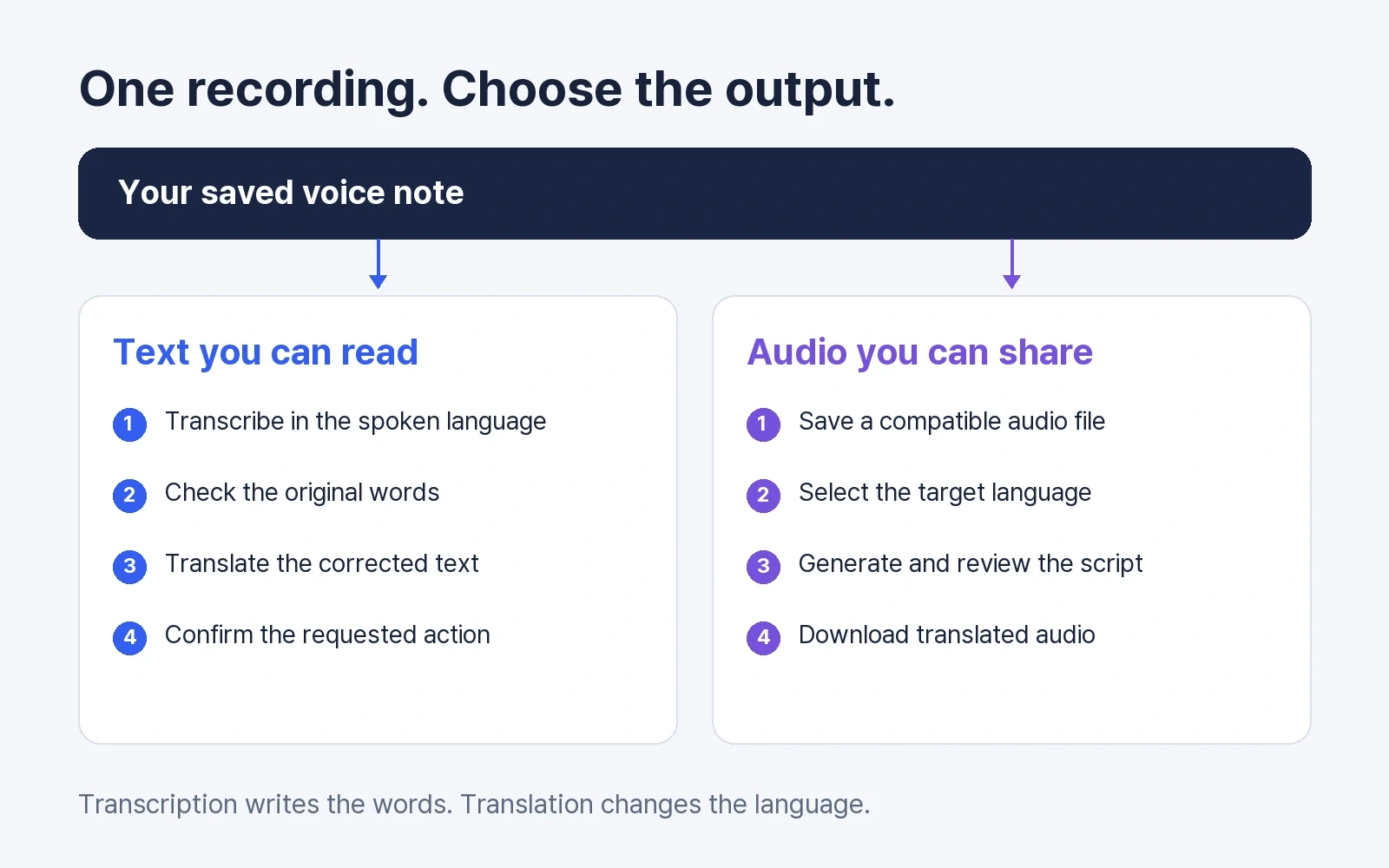
To translate a voice note, first choose your output: translated text to read, or a new audio file to listen to and share.
A transcript writes down the speech in its original language. Translation changes the language. Dubbing creates a spoken version of that translation. Choosing the right output saves you from generating an audio track when a few lines of text would do.
This guide covers recorded messages, including audio saved from messaging apps. Perso Dubbing’s workflow starts with a file upload; the steps below do not describe an integration inside WhatsApp.
Which voice note translation method do you need?
Your task | Start with | Check before you finish |
|---|---|---|
Understand a short message | Transcribe it, then translate the text | Names, numbers, and what the sender wants you to do |
Read an English message in Indonesian | Set English as the spoken source, Indonesian as the translation target | The original transcript before judging the translation |
Share the message as spoken audio in another language | Upload the recording to an audio dubbing tool | The translated script and downloaded voice track |
Open a recording that an uploader rejects | Check its actual format and convert it if needed | Changing the filename alone does not change the codec |
A file-format check you can reproduce
In a local test on October 19, 2026, we made a synthetic speech fixture padded to 10 seconds and encoded it as Ogg/Opus. We copied it with an .mp3 filename, then separately converted the original to WAV. The renamed copy still contained Opus audio. The converted file contained PCM audio in a WAV container.
The WAV and the Opus source produced identical decoded 16-bit audio samples in this test: 480,000 mono samples at 48 kHz. Converting a file can solve a format mismatch; it cannot restore words lost in the original recording. This was a local format test, not a WhatsApp export test or a Perso Dubbing translation-quality benchmark.
Download the synthetic Opus sample or the converted WAV.
How to translate a voice note into text
For a short message, try the text route first.
Get a transcript in the language being spoken. In WhatsApp, look under Settings → Chats → Voice message transcripts. If the feature supports your source language, enable it, then press and hold the message and choose Transcribe. Availability depends on the device and supported languages. WhatsApp’s transcript guide explains the setup.
Correct the transcript against the recording. A missed “not” can reverse an instruction. Check names, amounts, dates, and anything the speaker corrects halfway through.
Translate the corrected text. If it can be copied, paste it into your preferred translator. Otherwise, type the relevant sentence. In Google Translate, select the source and target languages and enter the text. Keep complete sentences together so the translator has context. Google’s text translation instructions
Confirm the action. Before replying, identify who is doing what and when. If “Friday at three” leaves the time zone unclear, ask the sender rather than adding one yourself.
For English-to-Indonesian messages, keep English as the transcription language and choose Indonesian at the translation step. Choosing Indonesian for transcription asks the recognizer to interpret the recording as Indonesian speech.
WhatsApp also provides a separate message translation feature. Its official announcement describes translating messages on the device. A displayed transcript, translated text, and a downloadable dubbed recording are different outputs; check which one your current app offers.
How to translate a voice note into a new audio file
Use an audio dubbing workflow when someone needs to listen to the result or when you are preparing an authorized recording for reuse.
1. Save the recording you want to translate
Use the messaging app’s available download or share-to-file option. The menu varies by app and device. Open the saved file once to confirm that it contains the full message. If you cannot save it, ask the sender for an audio file such as MP3 or WAV.
Use recordings you have permission to process. An external upload is separate from the original private chat and follows the receiving service’s data policy.
2. Choose the source and target languages
Open the AI voice translator and upload the recording. Check the current uploader’s accepted formats and limits. Set or verify the language actually spoken, then choose the language you want in the output.
Perso Dubbing creates translated voice tracks from recordings and provides script review and audio export. For the broader file workflow, see the MP3 and WAV audio translation guide. It covers file-based translation beyond short messages.
3. Review the words before sharing the voice track
Follow the generation step shown in your selected workflow, then open the script and audio for review. Compare the original transcript with the recording before reviewing the translation. Keep product names consistent and check corrections such as “Tuesday, sorry, Thursday.” Model-specific editing options can differ, so use the controls available in the selected workflow.
Listen to the resulting audio. For a message you plan to act on, have a speaker of the target language check any ambiguous phrase. A natural-sounding voice alone does not establish that the meaning is correct.
4. Download the audio you need
Choose the translated audio export, rather than the original voice track. Perso Dubbing’s recorded-speech workflow supports audio outputs; check the download label before saving. Listen to the downloaded file from beginning to end before sending it on.
Need a reusable spoken version? Try the voice translation workflow with a short recording you own. Review the current plans and allowances before generating it.
What if an OGG or Opus voice note will not upload?
An .opus or .ogg filename may indicate a format your chosen uploader does not accept. Keep the original file. Export a real WAV or MP3 copy with an audio converter, then try the converted file.
On a computer with FFmpeg installed, this command converts the first audio stream into 16-bit PCM WAV:
ffmpeg -i "voice-note.opus" -map 0:a:0 -c:a pcm_s16le "voice-note.wav"
Run it in the folder containing the recording, replacing the input filename with your own. Use a new output filename to preserve an existing WAV. The FFmpeg documentation explains input selection and encoding options.
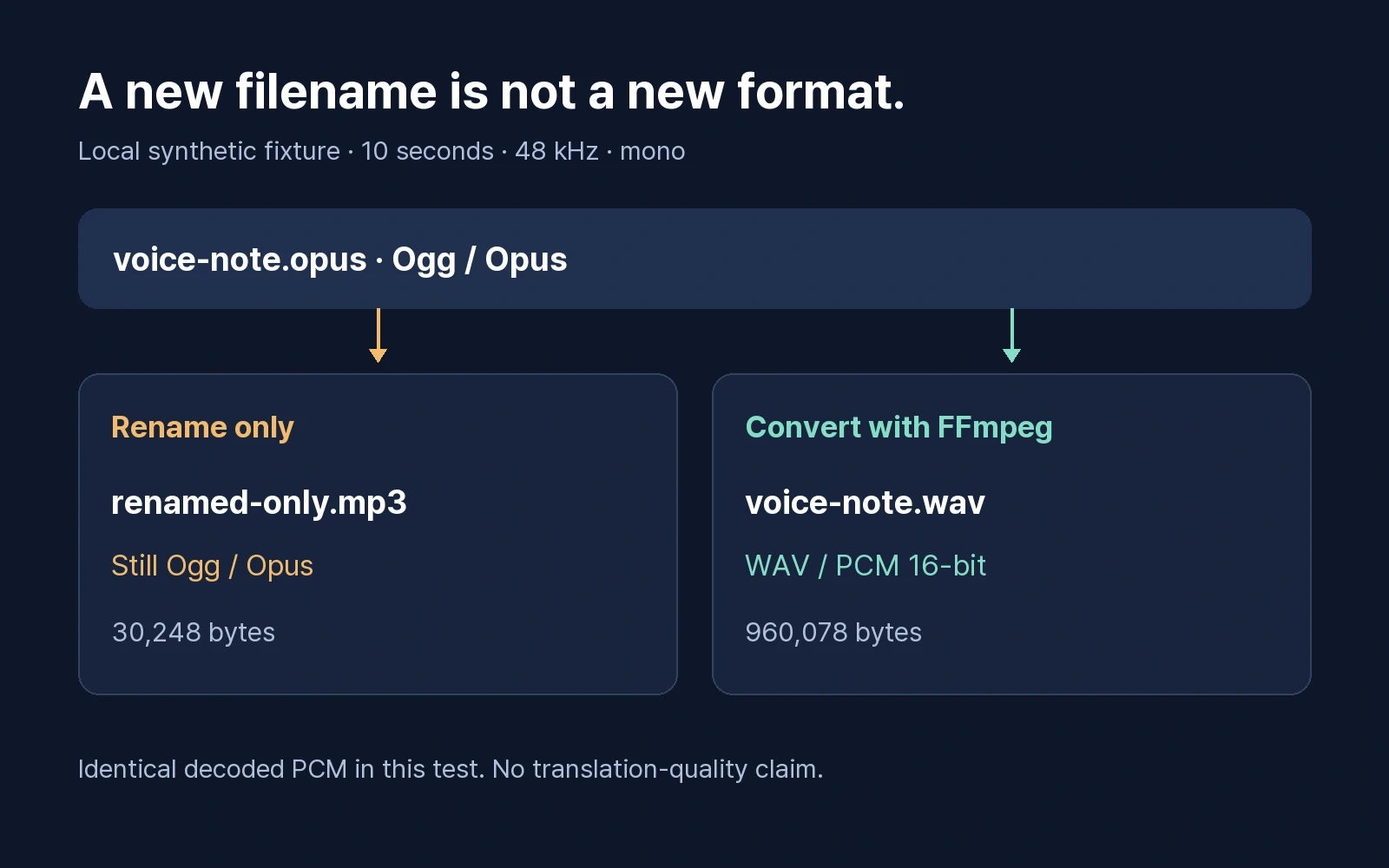
Our 10-second example grew from 30,248 bytes to 960,078 bytes after WAV conversion. The larger file contains uncompressed audio; the size increase does not mean the speech became clearer. For an independent check, ffprobe can report the actual container and codec:
ffprobe -v error -show_entries format=format_name:stream=codec_name -of json "voice-note.wav"
Fix the problem at the right step
What you notice | What to check next |
|---|---|
A transcript appears, but it is still in the original language | Translate the text after transcription |
The source transcript already has the wrong words | Correct those words before translating |
The speaker changes languages midway through | Review each language section separately; do not assume one language setting handles the switch |
A saved file will not upload | Check the codec and uploader limits, then convert if necessary |
A date or amount changes in the output | Compare the source audio, source transcript, and translated line |
You received text but need audio | Choose a workflow that explicitly generates and exports a translated voice track |
Frequently asked questions
Q. Can I translate a voice note without installing another app?
A. If your messaging app can transcribe the recording, you can translate the resulting text in a browser. A browser-based dubbing tool is another option when you need an audio file. Supported languages, file access, and output options depend on the service and device.
Q. Will changing .opus to .mp3 make my voice note compatible?
A. Renaming changes the filename. The encoded audio stays the same. In our local test, both filenames contained Ogg/Opus audio. A real conversion produced PCM audio in a WAV container. Always check the uploader’s supported formats.
Q. Can I get translated audio instead of a transcript?
A. Yes, with an audio dubbing workflow that generates a target-language voice track. Upload an authorized recording, follow the generation and script-review steps, and choose the translated audio export. Transcription by itself produces written words.
Have a recording ready? Open Perso Dubbing’s voice translator, choose the target language, and check the script before sharing the audio.
To translate a voice note, first choose your output: translated text to read, or a new audio file to listen to and share.
A transcript writes down the speech in its original language. Translation changes the language. Dubbing creates a spoken version of that translation. Choosing the right output saves you from generating an audio track when a few lines of text would do.
This guide covers recorded messages, including audio saved from messaging apps. Perso Dubbing’s workflow starts with a file upload; the steps below do not describe an integration inside WhatsApp.
Which voice note translation method do you need?
Your task | Start with | Check before you finish |
|---|---|---|
Understand a short message | Transcribe it, then translate the text | Names, numbers, and what the sender wants you to do |
Read an English message in Indonesian | Set English as the spoken source, Indonesian as the translation target | The original transcript before judging the translation |
Share the message as spoken audio in another language | Upload the recording to an audio dubbing tool | The translated script and downloaded voice track |
Open a recording that an uploader rejects | Check its actual format and convert it if needed | Changing the filename alone does not change the codec |
A file-format check you can reproduce
In a local test on October 19, 2026, we made a synthetic speech fixture padded to 10 seconds and encoded it as Ogg/Opus. We copied it with an .mp3 filename, then separately converted the original to WAV. The renamed copy still contained Opus audio. The converted file contained PCM audio in a WAV container.
The WAV and the Opus source produced identical decoded 16-bit audio samples in this test: 480,000 mono samples at 48 kHz. Converting a file can solve a format mismatch; it cannot restore words lost in the original recording. This was a local format test, not a WhatsApp export test or a Perso Dubbing translation-quality benchmark.
Download the synthetic Opus sample or the converted WAV.
How to translate a voice note into text
For a short message, try the text route first.
Get a transcript in the language being spoken. In WhatsApp, look under Settings → Chats → Voice message transcripts. If the feature supports your source language, enable it, then press and hold the message and choose Transcribe. Availability depends on the device and supported languages. WhatsApp’s transcript guide explains the setup.
Correct the transcript against the recording. A missed “not” can reverse an instruction. Check names, amounts, dates, and anything the speaker corrects halfway through.
Translate the corrected text. If it can be copied, paste it into your preferred translator. Otherwise, type the relevant sentence. In Google Translate, select the source and target languages and enter the text. Keep complete sentences together so the translator has context. Google’s text translation instructions
Confirm the action. Before replying, identify who is doing what and when. If “Friday at three” leaves the time zone unclear, ask the sender rather than adding one yourself.
For English-to-Indonesian messages, keep English as the transcription language and choose Indonesian at the translation step. Choosing Indonesian for transcription asks the recognizer to interpret the recording as Indonesian speech.
WhatsApp also provides a separate message translation feature. Its official announcement describes translating messages on the device. A displayed transcript, translated text, and a downloadable dubbed recording are different outputs; check which one your current app offers.
How to translate a voice note into a new audio file
Use an audio dubbing workflow when someone needs to listen to the result or when you are preparing an authorized recording for reuse.
1. Save the recording you want to translate
Use the messaging app’s available download or share-to-file option. The menu varies by app and device. Open the saved file once to confirm that it contains the full message. If you cannot save it, ask the sender for an audio file such as MP3 or WAV.
Use recordings you have permission to process. An external upload is separate from the original private chat and follows the receiving service’s data policy.
2. Choose the source and target languages
Open the AI voice translator and upload the recording. Check the current uploader’s accepted formats and limits. Set or verify the language actually spoken, then choose the language you want in the output.
Perso Dubbing creates translated voice tracks from recordings and provides script review and audio export. For the broader file workflow, see the MP3 and WAV audio translation guide. It covers file-based translation beyond short messages.
3. Review the words before sharing the voice track
Follow the generation step shown in your selected workflow, then open the script and audio for review. Compare the original transcript with the recording before reviewing the translation. Keep product names consistent and check corrections such as “Tuesday, sorry, Thursday.” Model-specific editing options can differ, so use the controls available in the selected workflow.
Listen to the resulting audio. For a message you plan to act on, have a speaker of the target language check any ambiguous phrase. A natural-sounding voice alone does not establish that the meaning is correct.
4. Download the audio you need
Choose the translated audio export, rather than the original voice track. Perso Dubbing’s recorded-speech workflow supports audio outputs; check the download label before saving. Listen to the downloaded file from beginning to end before sending it on.
Need a reusable spoken version? Try the voice translation workflow with a short recording you own. Review the current plans and allowances before generating it.
What if an OGG or Opus voice note will not upload?
An .opus or .ogg filename may indicate a format your chosen uploader does not accept. Keep the original file. Export a real WAV or MP3 copy with an audio converter, then try the converted file.
On a computer with FFmpeg installed, this command converts the first audio stream into 16-bit PCM WAV:
ffmpeg -i "voice-note.opus" -map 0:a:0 -c:a pcm_s16le "voice-note.wav"
Run it in the folder containing the recording, replacing the input filename with your own. Use a new output filename to preserve an existing WAV. The FFmpeg documentation explains input selection and encoding options.
Our 10-second example grew from 30,248 bytes to 960,078 bytes after WAV conversion. The larger file contains uncompressed audio; the size increase does not mean the speech became clearer. For an independent check, ffprobe can report the actual container and codec:
ffprobe -v error -show_entries format=format_name:stream=codec_name -of json "voice-note.wav"
Fix the problem at the right step
What you notice | What to check next |
|---|---|
A transcript appears, but it is still in the original language | Translate the text after transcription |
The source transcript already has the wrong words | Correct those words before translating |
The speaker changes languages midway through | Review each language section separately; do not assume one language setting handles the switch |
A saved file will not upload | Check the codec and uploader limits, then convert if necessary |
A date or amount changes in the output | Compare the source audio, source transcript, and translated line |
You received text but need audio | Choose a workflow that explicitly generates and exports a translated voice track |
Frequently asked questions
Q. Can I translate a voice note without installing another app?
A. If your messaging app can transcribe the recording, you can translate the resulting text in a browser. A browser-based dubbing tool is another option when you need an audio file. Supported languages, file access, and output options depend on the service and device.
Q. Will changing .opus to .mp3 make my voice note compatible?
A. Renaming changes the filename. The encoded audio stays the same. In our local test, both filenames contained Ogg/Opus audio. A real conversion produced PCM audio in a WAV container. Always check the uploader’s supported formats.
Q. Can I get translated audio instead of a transcript?
A. Yes, with an audio dubbing workflow that generates a target-language voice track. Upload an authorized recording, follow the generation and script-review steps, and choose the translated audio export. Transcription by itself produces written words.
Have a recording ready? Open Perso Dubbing’s voice translator, choose the target language, and check the script before sharing the audio.
To translate a voice note, first choose your output: translated text to read, or a new audio file to listen to and share.
A transcript writes down the speech in its original language. Translation changes the language. Dubbing creates a spoken version of that translation. Choosing the right output saves you from generating an audio track when a few lines of text would do.
This guide covers recorded messages, including audio saved from messaging apps. Perso Dubbing’s workflow starts with a file upload; the steps below do not describe an integration inside WhatsApp.
Which voice note translation method do you need?
Your task | Start with | Check before you finish |
|---|---|---|
Understand a short message | Transcribe it, then translate the text | Names, numbers, and what the sender wants you to do |
Read an English message in Indonesian | Set English as the spoken source, Indonesian as the translation target | The original transcript before judging the translation |
Share the message as spoken audio in another language | Upload the recording to an audio dubbing tool | The translated script and downloaded voice track |
Open a recording that an uploader rejects | Check its actual format and convert it if needed | Changing the filename alone does not change the codec |
A file-format check you can reproduce
In a local test on October 19, 2026, we made a synthetic speech fixture padded to 10 seconds and encoded it as Ogg/Opus. We copied it with an .mp3 filename, then separately converted the original to WAV. The renamed copy still contained Opus audio. The converted file contained PCM audio in a WAV container.
The WAV and the Opus source produced identical decoded 16-bit audio samples in this test: 480,000 mono samples at 48 kHz. Converting a file can solve a format mismatch; it cannot restore words lost in the original recording. This was a local format test, not a WhatsApp export test or a Perso Dubbing translation-quality benchmark.
Download the synthetic Opus sample or the converted WAV.
How to translate a voice note into text
For a short message, try the text route first.
Get a transcript in the language being spoken. In WhatsApp, look under Settings → Chats → Voice message transcripts. If the feature supports your source language, enable it, then press and hold the message and choose Transcribe. Availability depends on the device and supported languages. WhatsApp’s transcript guide explains the setup.
Correct the transcript against the recording. A missed “not” can reverse an instruction. Check names, amounts, dates, and anything the speaker corrects halfway through.
Translate the corrected text. If it can be copied, paste it into your preferred translator. Otherwise, type the relevant sentence. In Google Translate, select the source and target languages and enter the text. Keep complete sentences together so the translator has context. Google’s text translation instructions
Confirm the action. Before replying, identify who is doing what and when. If “Friday at three” leaves the time zone unclear, ask the sender rather than adding one yourself.
For English-to-Indonesian messages, keep English as the transcription language and choose Indonesian at the translation step. Choosing Indonesian for transcription asks the recognizer to interpret the recording as Indonesian speech.
WhatsApp also provides a separate message translation feature. Its official announcement describes translating messages on the device. A displayed transcript, translated text, and a downloadable dubbed recording are different outputs; check which one your current app offers.
How to translate a voice note into a new audio file
Use an audio dubbing workflow when someone needs to listen to the result or when you are preparing an authorized recording for reuse.
1. Save the recording you want to translate
Use the messaging app’s available download or share-to-file option. The menu varies by app and device. Open the saved file once to confirm that it contains the full message. If you cannot save it, ask the sender for an audio file such as MP3 or WAV.
Use recordings you have permission to process. An external upload is separate from the original private chat and follows the receiving service’s data policy.
2. Choose the source and target languages
Open the AI voice translator and upload the recording. Check the current uploader’s accepted formats and limits. Set or verify the language actually spoken, then choose the language you want in the output.
Perso Dubbing creates translated voice tracks from recordings and provides script review and audio export. For the broader file workflow, see the MP3 and WAV audio translation guide. It covers file-based translation beyond short messages.
3. Review the words before sharing the voice track
Follow the generation step shown in your selected workflow, then open the script and audio for review. Compare the original transcript with the recording before reviewing the translation. Keep product names consistent and check corrections such as “Tuesday, sorry, Thursday.” Model-specific editing options can differ, so use the controls available in the selected workflow.
Listen to the resulting audio. For a message you plan to act on, have a speaker of the target language check any ambiguous phrase. A natural-sounding voice alone does not establish that the meaning is correct.
4. Download the audio you need
Choose the translated audio export, rather than the original voice track. Perso Dubbing’s recorded-speech workflow supports audio outputs; check the download label before saving. Listen to the downloaded file from beginning to end before sending it on.
Need a reusable spoken version? Try the voice translation workflow with a short recording you own. Review the current plans and allowances before generating it.
What if an OGG or Opus voice note will not upload?
An .opus or .ogg filename may indicate a format your chosen uploader does not accept. Keep the original file. Export a real WAV or MP3 copy with an audio converter, then try the converted file.
On a computer with FFmpeg installed, this command converts the first audio stream into 16-bit PCM WAV:
ffmpeg -i "voice-note.opus" -map 0:a:0 -c:a pcm_s16le "voice-note.wav"
Run it in the folder containing the recording, replacing the input filename with your own. Use a new output filename to preserve an existing WAV. The FFmpeg documentation explains input selection and encoding options.
Our 10-second example grew from 30,248 bytes to 960,078 bytes after WAV conversion. The larger file contains uncompressed audio; the size increase does not mean the speech became clearer. For an independent check, ffprobe can report the actual container and codec:
ffprobe -v error -show_entries format=format_name:stream=codec_name -of json "voice-note.wav"
Fix the problem at the right step
What you notice | What to check next |
|---|---|
A transcript appears, but it is still in the original language | Translate the text after transcription |
The source transcript already has the wrong words | Correct those words before translating |
The speaker changes languages midway through | Review each language section separately; do not assume one language setting handles the switch |
A saved file will not upload | Check the codec and uploader limits, then convert if necessary |
A date or amount changes in the output | Compare the source audio, source transcript, and translated line |
You received text but need audio | Choose a workflow that explicitly generates and exports a translated voice track |
Frequently asked questions
Q. Can I translate a voice note without installing another app?
A. If your messaging app can transcribe the recording, you can translate the resulting text in a browser. A browser-based dubbing tool is another option when you need an audio file. Supported languages, file access, and output options depend on the service and device.
Q. Will changing .opus to .mp3 make my voice note compatible?
A. Renaming changes the filename. The encoded audio stays the same. In our local test, both filenames contained Ogg/Opus audio. A real conversion produced PCM audio in a WAV container. Always check the uploader’s supported formats.
Q. Can I get translated audio instead of a transcript?
A. Yes, with an audio dubbing workflow that generates a target-language voice track. Upload an authorized recording, follow the generation and script-review steps, and choose the translated audio export. Transcription by itself produces written words.
Have a recording ready? Open Perso Dubbing’s voice translator, choose the target language, and check the script before sharing the audio.
To translate a voice note, first choose your output: translated text to read, or a new audio file to listen to and share.
A transcript writes down the speech in its original language. Translation changes the language. Dubbing creates a spoken version of that translation. Choosing the right output saves you from generating an audio track when a few lines of text would do.
This guide covers recorded messages, including audio saved from messaging apps. Perso Dubbing’s workflow starts with a file upload; the steps below do not describe an integration inside WhatsApp.
Which voice note translation method do you need?
Your task | Start with | Check before you finish |
|---|---|---|
Understand a short message | Transcribe it, then translate the text | Names, numbers, and what the sender wants you to do |
Read an English message in Indonesian | Set English as the spoken source, Indonesian as the translation target | The original transcript before judging the translation |
Share the message as spoken audio in another language | Upload the recording to an audio dubbing tool | The translated script and downloaded voice track |
Open a recording that an uploader rejects | Check its actual format and convert it if needed | Changing the filename alone does not change the codec |
A file-format check you can reproduce
In a local test on October 19, 2026, we made a synthetic speech fixture padded to 10 seconds and encoded it as Ogg/Opus. We copied it with an .mp3 filename, then separately converted the original to WAV. The renamed copy still contained Opus audio. The converted file contained PCM audio in a WAV container.
The WAV and the Opus source produced identical decoded 16-bit audio samples in this test: 480,000 mono samples at 48 kHz. Converting a file can solve a format mismatch; it cannot restore words lost in the original recording. This was a local format test, not a WhatsApp export test or a Perso Dubbing translation-quality benchmark.
Download the synthetic Opus sample or the converted WAV.
How to translate a voice note into text
For a short message, try the text route first.
Get a transcript in the language being spoken. In WhatsApp, look under Settings → Chats → Voice message transcripts. If the feature supports your source language, enable it, then press and hold the message and choose Transcribe. Availability depends on the device and supported languages. WhatsApp’s transcript guide explains the setup.
Correct the transcript against the recording. A missed “not” can reverse an instruction. Check names, amounts, dates, and anything the speaker corrects halfway through.
Translate the corrected text. If it can be copied, paste it into your preferred translator. Otherwise, type the relevant sentence. In Google Translate, select the source and target languages and enter the text. Keep complete sentences together so the translator has context. Google’s text translation instructions
Confirm the action. Before replying, identify who is doing what and when. If “Friday at three” leaves the time zone unclear, ask the sender rather than adding one yourself.
For English-to-Indonesian messages, keep English as the transcription language and choose Indonesian at the translation step. Choosing Indonesian for transcription asks the recognizer to interpret the recording as Indonesian speech.
WhatsApp also provides a separate message translation feature. Its official announcement describes translating messages on the device. A displayed transcript, translated text, and a downloadable dubbed recording are different outputs; check which one your current app offers.
How to translate a voice note into a new audio file
Use an audio dubbing workflow when someone needs to listen to the result or when you are preparing an authorized recording for reuse.
1. Save the recording you want to translate
Use the messaging app’s available download or share-to-file option. The menu varies by app and device. Open the saved file once to confirm that it contains the full message. If you cannot save it, ask the sender for an audio file such as MP3 or WAV.
Use recordings you have permission to process. An external upload is separate from the original private chat and follows the receiving service’s data policy.
2. Choose the source and target languages
Open the AI voice translator and upload the recording. Check the current uploader’s accepted formats and limits. Set or verify the language actually spoken, then choose the language you want in the output.
Perso Dubbing creates translated voice tracks from recordings and provides script review and audio export. For the broader file workflow, see the MP3 and WAV audio translation guide. It covers file-based translation beyond short messages.
3. Review the words before sharing the voice track
Follow the generation step shown in your selected workflow, then open the script and audio for review. Compare the original transcript with the recording before reviewing the translation. Keep product names consistent and check corrections such as “Tuesday, sorry, Thursday.” Model-specific editing options can differ, so use the controls available in the selected workflow.
Listen to the resulting audio. For a message you plan to act on, have a speaker of the target language check any ambiguous phrase. A natural-sounding voice alone does not establish that the meaning is correct.
4. Download the audio you need
Choose the translated audio export, rather than the original voice track. Perso Dubbing’s recorded-speech workflow supports audio outputs; check the download label before saving. Listen to the downloaded file from beginning to end before sending it on.
Need a reusable spoken version? Try the voice translation workflow with a short recording you own. Review the current plans and allowances before generating it.
What if an OGG or Opus voice note will not upload?
An .opus or .ogg filename may indicate a format your chosen uploader does not accept. Keep the original file. Export a real WAV or MP3 copy with an audio converter, then try the converted file.
On a computer with FFmpeg installed, this command converts the first audio stream into 16-bit PCM WAV:
ffmpeg -i "voice-note.opus" -map 0:a:0 -c:a pcm_s16le "voice-note.wav"
Run it in the folder containing the recording, replacing the input filename with your own. Use a new output filename to preserve an existing WAV. The FFmpeg documentation explains input selection and encoding options.
Our 10-second example grew from 30,248 bytes to 960,078 bytes after WAV conversion. The larger file contains uncompressed audio; the size increase does not mean the speech became clearer. For an independent check, ffprobe can report the actual container and codec:
ffprobe -v error -show_entries format=format_name:stream=codec_name -of json "voice-note.wav"
Fix the problem at the right step
What you notice | What to check next |
|---|---|
A transcript appears, but it is still in the original language | Translate the text after transcription |
The source transcript already has the wrong words | Correct those words before translating |
The speaker changes languages midway through | Review each language section separately; do not assume one language setting handles the switch |
A saved file will not upload | Check the codec and uploader limits, then convert if necessary |
A date or amount changes in the output | Compare the source audio, source transcript, and translated line |
You received text but need audio | Choose a workflow that explicitly generates and exports a translated voice track |
Frequently asked questions
Q. Can I translate a voice note without installing another app?
A. If your messaging app can transcribe the recording, you can translate the resulting text in a browser. A browser-based dubbing tool is another option when you need an audio file. Supported languages, file access, and output options depend on the service and device.
Q. Will changing .opus to .mp3 make my voice note compatible?
A. Renaming changes the filename. The encoded audio stays the same. In our local test, both filenames contained Ogg/Opus audio. A real conversion produced PCM audio in a WAV container. Always check the uploader’s supported formats.
Q. Can I get translated audio instead of a transcript?
A. Yes, with an audio dubbing workflow that generates a target-language voice track. Upload an authorized recording, follow the generation and script-review steps, and choose the translated audio export. Transcription by itself produces written words.
Have a recording ready? Open Perso Dubbing’s voice translator, choose the target language, and check the script before sharing the audio.
Continue Reading
Browse All