How to Remove Background Music & Noise from a Video
Last Updated




Jump to section
Jump to section

Share
Share
Share

AI Video Translator, Localization, and Dubbing Tool
Try it out for Free
How to Remove Background Music & Noise from a Video
To remove background music or noise from a video, upload the video file to an AI audio separator, let it split the audio into separate tracks — speech, background music, and ambience — and export only the tracks you want to keep. With Perso Dubbing’s free Audio Separation tool, the first 60 seconds process free with no signup, and the video file goes in directly: no audio extraction, no re-shoot, no editing timeline.
This guide covers why background sound is so hard to remove with a normal editor, the exact three-step workflow, and what to do when you want to keep some of the background — like laughter or crowd energy — while removing the rest.
Why can’t a normal video editor remove background music?
A video file carries one mixed audio track. The music playing in your café shoot, the hum of an air conditioner, and your own voice are not separate layers — they are baked into a single waveform. A video editor can cut, mute, or lower that track, but it cannot subtract one sound from inside it.

That is why the traditional fixes all hurt: re-shooting the scene costs a day, muting the clip kills your dialogue along with the music, and EQ filters dull the noise but distort the voice. AI source separation takes a different approach — a model trained on speech, music, and noise patterns reconstructs each sound as its own track from the single mixed file.
“The most common message we get is not from musicians — it’s from someone who filmed a great take and only later noticed the background music in it,” says Untae Bae, Product Owner at Perso Dubbing. “Audio Separation exists so that take is still usable.”
How to remove background music from a video in 3 steps
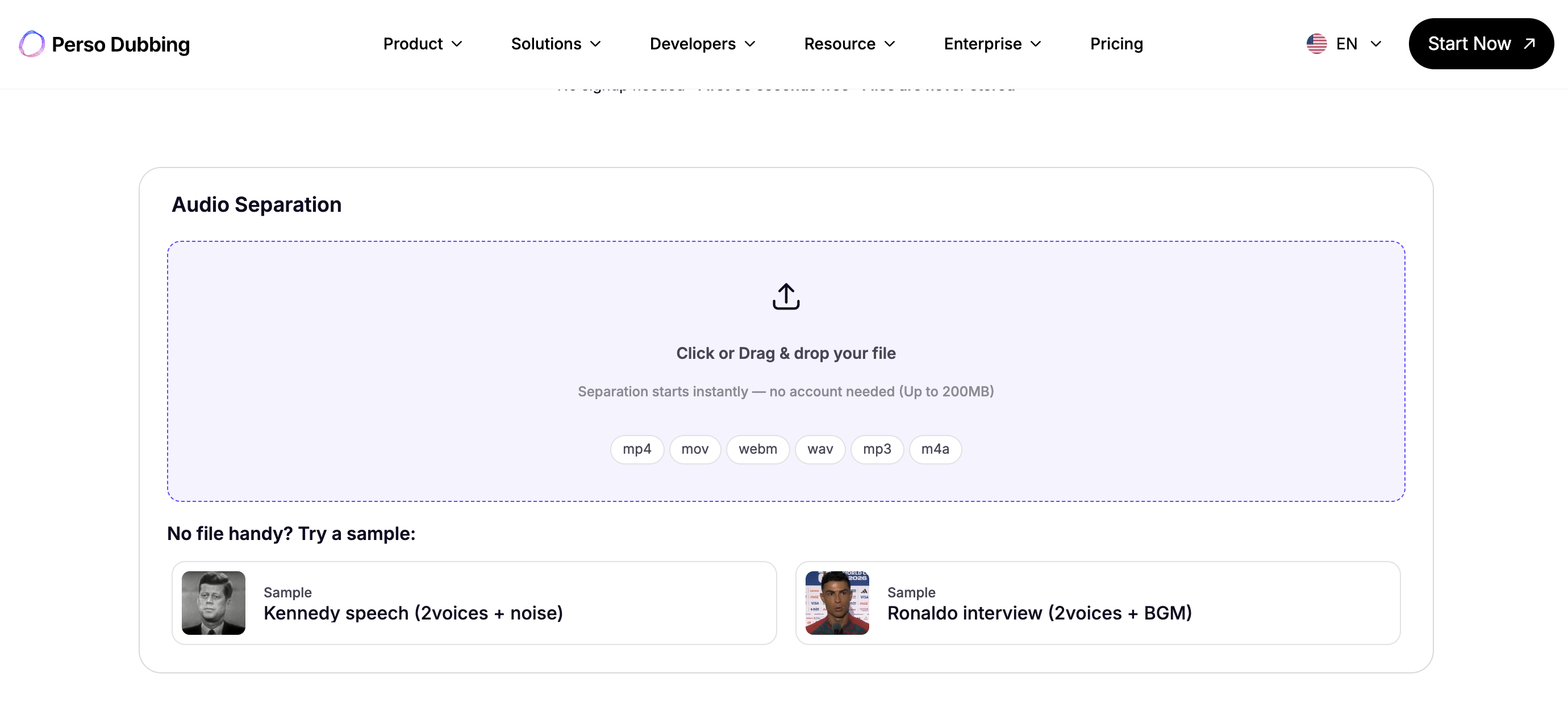
Upload the video file. Drag your MP4, MOV, or WebM (up to 200MB) into Perso Dubbing Audio Separation. Audio files like MP3 and WAV work too. Separation starts immediately — no account needed for the first 60 seconds.
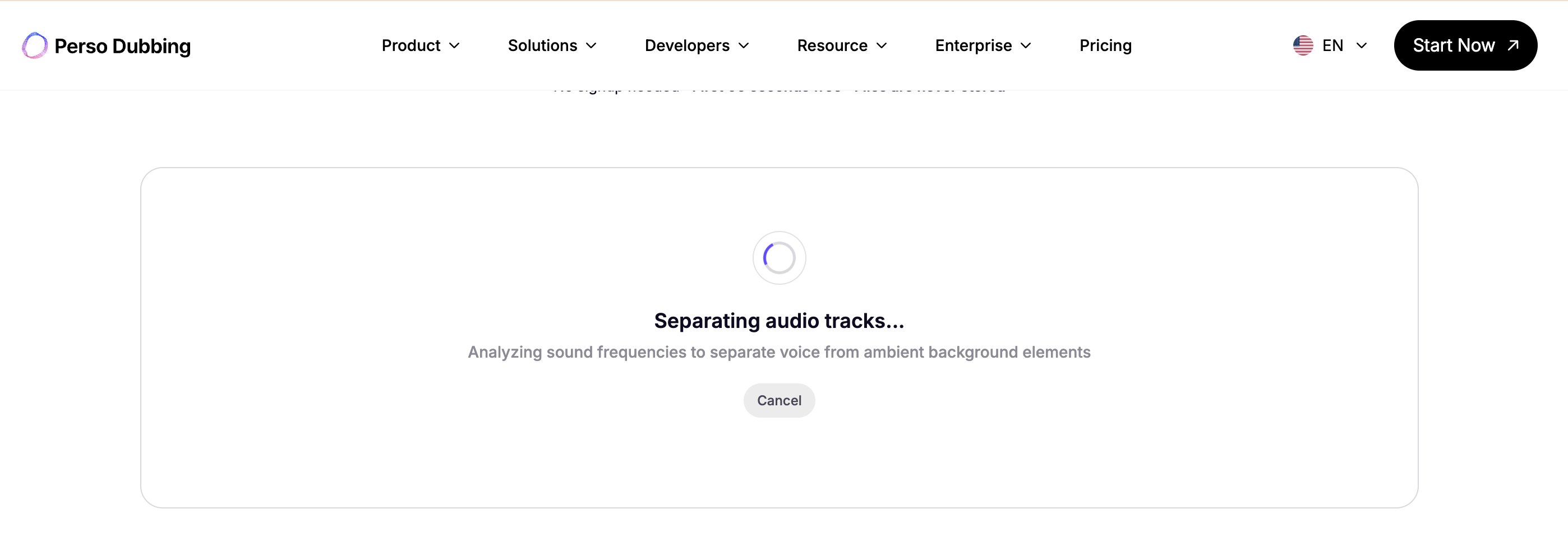
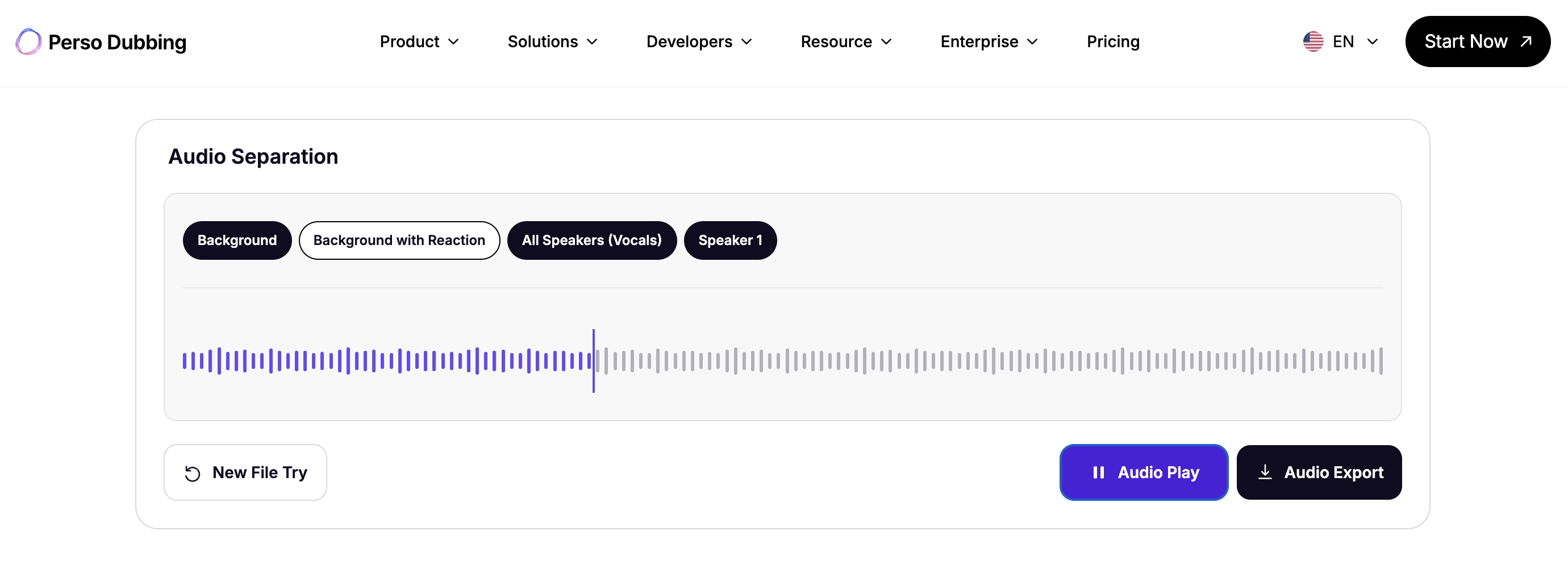
Preview the separated tracks. The AI splits your audio into individual tracks: speech, background music, reactions, and ambience. Listen to each one in the browser before deciding what to keep.
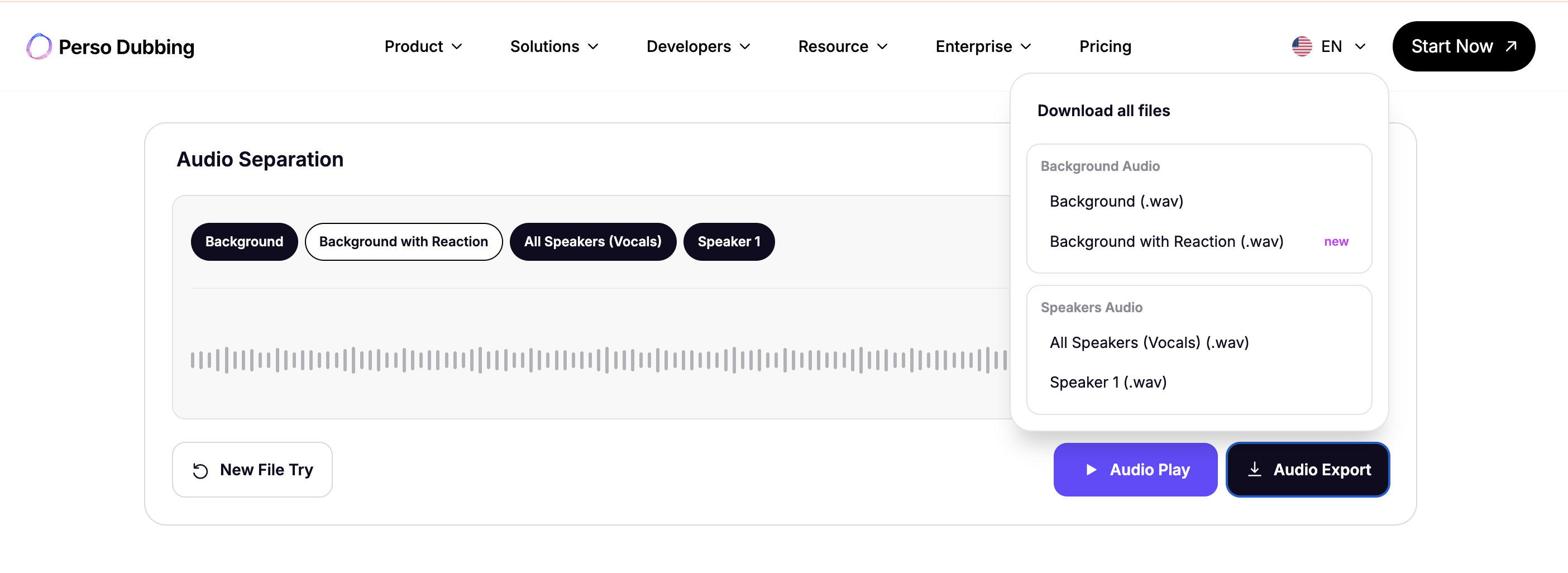
Export the mix you want. Select only the speech track to drop the music entirely, or combine any set of tracks — speech plus ambience, for example — and export them as a single file. Uploaded files are not stored after your session.
Does the same workflow remove background noise, not just music?
Yes — noise and music are separated the same way, and the quality is measurable. On the VoiceBank-DEMAND speech denoising benchmark, Perso Dubbing’s separation scores within a statistical tie of DeepFilterNet3, a dedicated noise-removal specialist model, and outperforms ElevenLabs Audio Isolation on 92–100% of test samples. Per-sample results are published on the Audio Separation page, so the numbers can be verified rather than taken on faith.
In practice, that covers the common cases: air conditioning hum, street traffic behind an interview, keyboard clatter in a screen recording, or echo in a conference room.
What if you want to keep some background sound?
Removing everything is not always the goal. A podcast crowd laughing, applause at a live event, the atmosphere of a busy market — these often make the clip. Perso Dubbing offers two background modes from a single upload:
비교 항목 | Background Music mode | Background with Reaction mode |
|---|---|---|
Speech | Removed | Removed |
Laughter & applause | Removed | Kept |
Background music | Kept | Kept |
Ambience | Kept | Kept |
Mode 1 gives you a clean music-and-ambience bed — useful for replacing dialogue or re-dubbing. Mode 2 keeps the human energy of the room while removing only the spoken words, which no single-purpose vocal remover currently offers.
Can this fix a YouTube copyright claim?
Yes — this is one of the most common uses. If a copyrighted song was playing during your shoot, separate the audio, export your dialogue without the background music track, replace the soundtrack with licensed music, and re-upload. You resolve the claim without re-recording your content or muting entire sections.
Frequently asked questions
Q. How do I remove background music from a video I filmed?
A. Upload the video file directly to an AI audio separator — no need to extract the audio first. Perso Dubbing separates speech, background music, and ambience into individual tracks; export the speech-only mix to drop the music. The first 60 seconds are free, with no signup.
Q. Can I remove background noise from a video without losing voice quality?
A. AI separation reconstructs the voice as its own track instead of filtering the mixed audio, which is why measured voice clarity stays high — on the VoiceBank-DEMAND benchmark, Perso Dubbing ties a dedicated denoising specialist model. Preview the speech track before exporting to confirm the quality on your own file.
Q. What file formats work for video audio separation?
A. Perso Dubbing accepts MP4, MOV, and WebM video files up to 200MB, plus MP3 and WAV audio. Video goes in directly — the tool handles audio extraction internally, and files are not stored after the session.
Audio Separation is free to try — first 60 seconds, no signup, no card. Upload your video →
How to Remove Background Music & Noise from a Video
To remove background music or noise from a video, upload the video file to an AI audio separator, let it split the audio into separate tracks — speech, background music, and ambience — and export only the tracks you want to keep. With Perso Dubbing’s free Audio Separation tool, the first 60 seconds process free with no signup, and the video file goes in directly: no audio extraction, no re-shoot, no editing timeline.
This guide covers why background sound is so hard to remove with a normal editor, the exact three-step workflow, and what to do when you want to keep some of the background — like laughter or crowd energy — while removing the rest.
Why can’t a normal video editor remove background music?
A video file carries one mixed audio track. The music playing in your café shoot, the hum of an air conditioner, and your own voice are not separate layers — they are baked into a single waveform. A video editor can cut, mute, or lower that track, but it cannot subtract one sound from inside it.
That is why the traditional fixes all hurt: re-shooting the scene costs a day, muting the clip kills your dialogue along with the music, and EQ filters dull the noise but distort the voice. AI source separation takes a different approach — a model trained on speech, music, and noise patterns reconstructs each sound as its own track from the single mixed file.
“The most common message we get is not from musicians — it’s from someone who filmed a great take and only later noticed the background music in it,” says Untae Bae, Product Owner at Perso Dubbing. “Audio Separation exists so that take is still usable.”
How to remove background music from a video in 3 steps
Upload the video file. Drag your MP4, MOV, or WebM (up to 200MB) into Perso Dubbing Audio Separation. Audio files like MP3 and WAV work too. Separation starts immediately — no account needed for the first 60 seconds.
Preview the separated tracks. The AI splits your audio into individual tracks: speech, background music, reactions, and ambience. Listen to each one in the browser before deciding what to keep.
Export the mix you want. Select only the speech track to drop the music entirely, or combine any set of tracks — speech plus ambience, for example — and export them as a single file. Uploaded files are not stored after your session.
Does the same workflow remove background noise, not just music?
Yes — noise and music are separated the same way, and the quality is measurable. On the VoiceBank-DEMAND speech denoising benchmark, Perso Dubbing’s separation scores within a statistical tie of DeepFilterNet3, a dedicated noise-removal specialist model, and outperforms ElevenLabs Audio Isolation on 92–100% of test samples. Per-sample results are published on the Audio Separation page, so the numbers can be verified rather than taken on faith.
In practice, that covers the common cases: air conditioning hum, street traffic behind an interview, keyboard clatter in a screen recording, or echo in a conference room.
What if you want to keep some background sound?
Removing everything is not always the goal. A podcast crowd laughing, applause at a live event, the atmosphere of a busy market — these often make the clip. Perso Dubbing offers two background modes from a single upload:
비교 항목 | Background Music mode | Background with Reaction mode |
|---|---|---|
Speech | Removed | Removed |
Laughter & applause | Removed | Kept |
Background music | Kept | Kept |
Ambience | Kept | Kept |
Mode 1 gives you a clean music-and-ambience bed — useful for replacing dialogue or re-dubbing. Mode 2 keeps the human energy of the room while removing only the spoken words, which no single-purpose vocal remover currently offers.
Can this fix a YouTube copyright claim?
Yes — this is one of the most common uses. If a copyrighted song was playing during your shoot, separate the audio, export your dialogue without the background music track, replace the soundtrack with licensed music, and re-upload. You resolve the claim without re-recording your content or muting entire sections.
Frequently asked questions
Q. How do I remove background music from a video I filmed?
A. Upload the video file directly to an AI audio separator — no need to extract the audio first. Perso Dubbing separates speech, background music, and ambience into individual tracks; export the speech-only mix to drop the music. The first 60 seconds are free, with no signup.
Q. Can I remove background noise from a video without losing voice quality?
A. AI separation reconstructs the voice as its own track instead of filtering the mixed audio, which is why measured voice clarity stays high — on the VoiceBank-DEMAND benchmark, Perso Dubbing ties a dedicated denoising specialist model. Preview the speech track before exporting to confirm the quality on your own file.
Q. What file formats work for video audio separation?
A. Perso Dubbing accepts MP4, MOV, and WebM video files up to 200MB, plus MP3 and WAV audio. Video goes in directly — the tool handles audio extraction internally, and files are not stored after the session.
Audio Separation is free to try — first 60 seconds, no signup, no card. Upload your video →
How to Remove Background Music & Noise from a Video
To remove background music or noise from a video, upload the video file to an AI audio separator, let it split the audio into separate tracks — speech, background music, and ambience — and export only the tracks you want to keep. With Perso Dubbing’s free Audio Separation tool, the first 60 seconds process free with no signup, and the video file goes in directly: no audio extraction, no re-shoot, no editing timeline.
This guide covers why background sound is so hard to remove with a normal editor, the exact three-step workflow, and what to do when you want to keep some of the background — like laughter or crowd energy — while removing the rest.
Why can’t a normal video editor remove background music?
A video file carries one mixed audio track. The music playing in your café shoot, the hum of an air conditioner, and your own voice are not separate layers — they are baked into a single waveform. A video editor can cut, mute, or lower that track, but it cannot subtract one sound from inside it.
That is why the traditional fixes all hurt: re-shooting the scene costs a day, muting the clip kills your dialogue along with the music, and EQ filters dull the noise but distort the voice. AI source separation takes a different approach — a model trained on speech, music, and noise patterns reconstructs each sound as its own track from the single mixed file.
“The most common message we get is not from musicians — it’s from someone who filmed a great take and only later noticed the background music in it,” says Untae Bae, Product Owner at Perso Dubbing. “Audio Separation exists so that take is still usable.”
How to remove background music from a video in 3 steps
Upload the video file. Drag your MP4, MOV, or WebM (up to 200MB) into Perso Dubbing Audio Separation. Audio files like MP3 and WAV work too. Separation starts immediately — no account needed for the first 60 seconds.
Preview the separated tracks. The AI splits your audio into individual tracks: speech, background music, reactions, and ambience. Listen to each one in the browser before deciding what to keep.
Export the mix you want. Select only the speech track to drop the music entirely, or combine any set of tracks — speech plus ambience, for example — and export them as a single file. Uploaded files are not stored after your session.
Does the same workflow remove background noise, not just music?
Yes — noise and music are separated the same way, and the quality is measurable. On the VoiceBank-DEMAND speech denoising benchmark, Perso Dubbing’s separation scores within a statistical tie of DeepFilterNet3, a dedicated noise-removal specialist model, and outperforms ElevenLabs Audio Isolation on 92–100% of test samples. Per-sample results are published on the Audio Separation page, so the numbers can be verified rather than taken on faith.
In practice, that covers the common cases: air conditioning hum, street traffic behind an interview, keyboard clatter in a screen recording, or echo in a conference room.
What if you want to keep some background sound?
Removing everything is not always the goal. A podcast crowd laughing, applause at a live event, the atmosphere of a busy market — these often make the clip. Perso Dubbing offers two background modes from a single upload:
비교 항목 | Background Music mode | Background with Reaction mode |
|---|---|---|
Speech | Removed | Removed |
Laughter & applause | Removed | Kept |
Background music | Kept | Kept |
Ambience | Kept | Kept |
Mode 1 gives you a clean music-and-ambience bed — useful for replacing dialogue or re-dubbing. Mode 2 keeps the human energy of the room while removing only the spoken words, which no single-purpose vocal remover currently offers.
Can this fix a YouTube copyright claim?
Yes — this is one of the most common uses. If a copyrighted song was playing during your shoot, separate the audio, export your dialogue without the background music track, replace the soundtrack with licensed music, and re-upload. You resolve the claim without re-recording your content or muting entire sections.
Frequently asked questions
Q. How do I remove background music from a video I filmed?
A. Upload the video file directly to an AI audio separator — no need to extract the audio first. Perso Dubbing separates speech, background music, and ambience into individual tracks; export the speech-only mix to drop the music. The first 60 seconds are free, with no signup.
Q. Can I remove background noise from a video without losing voice quality?
A. AI separation reconstructs the voice as its own track instead of filtering the mixed audio, which is why measured voice clarity stays high — on the VoiceBank-DEMAND benchmark, Perso Dubbing ties a dedicated denoising specialist model. Preview the speech track before exporting to confirm the quality on your own file.
Q. What file formats work for video audio separation?
A. Perso Dubbing accepts MP4, MOV, and WebM video files up to 200MB, plus MP3 and WAV audio. Video goes in directly — the tool handles audio extraction internally, and files are not stored after the session.
Audio Separation is free to try — first 60 seconds, no signup, no card. Upload your video →
Continue Reading
Browse All