SRT vs VTT: Choose and Convert Subtitle Files Correctly
Last Updated



Jump to section
Jump to section

Share
Share
Share

AI Video Translator, Localization, and Dubbing Tool
Try it out for Free
Choose SRT when your upload destination accepts it. Use VTT for a native HTML video text track, then check timing and text after conversion.
SRT vs VTT is a delivery decision. A subtitle file that works in an editor may need a different format on your website. Keep the reviewed original, check the destination's requirements, and convert a copy.
Choose the format by destination
Your destination | Choose | Check before delivery |
|---|---|---|
YouTube upload accepting basic captions | SRT is sufficient; VTT is also supported | UTF-8 text and correct timing; SRT styling is not imported |
Native HTML video text track | VTT | Track loads and captions display in the target player |
Captions must appear in the image everywhere | A video export with burned-in captions | Text remains readable after the final crop |
SRT, or SubRip, is a practical option when your destination accepts a basic timed subtitle file. YouTube accepts SRT and requires plain UTF-8 text; its SRT importer does not recognize styling markup. YouTube also lists WebVTT support, so converting an accepted SRT solely for a YouTube upload is usually unnecessary. See YouTube's supported caption formats.
WebVTT is the text-track format used with a native HTML video player. A VTT file starts with WEBVTT, uses UTF-8 and can include cue settings. Its timestamp fractions use a period. A separate track can be selected by the viewer; it does not permanently draw subtitles into the video. See MDN's WebVTT format reference.
If you still need a transcript before preparing either file, start with speech-to-text transcription. For the wider workflow, read our subtitle generation guide.
What changed in our SRT-to-VTT test?
On October 16, 2026, we converted five synthetic UTF-8 SRT files with FFmpeg 9.0.1. All 10 subtitle cues retained their start times, end times and text. The samples covered punctuation, Korean/Japanese/Portuguese text, two-line captions, an hour boundary and overlapping dialogue.
This was a file-conversion check using invented text, not a Perso Dubbing benchmark. The file comparison did not test playback; a separate browser check is described below. We did not test fonts, colors, positioning, karaoke effects or malformed files. Preserved text and timing do not establish identical appearance in every player.
Synthetic fixture | Cues | File comparison |
|---|---|---|
Punctuation and a comma in 1,250 | 2 | Times and text identical |
Korean, Japanese and Portuguese | 3 | Times and text identical |
Two-line caption | 1 | Times and line break identical |
Hour boundary | 2 | Times and text identical |
Overlapping dialogue | 2 | Times and text identical |
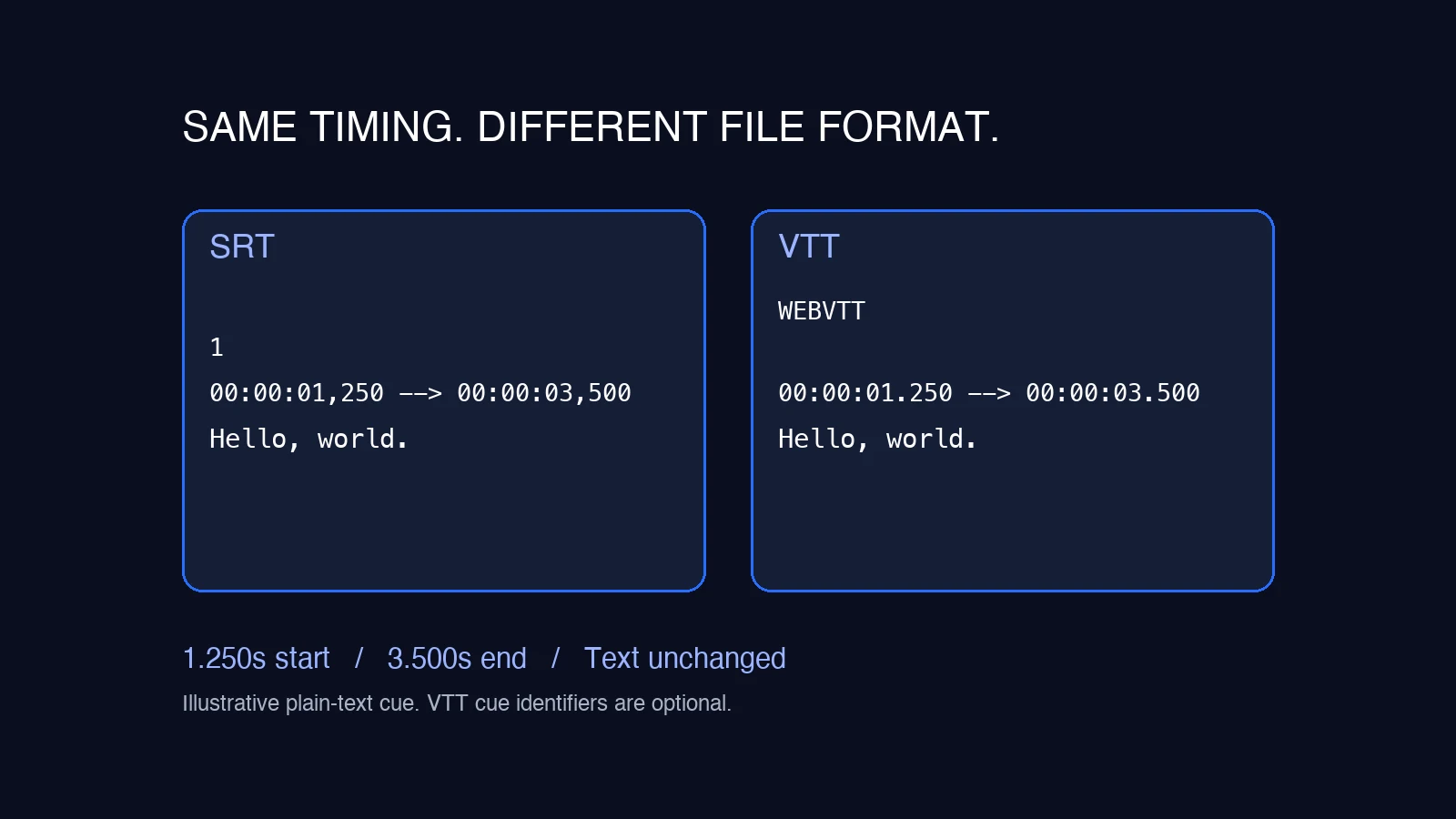
How to convert SRT to VTT and check the result
Keep the original SRT and final video together. Work on a duplicate so you can compare the output.
Use a subtitle editor's WebVTT export, or a converter that explicitly supports SRT input and VTT output. For our test, the FFmpeg command was
ffmpeg -i input.srt output.vtt. This requires a local FFmpeg installation; see the official FFmpeg documentation.Open the exported file in a plain-text editor. Check its WEBVTT header, blank lines between cues and timestamp syntax. A start time of
00:00:01,250in SRT represents the same instant as00:00:01.250in VTT. Changing the filename extension alone does not convert the contents.Compare the cue count, start and end times, and actual words against the original. Check punctuation and accented characters. Avoid replacing every comma in the file: dialogue may contain commas that must stay unchanged.
Load the result in the destination player. Check an early cue, a middle cue, the final cue and any overlapping dialogue. Confirm line wrapping and subtitle visibility on a phone as well as a desktop.
Our five sample files passed the file-level comparison. Your release check should still use your own final video and delivery platform. For video-specific setup, follow MDN's guide to adding captions to HTML video.
Reproduce the check with a small sample
Use the sample below as a UTF-8 plain-text file named sample.srt. Keep each timing range on one line, and leave one blank line between cues. The commas in the dialogue deliberately test whether a conversion changes punctuation.
100:00:01,250 --> 00:00:03,500Hello, world. Keep this comma.200:00:04,200 --> 00:00:06,100Price: 1,250 dollars.
Convert with ffmpeg -i sample.srt sample.vtt. Our FFmpeg output was:
WEBVTT00:01.250 --> 00:03.500Hello, world. Keep this comma.00:04.200 --> 00:06.100Price: 1,250 dollars.
FFmpeg omitted the cue numbers and zero-hour prefix in this output. Both are permitted in WebVTT; compare the time values and text rather than requiring byte-for-byte identical files.
For a minimal browser check, serve sample.vtt and a video named sample.mp4 from the same HTTP origin. Use a video at least seven seconds long. Add this HTML:
<video controls><source src="sample.mp4" type="video/mp4"><track default kind="subtitles" src="sample.vtt" srclang="en" label="English"></video>
We checked this setup in the Codex in-app browser on macOS on October 16, 2026, using a synthetic seven-second video. At 2 seconds, the first caption was visible. At 5 seconds, the second caption appeared with the comma in 1,250 intact. At 6.5 seconds, the track had no active cue. These were seek-based checks in one desktop environment, not cross-browser or mobile certification.
If captions do not appear, check that the caption track is enabled, the VTT URL loads, and the current video time falls inside a cue. Our local server delivered the VTT with the text/vtt content type. Cross-origin hosting needs its own configuration and was outside this test.
What format conversion cannot fix
Converting SRT to VTT preserves a subtitle's language unless you separately translate the text. It also does not repair an existing delay or timing drift. If the original is already out of sync, use our subtitle timing guide before converting it.
For translated video, review the subtitle text against the audio the viewer will hear. Keep each subtitle file paired with its correct video version. A later cut can invalidate an otherwise correct file.
In the Perso Dubbing project editor checked on October 13, 2026, the Download menu offered Original Subtitles and Translated Subtitles as SRT. That observation concerns the dubbing editor, not every export surface or account. If your destination needs VTT, convert the downloaded SRT separately and perform the same checks. Do not assume that file conversion translates or regenerates speech.
Use Perso Dubbing when your project needs translated speech as well as subtitles. Check the final audio, approve the subtitle wording, and then prepare the file format your destination requires.
Frequently asked questions
Q. Can I rename an SRT file to VTT?
A. Renaming changes the filename, not the file structure. Export or convert it to WebVTT, then verify the header and timestamps. Compare the resulting text and timing with your original before testing the file in its destination player.
Q. Does converting SRT to VTT change subtitle timing?
A. A format conversion should preserve cue times. In our five-file synthetic test, all 10 cues kept their start and end times. This limited result does not guarantee every converter or input file. Compare your output and test it against the final video.
Q. Will VTT subtitles always be visible in the video?
A. A separate VTT track depends on the player and its caption settings. If captions must remain visible wherever the video is played, use a video export with burned-in subtitles. Keep an editable subtitle file too, so future language or wording changes remain manageable.
Choose SRT when your upload destination accepts it. Use VTT for a native HTML video text track, then check timing and text after conversion.
SRT vs VTT is a delivery decision. A subtitle file that works in an editor may need a different format on your website. Keep the reviewed original, check the destination's requirements, and convert a copy.
Choose the format by destination
Your destination | Choose | Check before delivery |
|---|---|---|
YouTube upload accepting basic captions | SRT is sufficient; VTT is also supported | UTF-8 text and correct timing; SRT styling is not imported |
Native HTML video text track | VTT | Track loads and captions display in the target player |
Captions must appear in the image everywhere | A video export with burned-in captions | Text remains readable after the final crop |
SRT, or SubRip, is a practical option when your destination accepts a basic timed subtitle file. YouTube accepts SRT and requires plain UTF-8 text; its SRT importer does not recognize styling markup. YouTube also lists WebVTT support, so converting an accepted SRT solely for a YouTube upload is usually unnecessary. See YouTube's supported caption formats.
WebVTT is the text-track format used with a native HTML video player. A VTT file starts with WEBVTT, uses UTF-8 and can include cue settings. Its timestamp fractions use a period. A separate track can be selected by the viewer; it does not permanently draw subtitles into the video. See MDN's WebVTT format reference.
If you still need a transcript before preparing either file, start with speech-to-text transcription. For the wider workflow, read our subtitle generation guide.
What changed in our SRT-to-VTT test?
On October 16, 2026, we converted five synthetic UTF-8 SRT files with FFmpeg 9.0.1. All 10 subtitle cues retained their start times, end times and text. The samples covered punctuation, Korean/Japanese/Portuguese text, two-line captions, an hour boundary and overlapping dialogue.
This was a file-conversion check using invented text, not a Perso Dubbing benchmark. The file comparison did not test playback; a separate browser check is described below. We did not test fonts, colors, positioning, karaoke effects or malformed files. Preserved text and timing do not establish identical appearance in every player.
Synthetic fixture | Cues | File comparison |
|---|---|---|
Punctuation and a comma in 1,250 | 2 | Times and text identical |
Korean, Japanese and Portuguese | 3 | Times and text identical |
Two-line caption | 1 | Times and line break identical |
Hour boundary | 2 | Times and text identical |
Overlapping dialogue | 2 | Times and text identical |
How to convert SRT to VTT and check the result
Keep the original SRT and final video together. Work on a duplicate so you can compare the output.
Use a subtitle editor's WebVTT export, or a converter that explicitly supports SRT input and VTT output. For our test, the FFmpeg command was
ffmpeg -i input.srt output.vtt. This requires a local FFmpeg installation; see the official FFmpeg documentation.Open the exported file in a plain-text editor. Check its WEBVTT header, blank lines between cues and timestamp syntax. A start time of
00:00:01,250in SRT represents the same instant as00:00:01.250in VTT. Changing the filename extension alone does not convert the contents.Compare the cue count, start and end times, and actual words against the original. Check punctuation and accented characters. Avoid replacing every comma in the file: dialogue may contain commas that must stay unchanged.
Load the result in the destination player. Check an early cue, a middle cue, the final cue and any overlapping dialogue. Confirm line wrapping and subtitle visibility on a phone as well as a desktop.
Our five sample files passed the file-level comparison. Your release check should still use your own final video and delivery platform. For video-specific setup, follow MDN's guide to adding captions to HTML video.
Reproduce the check with a small sample
Use the sample below as a UTF-8 plain-text file named sample.srt. Keep each timing range on one line, and leave one blank line between cues. The commas in the dialogue deliberately test whether a conversion changes punctuation.
100:00:01,250 --> 00:00:03,500Hello, world. Keep this comma.200:00:04,200 --> 00:00:06,100Price: 1,250 dollars.
Convert with ffmpeg -i sample.srt sample.vtt. Our FFmpeg output was:
WEBVTT00:01.250 --> 00:03.500Hello, world. Keep this comma.00:04.200 --> 00:06.100Price: 1,250 dollars.
FFmpeg omitted the cue numbers and zero-hour prefix in this output. Both are permitted in WebVTT; compare the time values and text rather than requiring byte-for-byte identical files.
For a minimal browser check, serve sample.vtt and a video named sample.mp4 from the same HTTP origin. Use a video at least seven seconds long. Add this HTML:
<video controls><source src="sample.mp4" type="video/mp4"><track default kind="subtitles" src="sample.vtt" srclang="en" label="English"></video>
We checked this setup in the Codex in-app browser on macOS on October 16, 2026, using a synthetic seven-second video. At 2 seconds, the first caption was visible. At 5 seconds, the second caption appeared with the comma in 1,250 intact. At 6.5 seconds, the track had no active cue. These were seek-based checks in one desktop environment, not cross-browser or mobile certification.
If captions do not appear, check that the caption track is enabled, the VTT URL loads, and the current video time falls inside a cue. Our local server delivered the VTT with the text/vtt content type. Cross-origin hosting needs its own configuration and was outside this test.
What format conversion cannot fix
Converting SRT to VTT preserves a subtitle's language unless you separately translate the text. It also does not repair an existing delay or timing drift. If the original is already out of sync, use our subtitle timing guide before converting it.
For translated video, review the subtitle text against the audio the viewer will hear. Keep each subtitle file paired with its correct video version. A later cut can invalidate an otherwise correct file.
In the Perso Dubbing project editor checked on October 13, 2026, the Download menu offered Original Subtitles and Translated Subtitles as SRT. That observation concerns the dubbing editor, not every export surface or account. If your destination needs VTT, convert the downloaded SRT separately and perform the same checks. Do not assume that file conversion translates or regenerates speech.
Use Perso Dubbing when your project needs translated speech as well as subtitles. Check the final audio, approve the subtitle wording, and then prepare the file format your destination requires.
Frequently asked questions
Q. Can I rename an SRT file to VTT?
A. Renaming changes the filename, not the file structure. Export or convert it to WebVTT, then verify the header and timestamps. Compare the resulting text and timing with your original before testing the file in its destination player.
Q. Does converting SRT to VTT change subtitle timing?
A. A format conversion should preserve cue times. In our five-file synthetic test, all 10 cues kept their start and end times. This limited result does not guarantee every converter or input file. Compare your output and test it against the final video.
Q. Will VTT subtitles always be visible in the video?
A. A separate VTT track depends on the player and its caption settings. If captions must remain visible wherever the video is played, use a video export with burned-in subtitles. Keep an editable subtitle file too, so future language or wording changes remain manageable.
Choose SRT when your upload destination accepts it. Use VTT for a native HTML video text track, then check timing and text after conversion.
SRT vs VTT is a delivery decision. A subtitle file that works in an editor may need a different format on your website. Keep the reviewed original, check the destination's requirements, and convert a copy.
Choose the format by destination
Your destination | Choose | Check before delivery |
|---|---|---|
YouTube upload accepting basic captions | SRT is sufficient; VTT is also supported | UTF-8 text and correct timing; SRT styling is not imported |
Native HTML video text track | VTT | Track loads and captions display in the target player |
Captions must appear in the image everywhere | A video export with burned-in captions | Text remains readable after the final crop |
SRT, or SubRip, is a practical option when your destination accepts a basic timed subtitle file. YouTube accepts SRT and requires plain UTF-8 text; its SRT importer does not recognize styling markup. YouTube also lists WebVTT support, so converting an accepted SRT solely for a YouTube upload is usually unnecessary. See YouTube's supported caption formats.
WebVTT is the text-track format used with a native HTML video player. A VTT file starts with WEBVTT, uses UTF-8 and can include cue settings. Its timestamp fractions use a period. A separate track can be selected by the viewer; it does not permanently draw subtitles into the video. See MDN's WebVTT format reference.
If you still need a transcript before preparing either file, start with speech-to-text transcription. For the wider workflow, read our subtitle generation guide.
What changed in our SRT-to-VTT test?
On October 16, 2026, we converted five synthetic UTF-8 SRT files with FFmpeg 9.0.1. All 10 subtitle cues retained their start times, end times and text. The samples covered punctuation, Korean/Japanese/Portuguese text, two-line captions, an hour boundary and overlapping dialogue.
This was a file-conversion check using invented text, not a Perso Dubbing benchmark. The file comparison did not test playback; a separate browser check is described below. We did not test fonts, colors, positioning, karaoke effects or malformed files. Preserved text and timing do not establish identical appearance in every player.
Synthetic fixture | Cues | File comparison |
|---|---|---|
Punctuation and a comma in 1,250 | 2 | Times and text identical |
Korean, Japanese and Portuguese | 3 | Times and text identical |
Two-line caption | 1 | Times and line break identical |
Hour boundary | 2 | Times and text identical |
Overlapping dialogue | 2 | Times and text identical |
How to convert SRT to VTT and check the result
Keep the original SRT and final video together. Work on a duplicate so you can compare the output.
Use a subtitle editor's WebVTT export, or a converter that explicitly supports SRT input and VTT output. For our test, the FFmpeg command was
ffmpeg -i input.srt output.vtt. This requires a local FFmpeg installation; see the official FFmpeg documentation.Open the exported file in a plain-text editor. Check its WEBVTT header, blank lines between cues and timestamp syntax. A start time of
00:00:01,250in SRT represents the same instant as00:00:01.250in VTT. Changing the filename extension alone does not convert the contents.Compare the cue count, start and end times, and actual words against the original. Check punctuation and accented characters. Avoid replacing every comma in the file: dialogue may contain commas that must stay unchanged.
Load the result in the destination player. Check an early cue, a middle cue, the final cue and any overlapping dialogue. Confirm line wrapping and subtitle visibility on a phone as well as a desktop.
Our five sample files passed the file-level comparison. Your release check should still use your own final video and delivery platform. For video-specific setup, follow MDN's guide to adding captions to HTML video.
Reproduce the check with a small sample
Use the sample below as a UTF-8 plain-text file named sample.srt. Keep each timing range on one line, and leave one blank line between cues. The commas in the dialogue deliberately test whether a conversion changes punctuation.
100:00:01,250 --> 00:00:03,500Hello, world. Keep this comma.200:00:04,200 --> 00:00:06,100Price: 1,250 dollars.
Convert with ffmpeg -i sample.srt sample.vtt. Our FFmpeg output was:
WEBVTT00:01.250 --> 00:03.500Hello, world. Keep this comma.00:04.200 --> 00:06.100Price: 1,250 dollars.
FFmpeg omitted the cue numbers and zero-hour prefix in this output. Both are permitted in WebVTT; compare the time values and text rather than requiring byte-for-byte identical files.
For a minimal browser check, serve sample.vtt and a video named sample.mp4 from the same HTTP origin. Use a video at least seven seconds long. Add this HTML:
<video controls><source src="sample.mp4" type="video/mp4"><track default kind="subtitles" src="sample.vtt" srclang="en" label="English"></video>
We checked this setup in the Codex in-app browser on macOS on October 16, 2026, using a synthetic seven-second video. At 2 seconds, the first caption was visible. At 5 seconds, the second caption appeared with the comma in 1,250 intact. At 6.5 seconds, the track had no active cue. These were seek-based checks in one desktop environment, not cross-browser or mobile certification.
If captions do not appear, check that the caption track is enabled, the VTT URL loads, and the current video time falls inside a cue. Our local server delivered the VTT with the text/vtt content type. Cross-origin hosting needs its own configuration and was outside this test.
What format conversion cannot fix
Converting SRT to VTT preserves a subtitle's language unless you separately translate the text. It also does not repair an existing delay or timing drift. If the original is already out of sync, use our subtitle timing guide before converting it.
For translated video, review the subtitle text against the audio the viewer will hear. Keep each subtitle file paired with its correct video version. A later cut can invalidate an otherwise correct file.
In the Perso Dubbing project editor checked on October 13, 2026, the Download menu offered Original Subtitles and Translated Subtitles as SRT. That observation concerns the dubbing editor, not every export surface or account. If your destination needs VTT, convert the downloaded SRT separately and perform the same checks. Do not assume that file conversion translates or regenerates speech.
Use Perso Dubbing when your project needs translated speech as well as subtitles. Check the final audio, approve the subtitle wording, and then prepare the file format your destination requires.
Frequently asked questions
Q. Can I rename an SRT file to VTT?
A. Renaming changes the filename, not the file structure. Export or convert it to WebVTT, then verify the header and timestamps. Compare the resulting text and timing with your original before testing the file in its destination player.
Q. Does converting SRT to VTT change subtitle timing?
A. A format conversion should preserve cue times. In our five-file synthetic test, all 10 cues kept their start and end times. This limited result does not guarantee every converter or input file. Compare your output and test it against the final video.
Q. Will VTT subtitles always be visible in the video?
A. A separate VTT track depends on the player and its caption settings. If captions must remain visible wherever the video is played, use a video export with burned-in subtitles. Keep an editable subtitle file too, so future language or wording changes remain manageable.
Continue Reading
Browse All