How to Separate Two Voices in One Recording
Last Updated




Jump to section
Jump to section

Share
Share
Share

AI Video Translator, Localization, and Dubbing Tool
Try it out for Free
To separate two voices in one recording, use the original speaker tracks if available. Otherwise, try per-speaker audio separation and check both outputs before editing.
A podcast guest is too quiet. An interviewer interrupts an answer. You want one person's words for a short clip, but both voices are mixed into the same file. The next step depends on what you still have: the recording project, separate microphone tracks, or only the exported audio or video.
This guide helps you choose a method, check the separated voices, and put the voice you need back into your edit. If your goal is removing music behind a conversation, start with our background-music removal guide.
01. Choose a method for your recording
What you have | Start here | Main limitation |
|---|---|---|
Original microphone or recording tracks | Solo and export the person’s original track | Another microphone may still have picked up their voice. |
One mixed recording, with people taking turns | Cut or mute unwanted turns on the editing timeline | This does not isolate voices that speak simultaneously. |
One mixed recording, with overlapping speech | Try individual speaker separation on a short excerpt | Check for missing words and the other voice leaking into the result. |
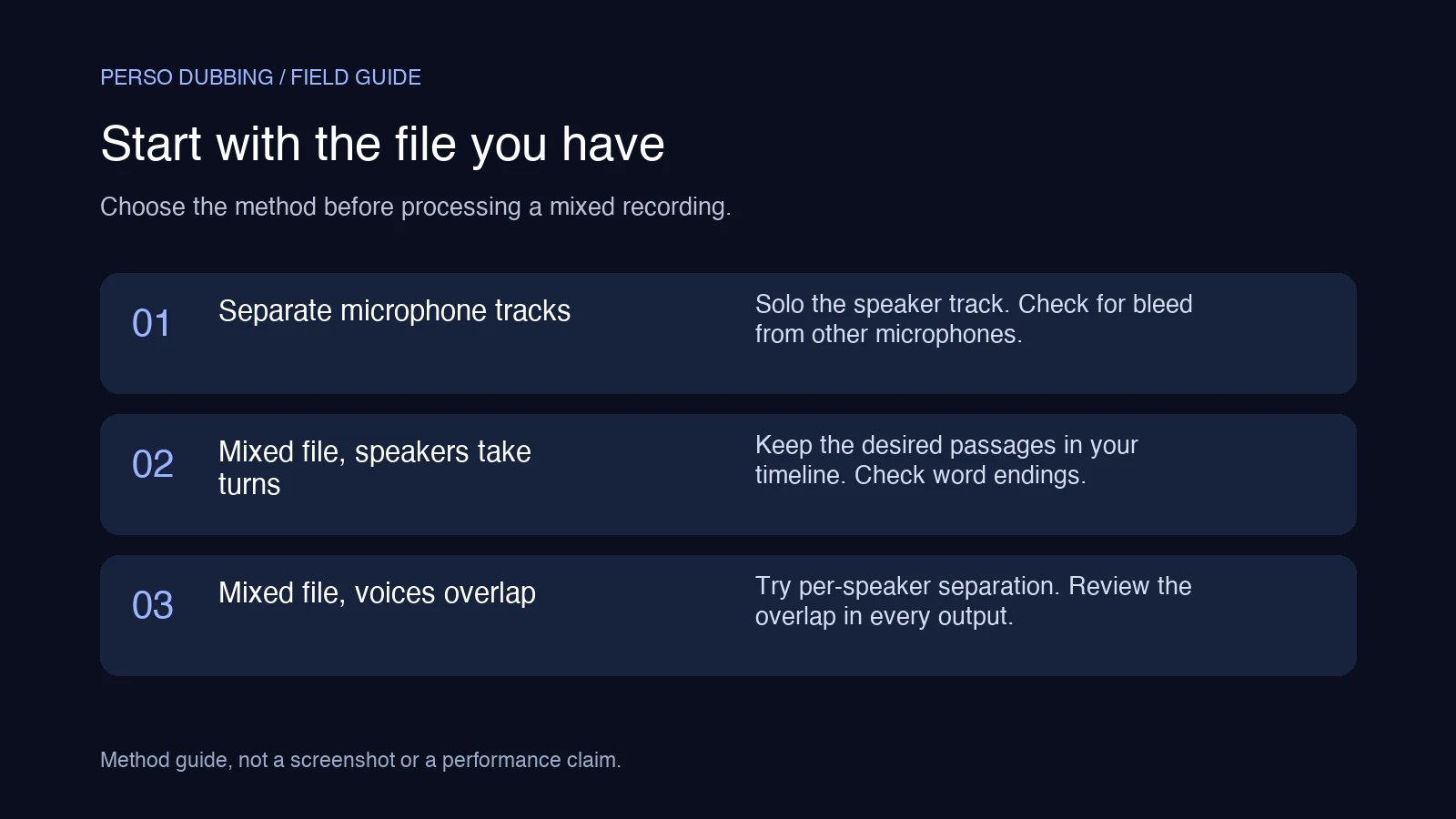
Method-selection diagram, not a product screenshot or measured result.
Case 1: You have the original tracks
Open the original recording project and solo the microphone track for the person you need. Check whether the other person is still audible through microphone bleed, then export the usable track. This avoids reconstructing voices from a finished mix.
A stereo file has two channels, but those channels do not necessarily correspond to two people. Listen to the left and right channels separately before treating either as an isolated speaker.
Case 2: The speakers take turns
If you only need selected passages, timeline editing may be enough. Keep the desired speaker’s sections and lower or mute the other sections. Preserve the start and end of each word, and listen across every cut for abrupt changes in room sound.
For example, to create a guest-only clip from a question and answer, remove the interviewer’s question only if the answer still makes sense on its own. Keep context where removing a question would change the meaning.
Case 3: Both voices overlap
Muting the shared time range removes both people. Instead, test a short excerpt with individual speaker separation and compare each output against the original at that exact moment.
If an important phrase is missing, use an alternate take, request the original microphone track, or choose a passage without the interruption. Do not assume a tool recovered every word just because it returned two speaker tracks.
02. Speaker labels and separate audio tracks are different
Speaker diarization identifies who spoke when in a transcript. For example, Google Cloud's diarization documentation describes speaker labels associated with recognized words. That does not, by itself, give you a downloadable audio file containing only one person's voice.
Per-speaker audio separation aims to produce those individual voice tracks. Before choosing a tool, check the output it actually provides. A transcript labeled Speaker 1 and Speaker 2 may help you edit text while leaving the original audio mixed together.
A vocals track is another different output: it may contain both people with less background sound. For a broader explanation, see why music-oriented vocal removal differs from video audio separation.
03. How to check individual speaker tracks in Perso Dubbing
1. Choose a representative excerpt
Include a clear sentence from each person and an interruption if the recording contains one. Preserve the original file for comparison. An easy opening sentence alone will not tell you whether the busiest passage is usable.
2. Upload the file
Open Perso Dubbing Audio Separation and use the upload area. Check the current file requirements and trial conditions shown there before processing.
3. Find the output you need
After processing, inspect the available tracks. Look for individual speaker tracks when you need one person's voice. “All Speakers (Vocals)” refers to the combined voices rather than a single selected person.
Listen to identify the people represented by the numbered tracks. Do not assume Speaker 1 is always the host or that a detected track is already clean enough to publish.
4. Compare the difficult passage
Play the original and each speaker track around an interruption. Then check a quieter sentence and a word ending. Use the checklist below to decide whether the result works for your edit.
5. Export and return to your video editor
The export menu lists speaker-audio WAV files. In our September 29 check, the download prompt stated that track downloads unlock with the Starter plan; signing up alone should not be treated as free download access. In the signed-in workspace, Audio Export combines the selected tracks into one file. To export one speaker, deselect the other tracks and confirm that the Selected label shows only that speaker. When making a video, place that audio in your editor, align it with the original, and mute the original mixed audio so you do not reintroduce the other voice.
Review synchronization at the beginning and later in the clip before exporting the video. Audio separation and video export are separate steps in this workflow.
04. What to listen for before using the result
Check | Listen for | What to do |
|---|---|---|
The words you want | Missing syllables, consonants, or a changed meaning | Compare the same phrase with the original. Do not approve a result that loses an important word. |
The other speaker | A second voice still audible under the selected speaker | Decide whether that passage needs a different edit or the original isolated recording. |
Interruptions | A voice becoming faint or distorted when both people speak | Review the overlapping passage separately from the clean turns. |
Voice texture | Metallic sounds, abrupt changes, or uneven loudness | Listen on headphones and the device your audience will use. |
Timing | Speech arriving before or after the visible mouth movement | Recheck track alignment and any trims made during editing. |
Listening to a clean passage does not validate the rest of a recording. For a short interview excerpt, a single damaged answer can matter more than several clean minutes.
05. A limitation to check in overlapping speech
In an internal test, we processed a roughly 19-second recording made from two synthetic voices. The second voice was introduced at 6.5 seconds. The signed-in workspace returned two speaker options, a labeled transcript, and two downloadable WAV files of the same approximate duration as the input.
However, the output labeled Speaker 2 contained digital silence from 6.5 to 10 seconds. The existence of two exported files therefore did not establish complete recovery of the overlapping voices. We have not completed a listening review or verified the voice-to-track mapping. This is a signal-level observation from one constructed sample, not a benchmark of real interviews or a separation success demonstration.
The practical check is simple: compare every phrase you need with the original, especially where people interrupt each other. A file can retain the full recording duration while missing speech within it.
06. What if the voices still overlap?
Treat separation as a result to evaluate on your file. If the desired words are missing or the second voice remains distracting, consider a different excerpt, the original microphone recordings, or a new recording when possible. Do not present a damaged phrase as an accurate record of what someone said.
For a transcript or a dubbed version, review speaker attribution as well as sound. An isolated audio track does not establish that the transcript or translation is correct. Our multi-speaker transcription guide covers the speaker-label and script-review stage.
Once the source material is usable, you can move on to video dubbing. Keep the separation check and the translated-script review as distinct decisions.
07. Frequently asked questions
Q. Can I separate two voices that are speaking at the same time?
A. Per-speaker separation is a method to try on a mixed recording. Check the overlapping passage in each output: the presence of two track labels does not establish that both voices have been preserved cleanly. Keep the original so you can compare the words and sound.
Q. Will a vocal remover isolate one person from an interview?
A. Check what the tool means by “vocals.” A voice-versus-music output may keep both speakers together. To work on one person, look for individual speaker-audio outputs and listen to each. Transcript speaker labels alone are not the same as separated audio tracks.
Q. Can I download the result as a video?
A. The speaker downloads described here are WAV audio files. For a finished video, import the selected audio into your video editor, align it with the image, and mute the original mixed audio. In our September 29 check, the download prompt stated that track downloads unlock with the Starter plan.
Try your recording in Audio Separation. Compare the difficult passage before committing to the full edit.
To separate two voices in one recording, use the original speaker tracks if available. Otherwise, try per-speaker audio separation and check both outputs before editing.
A podcast guest is too quiet. An interviewer interrupts an answer. You want one person's words for a short clip, but both voices are mixed into the same file. The next step depends on what you still have: the recording project, separate microphone tracks, or only the exported audio or video.
This guide helps you choose a method, check the separated voices, and put the voice you need back into your edit. If your goal is removing music behind a conversation, start with our background-music removal guide.
01. Choose a method for your recording
What you have | Start here | Main limitation |
|---|---|---|
Original microphone or recording tracks | Solo and export the person’s original track | Another microphone may still have picked up their voice. |
One mixed recording, with people taking turns | Cut or mute unwanted turns on the editing timeline | This does not isolate voices that speak simultaneously. |
One mixed recording, with overlapping speech | Try individual speaker separation on a short excerpt | Check for missing words and the other voice leaking into the result. |
Method-selection diagram, not a product screenshot or measured result.
Case 1: You have the original tracks
Open the original recording project and solo the microphone track for the person you need. Check whether the other person is still audible through microphone bleed, then export the usable track. This avoids reconstructing voices from a finished mix.
A stereo file has two channels, but those channels do not necessarily correspond to two people. Listen to the left and right channels separately before treating either as an isolated speaker.
Case 2: The speakers take turns
If you only need selected passages, timeline editing may be enough. Keep the desired speaker’s sections and lower or mute the other sections. Preserve the start and end of each word, and listen across every cut for abrupt changes in room sound.
For example, to create a guest-only clip from a question and answer, remove the interviewer’s question only if the answer still makes sense on its own. Keep context where removing a question would change the meaning.
Case 3: Both voices overlap
Muting the shared time range removes both people. Instead, test a short excerpt with individual speaker separation and compare each output against the original at that exact moment.
If an important phrase is missing, use an alternate take, request the original microphone track, or choose a passage without the interruption. Do not assume a tool recovered every word just because it returned two speaker tracks.
02. Speaker labels and separate audio tracks are different
Speaker diarization identifies who spoke when in a transcript. For example, Google Cloud's diarization documentation describes speaker labels associated with recognized words. That does not, by itself, give you a downloadable audio file containing only one person's voice.
Per-speaker audio separation aims to produce those individual voice tracks. Before choosing a tool, check the output it actually provides. A transcript labeled Speaker 1 and Speaker 2 may help you edit text while leaving the original audio mixed together.
A vocals track is another different output: it may contain both people with less background sound. For a broader explanation, see why music-oriented vocal removal differs from video audio separation.
03. How to check individual speaker tracks in Perso Dubbing
1. Choose a representative excerpt
Include a clear sentence from each person and an interruption if the recording contains one. Preserve the original file for comparison. An easy opening sentence alone will not tell you whether the busiest passage is usable.
2. Upload the file
Open Perso Dubbing Audio Separation and use the upload area. Check the current file requirements and trial conditions shown there before processing.
3. Find the output you need
After processing, inspect the available tracks. Look for individual speaker tracks when you need one person's voice. “All Speakers (Vocals)” refers to the combined voices rather than a single selected person.
Listen to identify the people represented by the numbered tracks. Do not assume Speaker 1 is always the host or that a detected track is already clean enough to publish.
4. Compare the difficult passage
Play the original and each speaker track around an interruption. Then check a quieter sentence and a word ending. Use the checklist below to decide whether the result works for your edit.
5. Export and return to your video editor
The export menu lists speaker-audio WAV files. In our September 29 check, the download prompt stated that track downloads unlock with the Starter plan; signing up alone should not be treated as free download access. In the signed-in workspace, Audio Export combines the selected tracks into one file. To export one speaker, deselect the other tracks and confirm that the Selected label shows only that speaker. When making a video, place that audio in your editor, align it with the original, and mute the original mixed audio so you do not reintroduce the other voice.
Review synchronization at the beginning and later in the clip before exporting the video. Audio separation and video export are separate steps in this workflow.
04. What to listen for before using the result
Check | Listen for | What to do |
|---|---|---|
The words you want | Missing syllables, consonants, or a changed meaning | Compare the same phrase with the original. Do not approve a result that loses an important word. |
The other speaker | A second voice still audible under the selected speaker | Decide whether that passage needs a different edit or the original isolated recording. |
Interruptions | A voice becoming faint or distorted when both people speak | Review the overlapping passage separately from the clean turns. |
Voice texture | Metallic sounds, abrupt changes, or uneven loudness | Listen on headphones and the device your audience will use. |
Timing | Speech arriving before or after the visible mouth movement | Recheck track alignment and any trims made during editing. |
Listening to a clean passage does not validate the rest of a recording. For a short interview excerpt, a single damaged answer can matter more than several clean minutes.
05. A limitation to check in overlapping speech
In an internal test, we processed a roughly 19-second recording made from two synthetic voices. The second voice was introduced at 6.5 seconds. The signed-in workspace returned two speaker options, a labeled transcript, and two downloadable WAV files of the same approximate duration as the input.
However, the output labeled Speaker 2 contained digital silence from 6.5 to 10 seconds. The existence of two exported files therefore did not establish complete recovery of the overlapping voices. We have not completed a listening review or verified the voice-to-track mapping. This is a signal-level observation from one constructed sample, not a benchmark of real interviews or a separation success demonstration.
The practical check is simple: compare every phrase you need with the original, especially where people interrupt each other. A file can retain the full recording duration while missing speech within it.
06. What if the voices still overlap?
Treat separation as a result to evaluate on your file. If the desired words are missing or the second voice remains distracting, consider a different excerpt, the original microphone recordings, or a new recording when possible. Do not present a damaged phrase as an accurate record of what someone said.
For a transcript or a dubbed version, review speaker attribution as well as sound. An isolated audio track does not establish that the transcript or translation is correct. Our multi-speaker transcription guide covers the speaker-label and script-review stage.
Once the source material is usable, you can move on to video dubbing. Keep the separation check and the translated-script review as distinct decisions.
07. Frequently asked questions
Q. Can I separate two voices that are speaking at the same time?
A. Per-speaker separation is a method to try on a mixed recording. Check the overlapping passage in each output: the presence of two track labels does not establish that both voices have been preserved cleanly. Keep the original so you can compare the words and sound.
Q. Will a vocal remover isolate one person from an interview?
A. Check what the tool means by “vocals.” A voice-versus-music output may keep both speakers together. To work on one person, look for individual speaker-audio outputs and listen to each. Transcript speaker labels alone are not the same as separated audio tracks.
Q. Can I download the result as a video?
A. The speaker downloads described here are WAV audio files. For a finished video, import the selected audio into your video editor, align it with the image, and mute the original mixed audio. In our September 29 check, the download prompt stated that track downloads unlock with the Starter plan.
Try your recording in Audio Separation. Compare the difficult passage before committing to the full edit.
To separate two voices in one recording, use the original speaker tracks if available. Otherwise, try per-speaker audio separation and check both outputs before editing.
A podcast guest is too quiet. An interviewer interrupts an answer. You want one person's words for a short clip, but both voices are mixed into the same file. The next step depends on what you still have: the recording project, separate microphone tracks, or only the exported audio or video.
This guide helps you choose a method, check the separated voices, and put the voice you need back into your edit. If your goal is removing music behind a conversation, start with our background-music removal guide.
01. Choose a method for your recording
What you have | Start here | Main limitation |
|---|---|---|
Original microphone or recording tracks | Solo and export the person’s original track | Another microphone may still have picked up their voice. |
One mixed recording, with people taking turns | Cut or mute unwanted turns on the editing timeline | This does not isolate voices that speak simultaneously. |
One mixed recording, with overlapping speech | Try individual speaker separation on a short excerpt | Check for missing words and the other voice leaking into the result. |
Method-selection diagram, not a product screenshot or measured result.
Case 1: You have the original tracks
Open the original recording project and solo the microphone track for the person you need. Check whether the other person is still audible through microphone bleed, then export the usable track. This avoids reconstructing voices from a finished mix.
A stereo file has two channels, but those channels do not necessarily correspond to two people. Listen to the left and right channels separately before treating either as an isolated speaker.
Case 2: The speakers take turns
If you only need selected passages, timeline editing may be enough. Keep the desired speaker’s sections and lower or mute the other sections. Preserve the start and end of each word, and listen across every cut for abrupt changes in room sound.
For example, to create a guest-only clip from a question and answer, remove the interviewer’s question only if the answer still makes sense on its own. Keep context where removing a question would change the meaning.
Case 3: Both voices overlap
Muting the shared time range removes both people. Instead, test a short excerpt with individual speaker separation and compare each output against the original at that exact moment.
If an important phrase is missing, use an alternate take, request the original microphone track, or choose a passage without the interruption. Do not assume a tool recovered every word just because it returned two speaker tracks.
02. Speaker labels and separate audio tracks are different
Speaker diarization identifies who spoke when in a transcript. For example, Google Cloud's diarization documentation describes speaker labels associated with recognized words. That does not, by itself, give you a downloadable audio file containing only one person's voice.
Per-speaker audio separation aims to produce those individual voice tracks. Before choosing a tool, check the output it actually provides. A transcript labeled Speaker 1 and Speaker 2 may help you edit text while leaving the original audio mixed together.
A vocals track is another different output: it may contain both people with less background sound. For a broader explanation, see why music-oriented vocal removal differs from video audio separation.
03. How to check individual speaker tracks in Perso Dubbing
1. Choose a representative excerpt
Include a clear sentence from each person and an interruption if the recording contains one. Preserve the original file for comparison. An easy opening sentence alone will not tell you whether the busiest passage is usable.
2. Upload the file
Open Perso Dubbing Audio Separation and use the upload area. Check the current file requirements and trial conditions shown there before processing.
3. Find the output you need
After processing, inspect the available tracks. Look for individual speaker tracks when you need one person's voice. “All Speakers (Vocals)” refers to the combined voices rather than a single selected person.
Listen to identify the people represented by the numbered tracks. Do not assume Speaker 1 is always the host or that a detected track is already clean enough to publish.
4. Compare the difficult passage
Play the original and each speaker track around an interruption. Then check a quieter sentence and a word ending. Use the checklist below to decide whether the result works for your edit.
5. Export and return to your video editor
The export menu lists speaker-audio WAV files. In our September 29 check, the download prompt stated that track downloads unlock with the Starter plan; signing up alone should not be treated as free download access. In the signed-in workspace, Audio Export combines the selected tracks into one file. To export one speaker, deselect the other tracks and confirm that the Selected label shows only that speaker. When making a video, place that audio in your editor, align it with the original, and mute the original mixed audio so you do not reintroduce the other voice.
Review synchronization at the beginning and later in the clip before exporting the video. Audio separation and video export are separate steps in this workflow.
04. What to listen for before using the result
Check | Listen for | What to do |
|---|---|---|
The words you want | Missing syllables, consonants, or a changed meaning | Compare the same phrase with the original. Do not approve a result that loses an important word. |
The other speaker | A second voice still audible under the selected speaker | Decide whether that passage needs a different edit or the original isolated recording. |
Interruptions | A voice becoming faint or distorted when both people speak | Review the overlapping passage separately from the clean turns. |
Voice texture | Metallic sounds, abrupt changes, or uneven loudness | Listen on headphones and the device your audience will use. |
Timing | Speech arriving before or after the visible mouth movement | Recheck track alignment and any trims made during editing. |
Listening to a clean passage does not validate the rest of a recording. For a short interview excerpt, a single damaged answer can matter more than several clean minutes.
05. A limitation to check in overlapping speech
In an internal test, we processed a roughly 19-second recording made from two synthetic voices. The second voice was introduced at 6.5 seconds. The signed-in workspace returned two speaker options, a labeled transcript, and two downloadable WAV files of the same approximate duration as the input.
However, the output labeled Speaker 2 contained digital silence from 6.5 to 10 seconds. The existence of two exported files therefore did not establish complete recovery of the overlapping voices. We have not completed a listening review or verified the voice-to-track mapping. This is a signal-level observation from one constructed sample, not a benchmark of real interviews or a separation success demonstration.
The practical check is simple: compare every phrase you need with the original, especially where people interrupt each other. A file can retain the full recording duration while missing speech within it.
06. What if the voices still overlap?
Treat separation as a result to evaluate on your file. If the desired words are missing or the second voice remains distracting, consider a different excerpt, the original microphone recordings, or a new recording when possible. Do not present a damaged phrase as an accurate record of what someone said.
For a transcript or a dubbed version, review speaker attribution as well as sound. An isolated audio track does not establish that the transcript or translation is correct. Our multi-speaker transcription guide covers the speaker-label and script-review stage.
Once the source material is usable, you can move on to video dubbing. Keep the separation check and the translated-script review as distinct decisions.
07. Frequently asked questions
Q. Can I separate two voices that are speaking at the same time?
A. Per-speaker separation is a method to try on a mixed recording. Check the overlapping passage in each output: the presence of two track labels does not establish that both voices have been preserved cleanly. Keep the original so you can compare the words and sound.
Q. Will a vocal remover isolate one person from an interview?
A. Check what the tool means by “vocals.” A voice-versus-music output may keep both speakers together. To work on one person, look for individual speaker-audio outputs and listen to each. Transcript speaker labels alone are not the same as separated audio tracks.
Q. Can I download the result as a video?
A. The speaker downloads described here are WAV audio files. For a finished video, import the selected audio into your video editor, align it with the image, and mute the original mixed audio. In our September 29 check, the download prompt stated that track downloads unlock with the Starter plan.
Try your recording in Audio Separation. Compare the difficult passage before committing to the full edit.
Continue Reading
Browse All